













Learn how to request a return through the Swap Returns Portal.
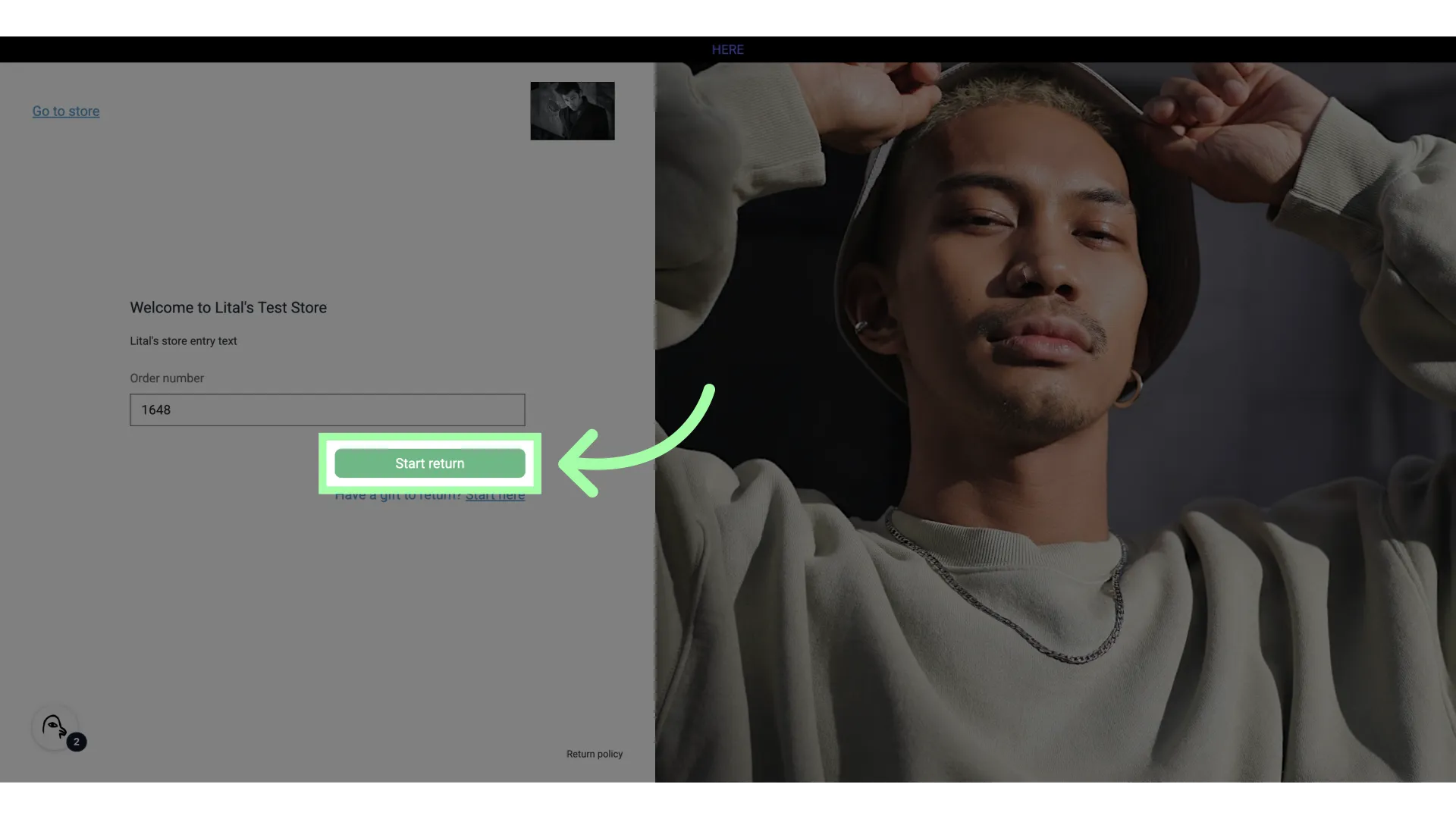
- Enter your order number, and if necessary, the email address associated with the order
- Click "Start return"
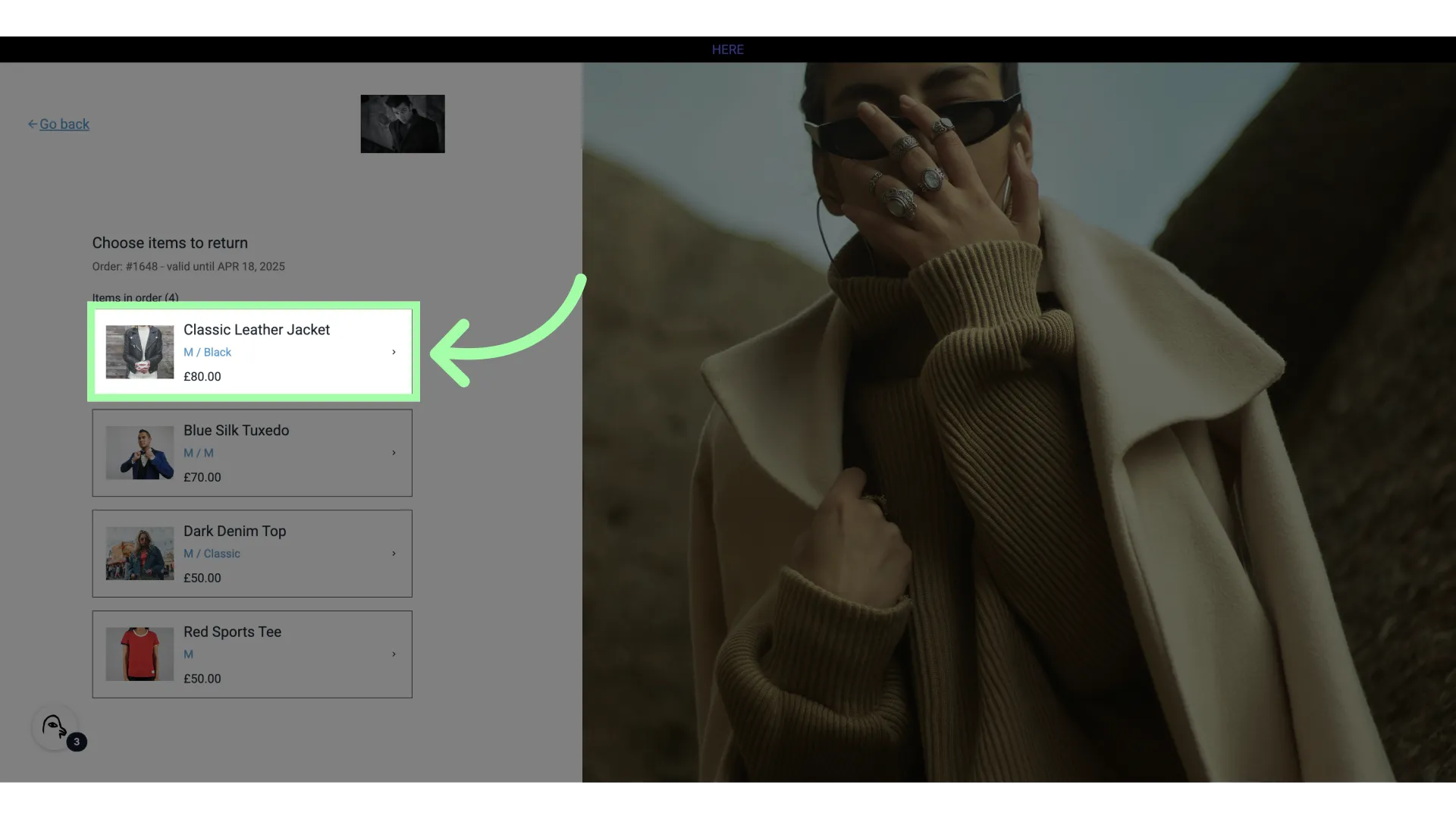
- Select the item you wish to return
- Select a return reason from the pop-up
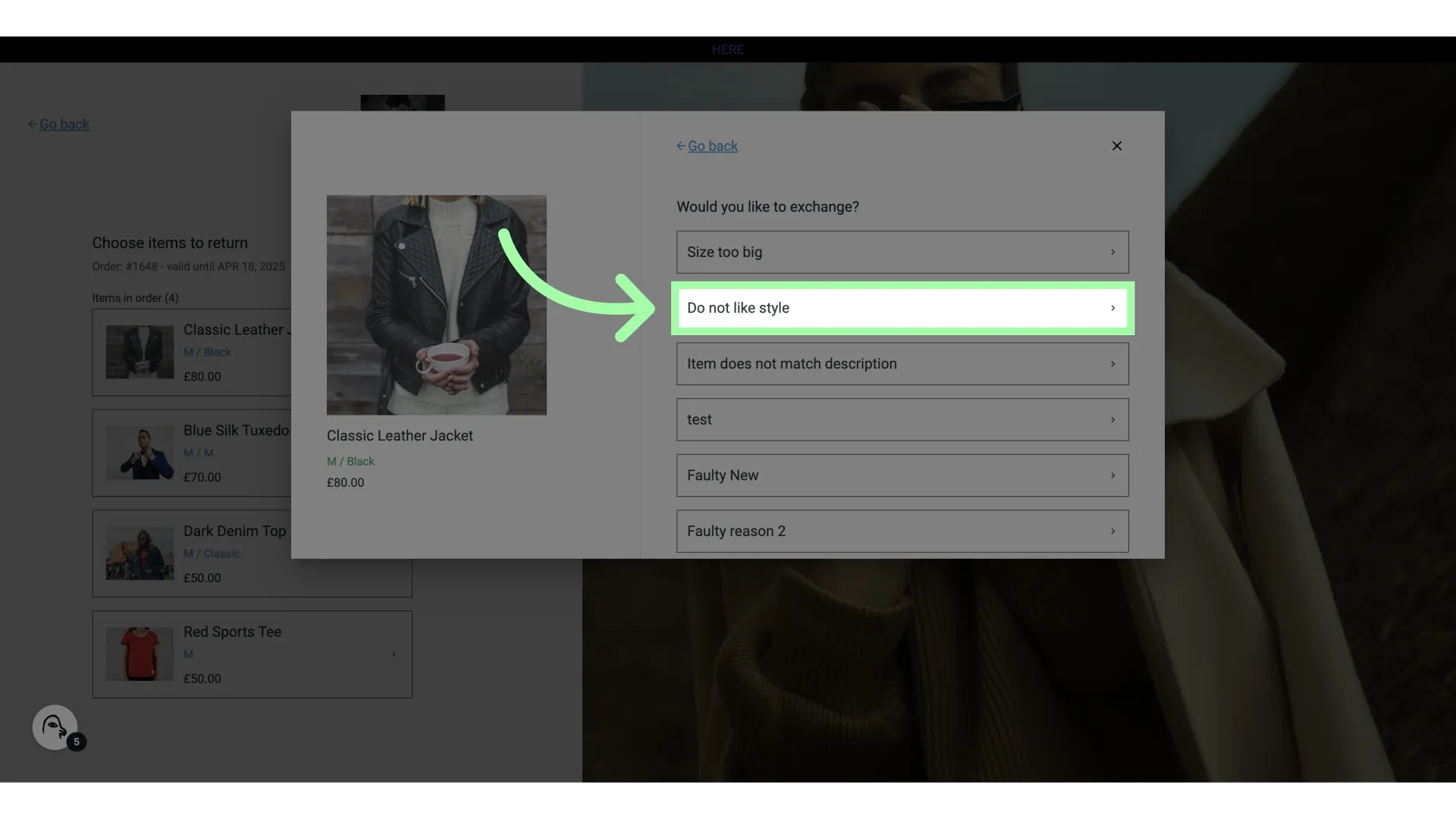
- If necessary, add a comment
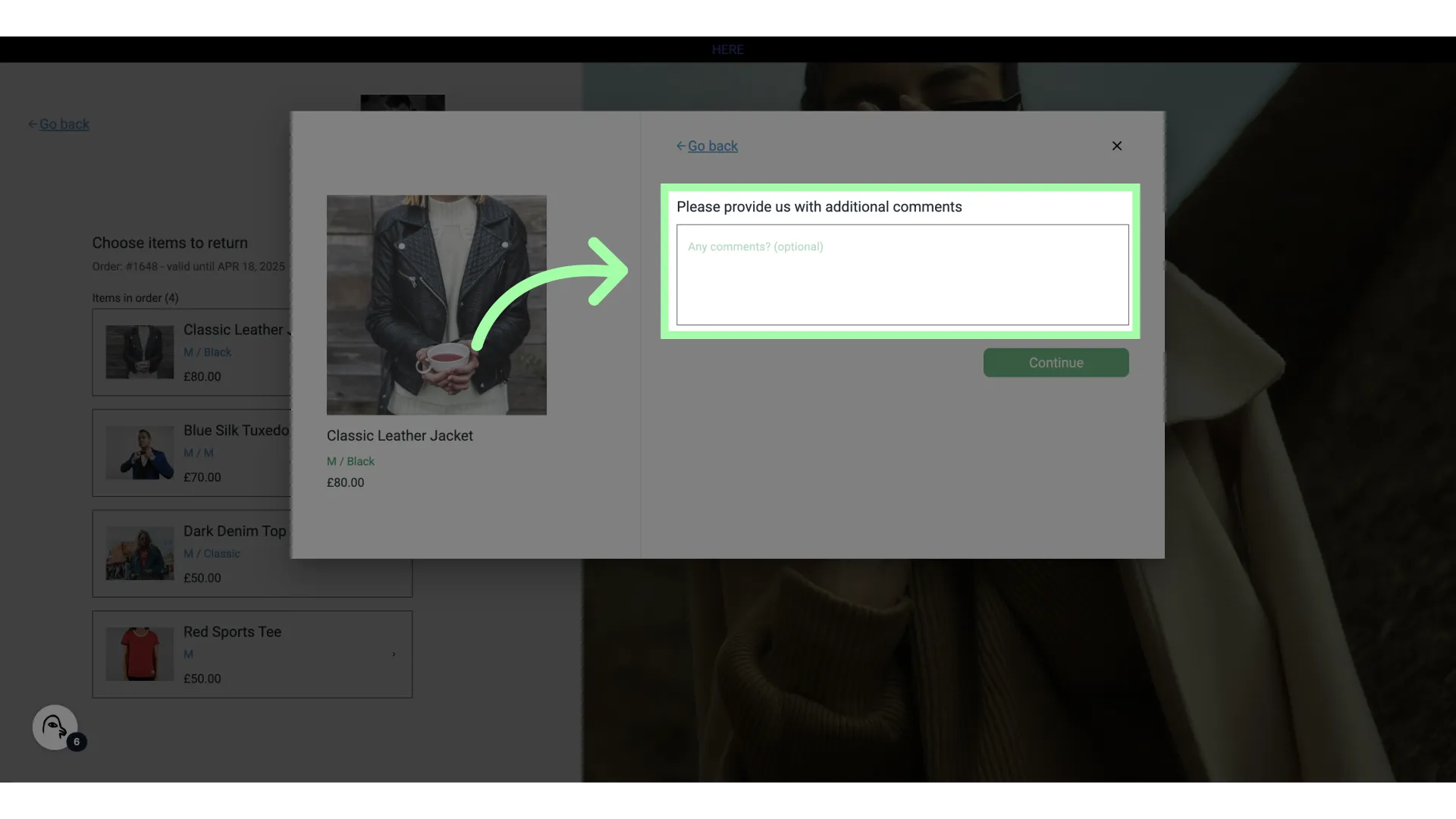
- Click continue
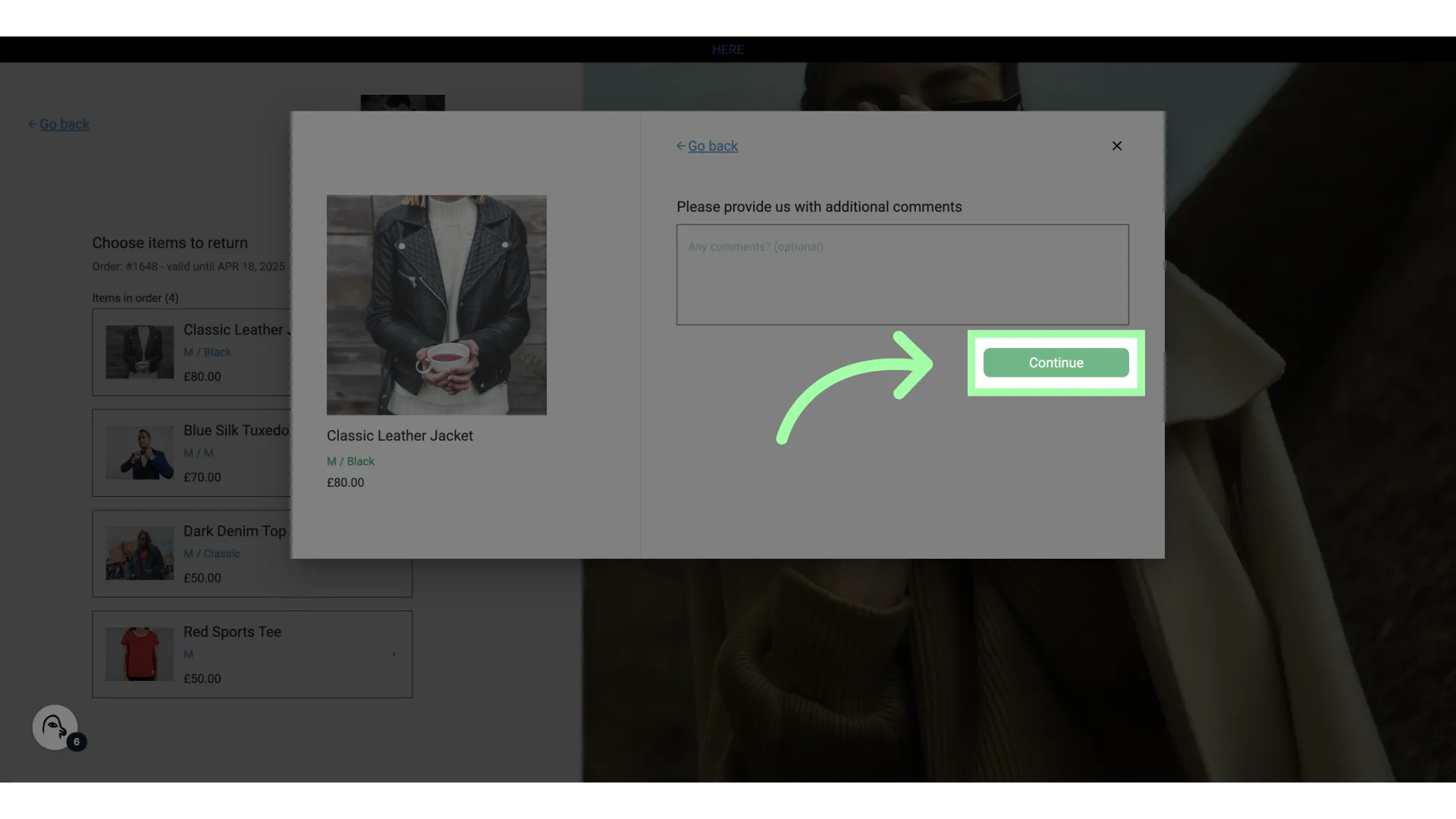
- Pick an option from the list. Depending on your choice, you can exchange the item, or receive a refund
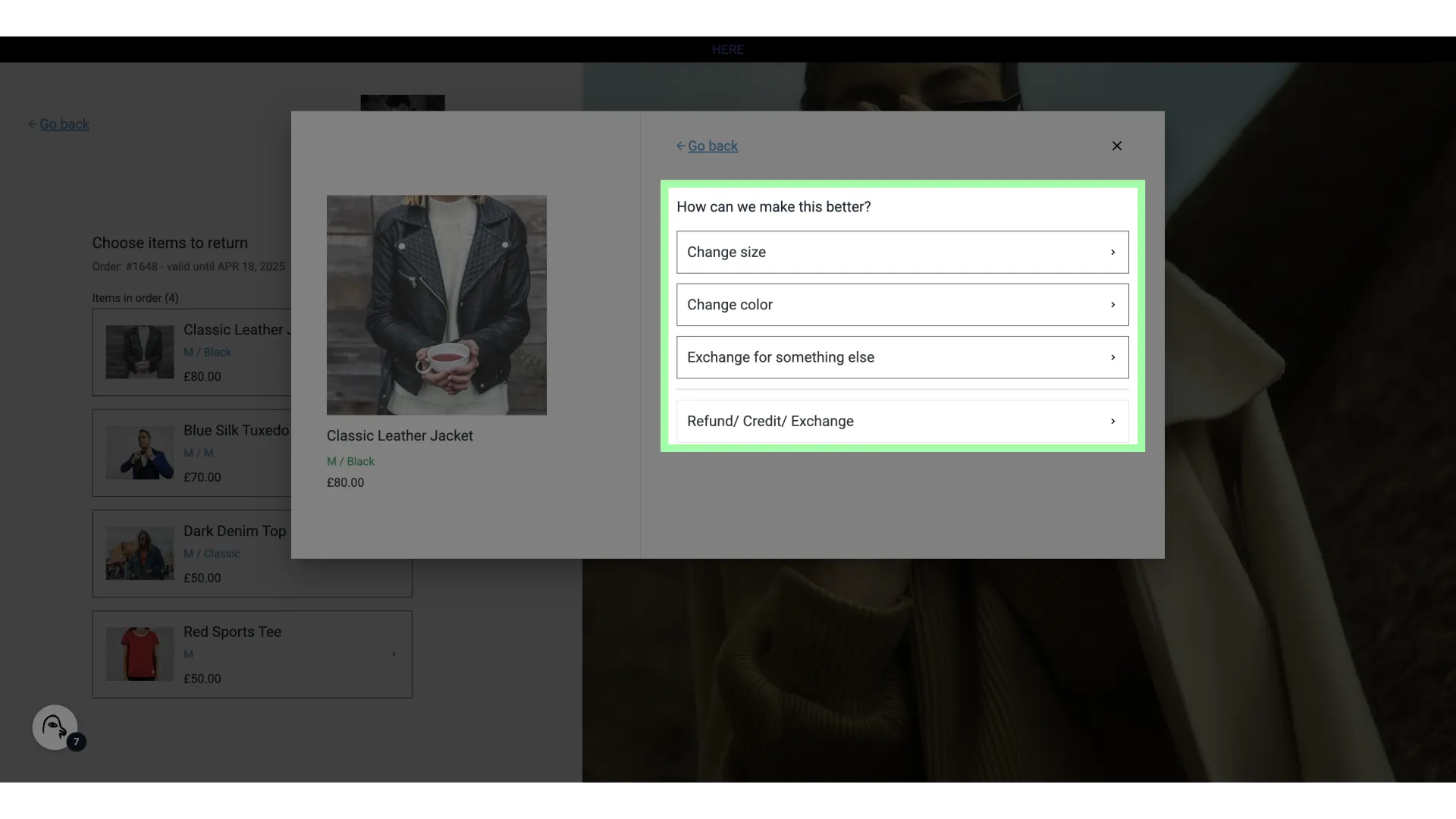
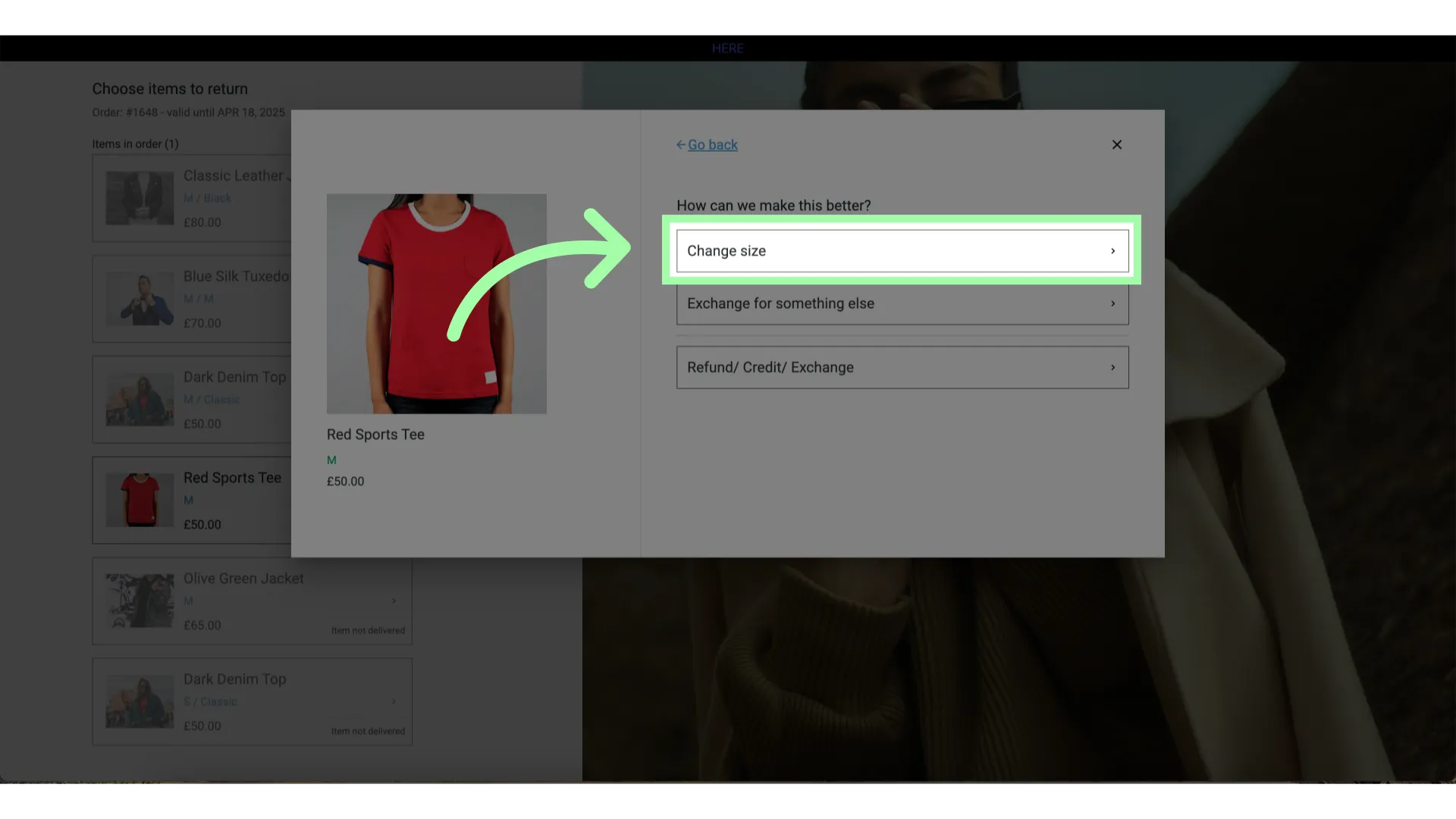
- Picking these, you can exchange for different variant
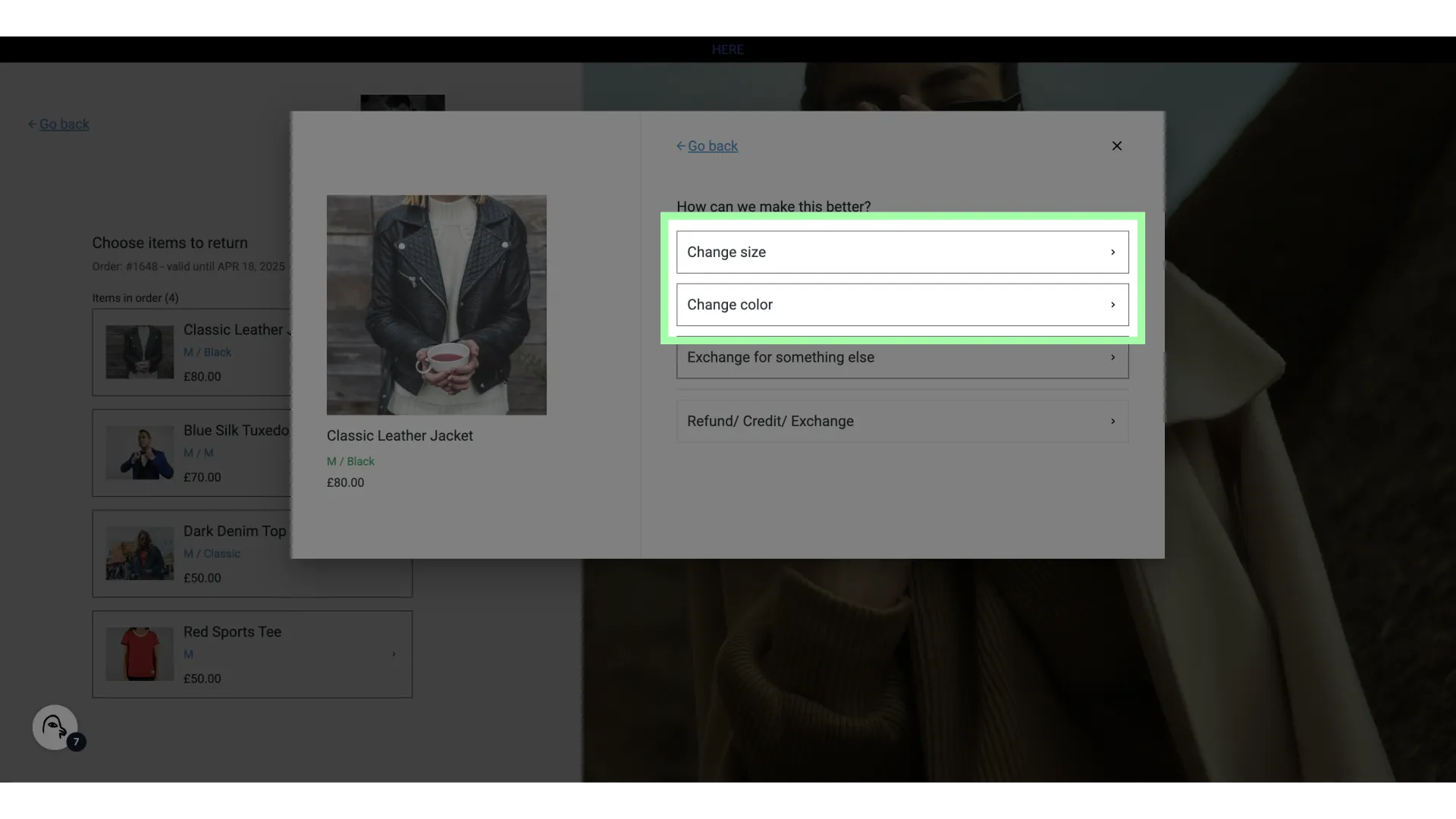
- Pick this to exchange for a different item
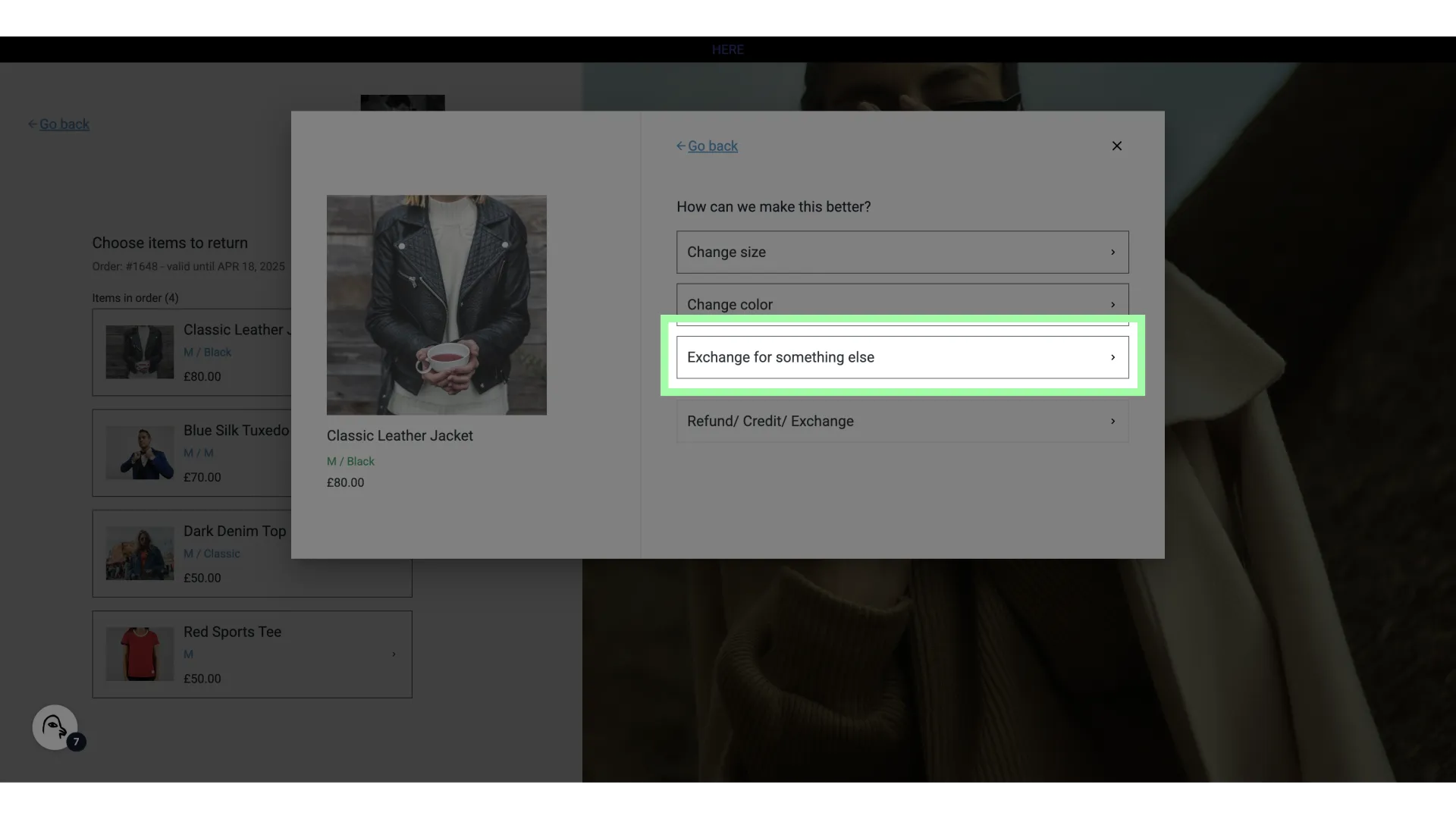
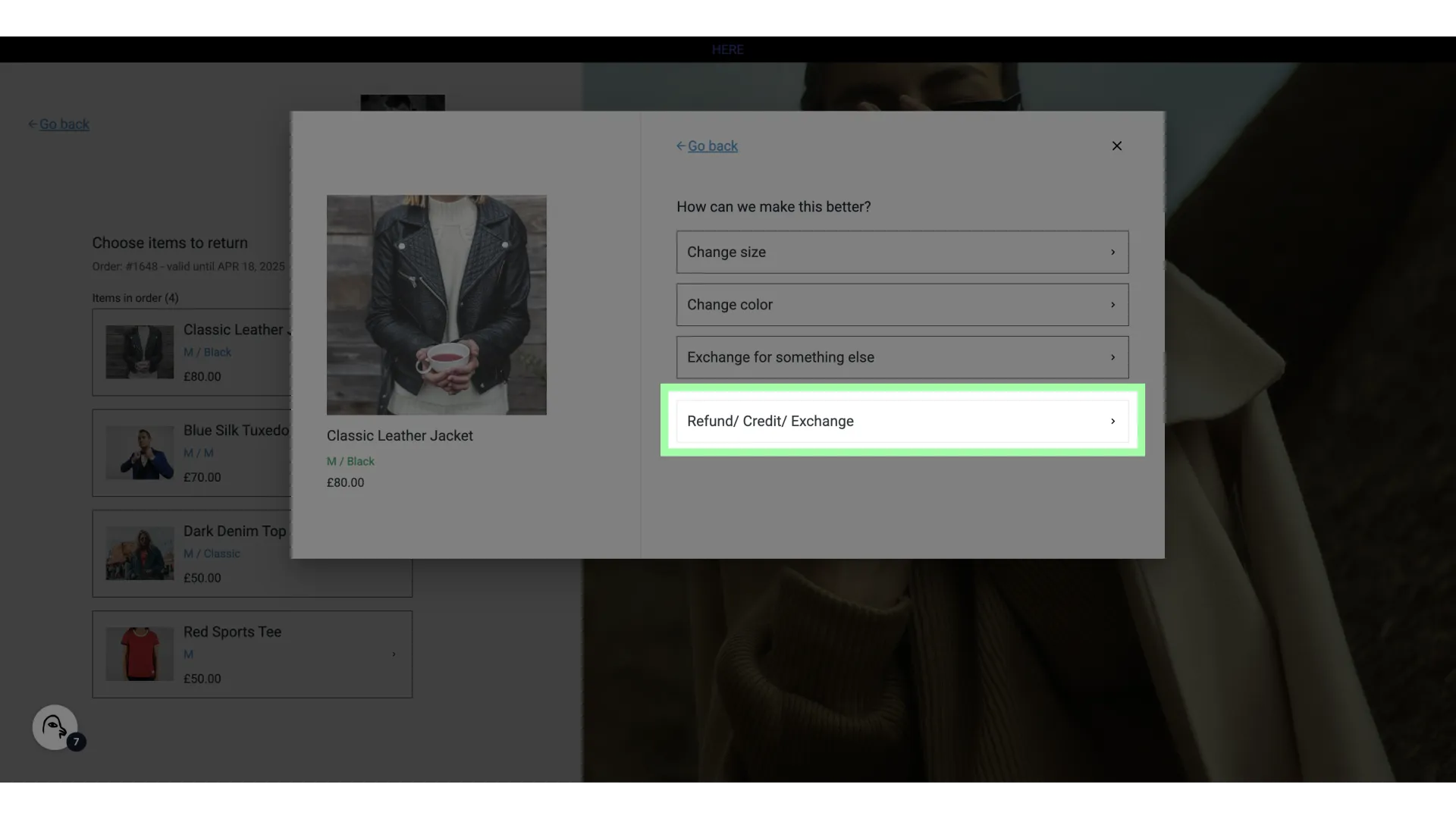
- If you prefer a refund, pick the bottom option. This is the option we will be picking
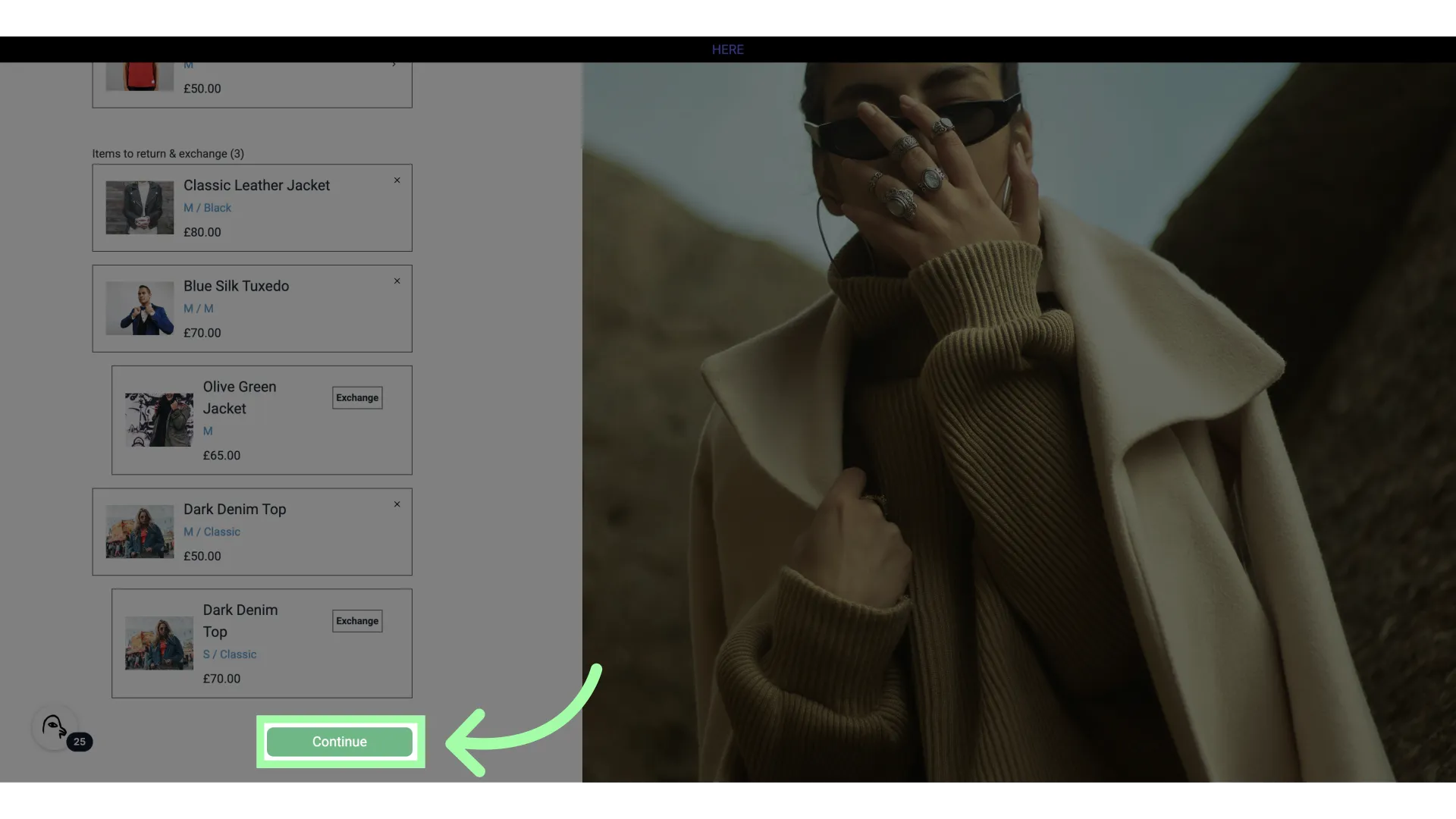
- You can see which item(s) you are returning
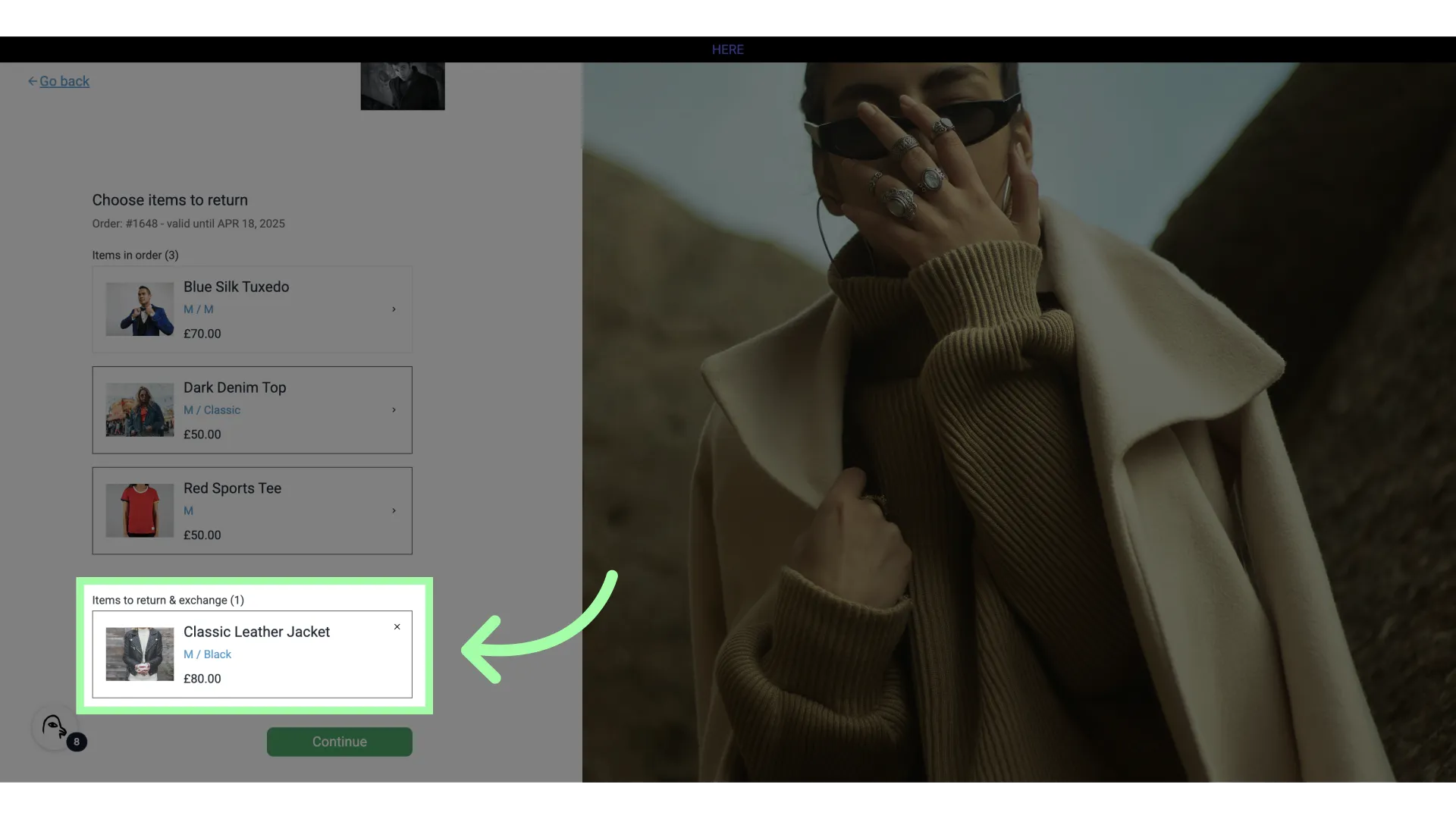
- You can select another item to return by selecting it from the list
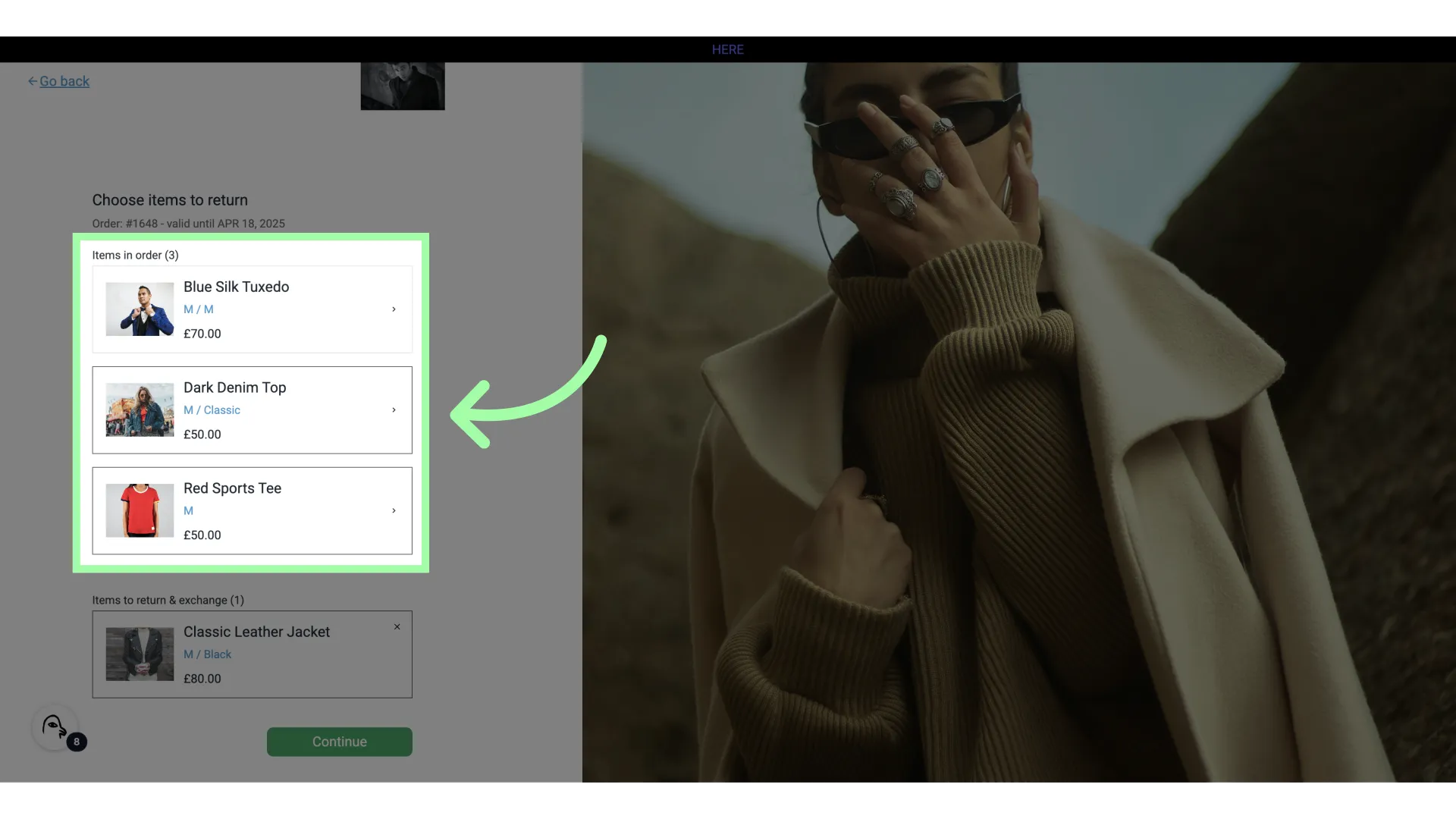
- Let's exchange the Tuxedo for something else
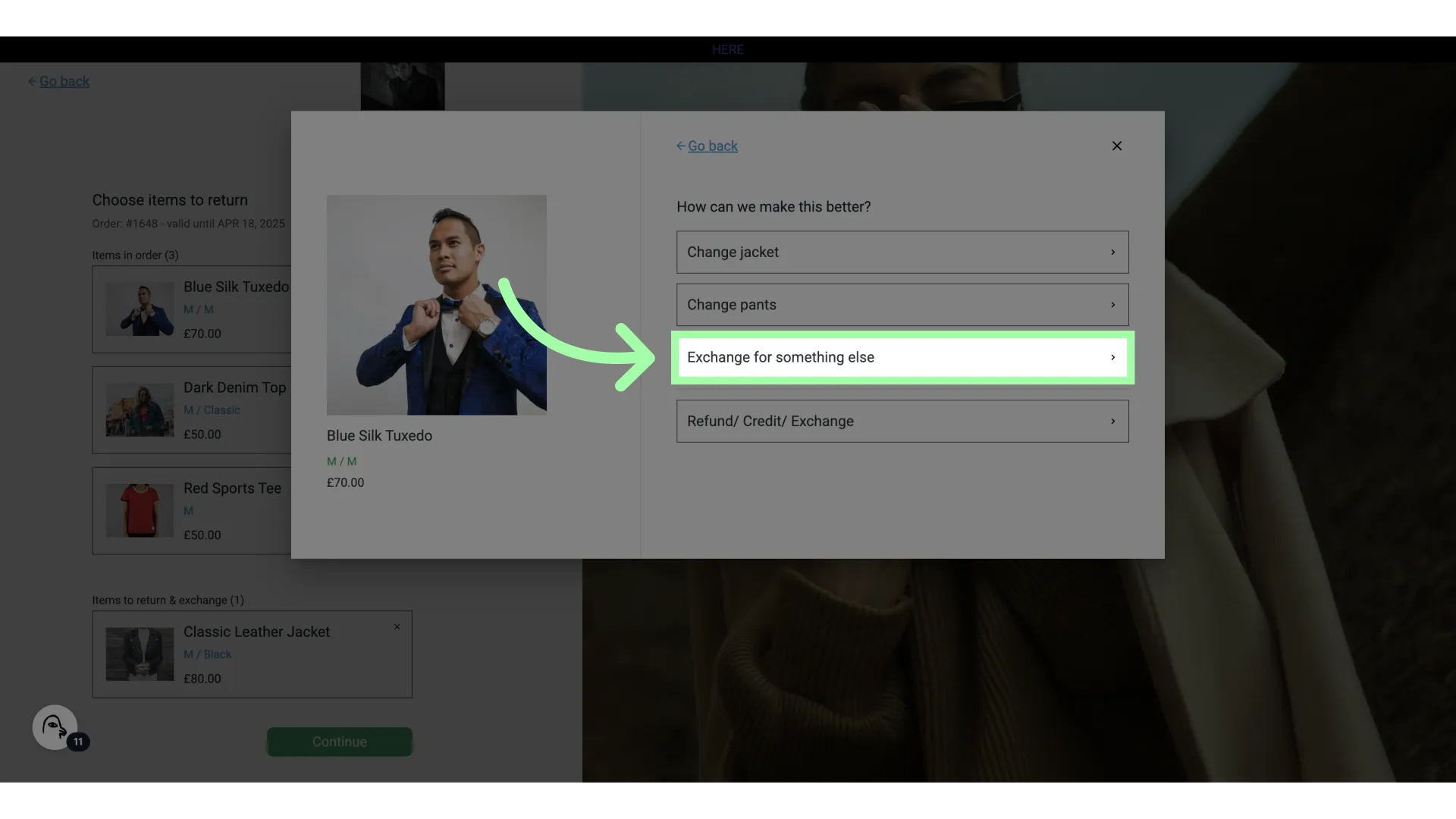
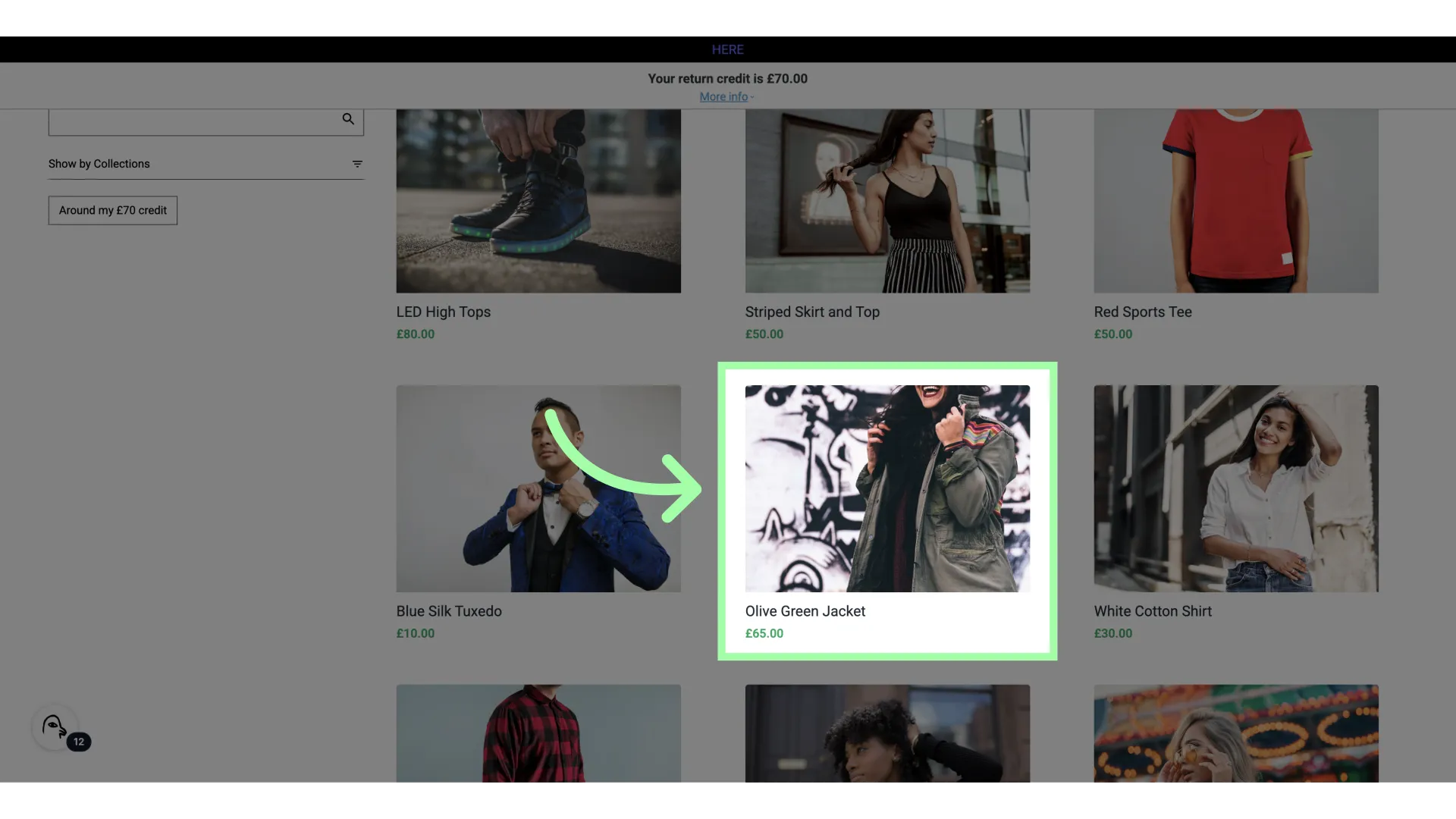
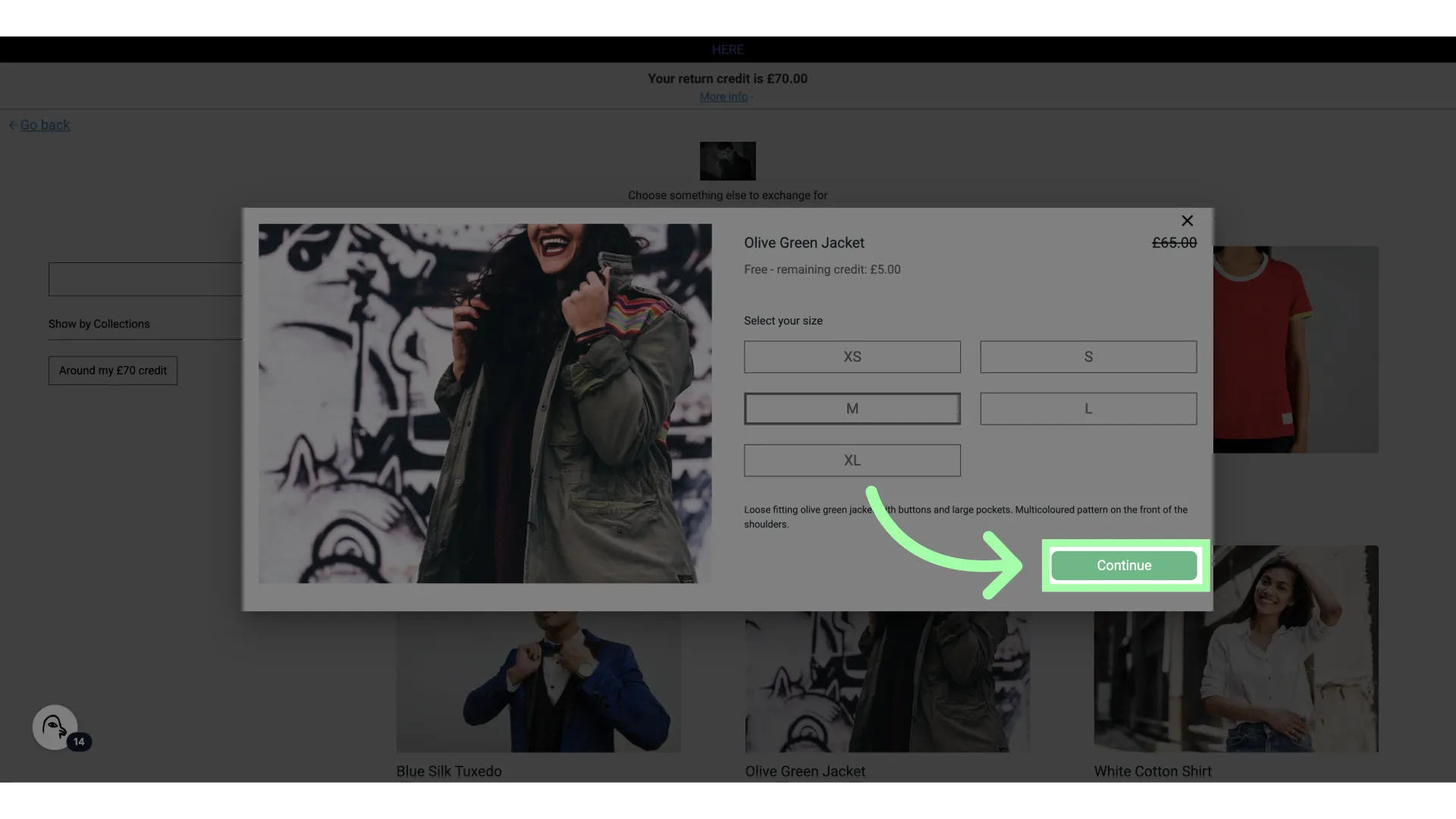
- A window will appear where you can select a new item
- Select the variant for your new item
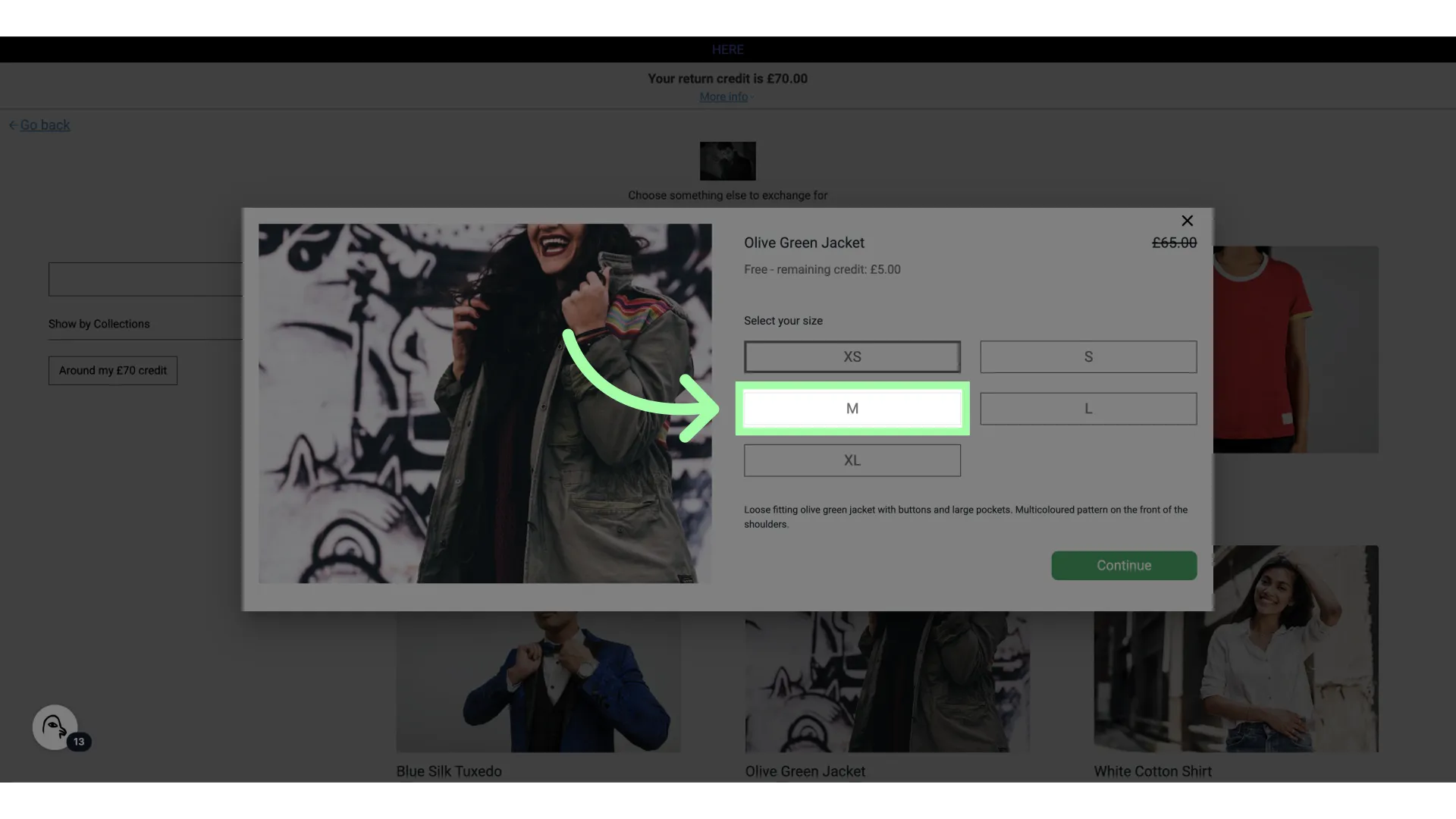
- Click "Continue"
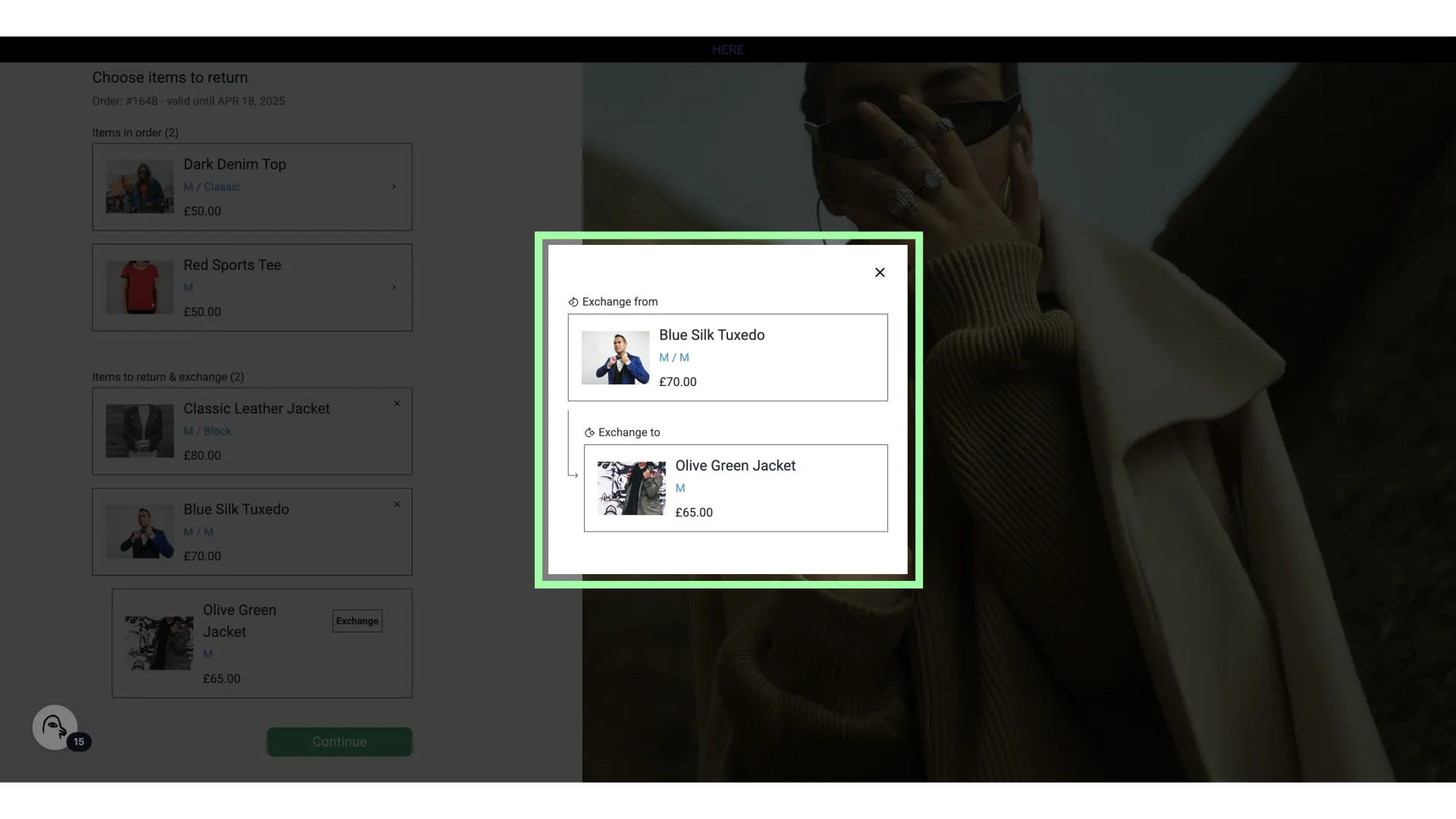
- As we are exchanging, we will see a pop-up with the exchange information
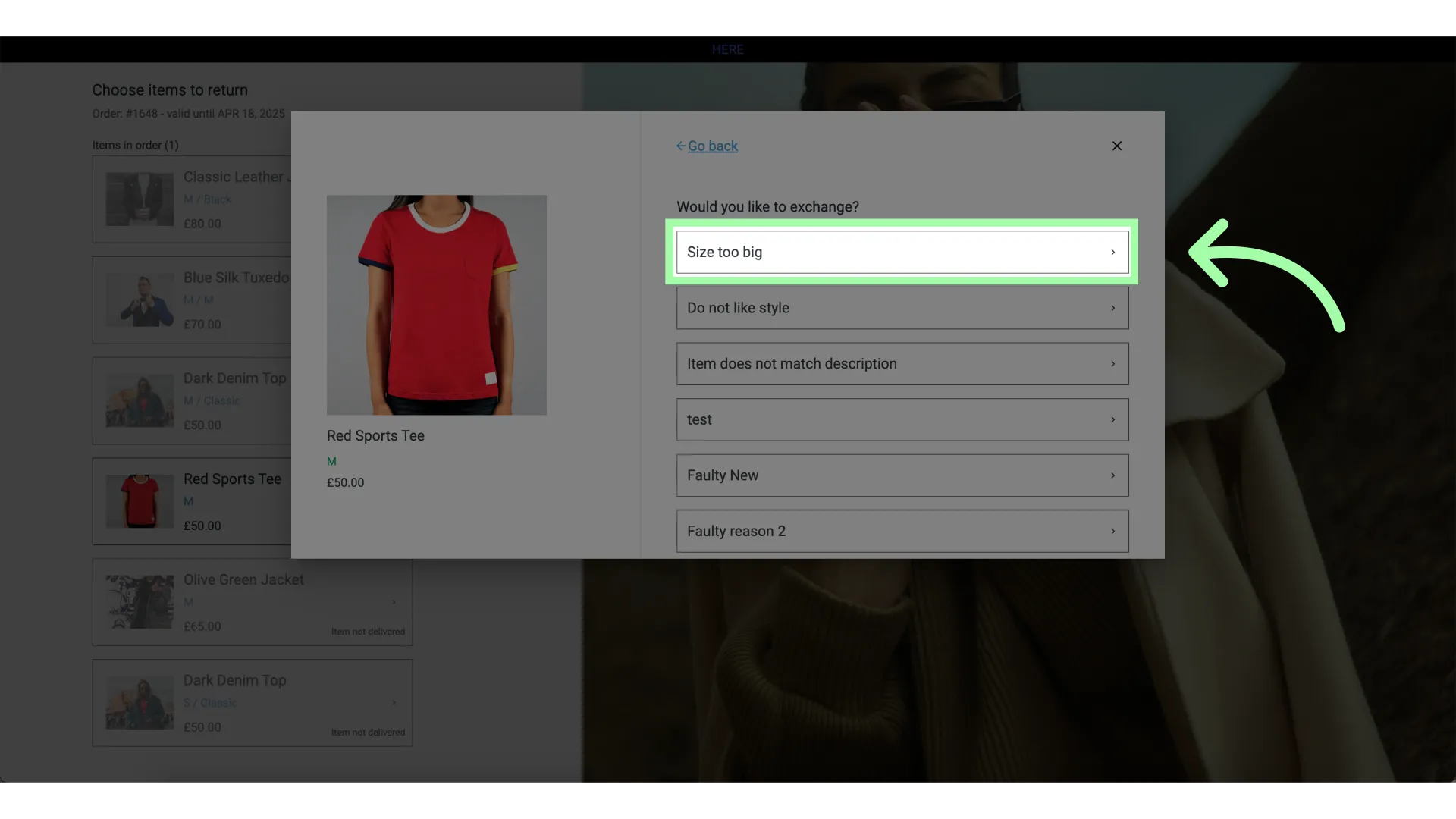
- This t-shirt was too big. Let's exchange it
- Click "Change size"
- Select the new size
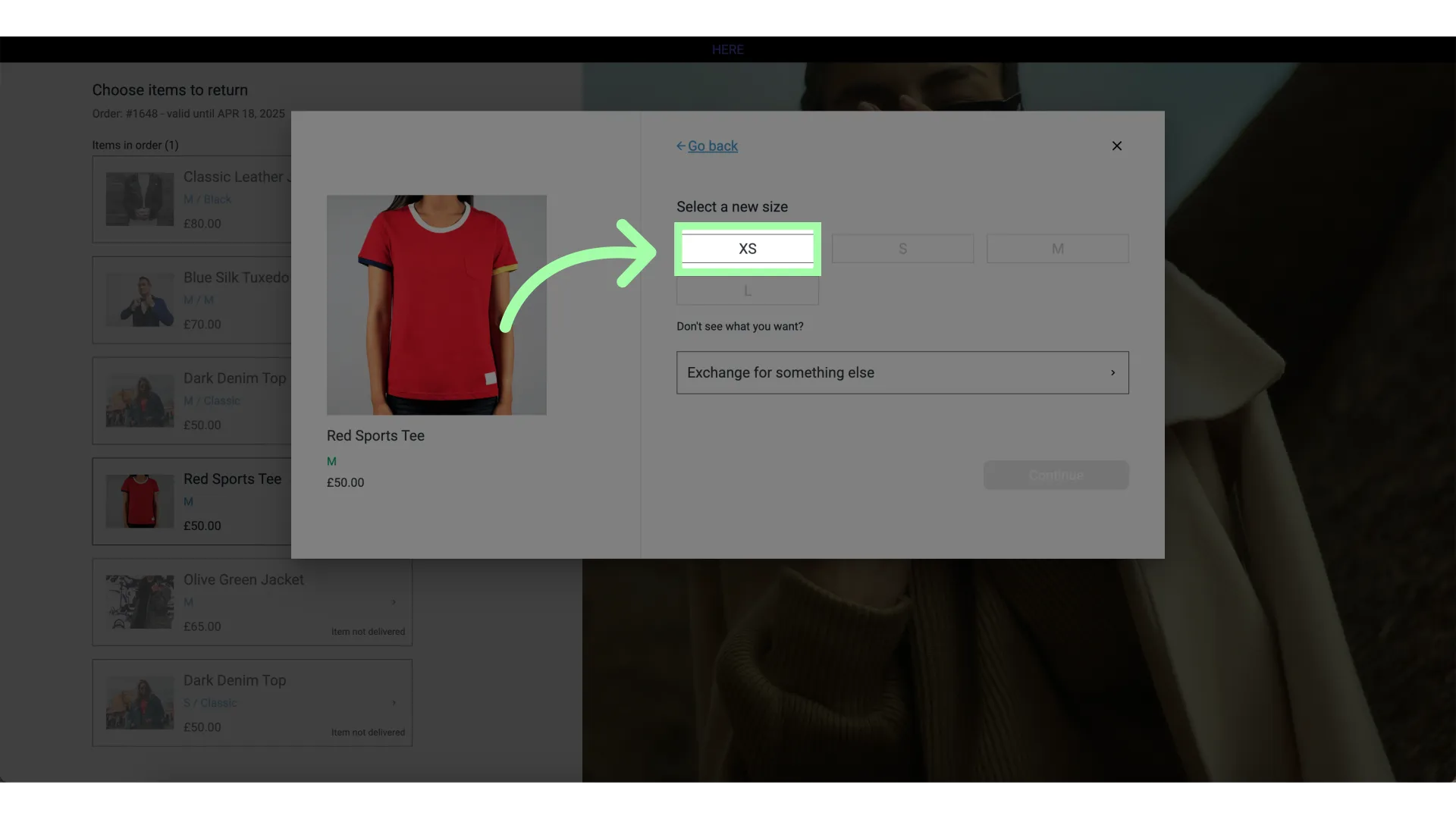
- Click continue
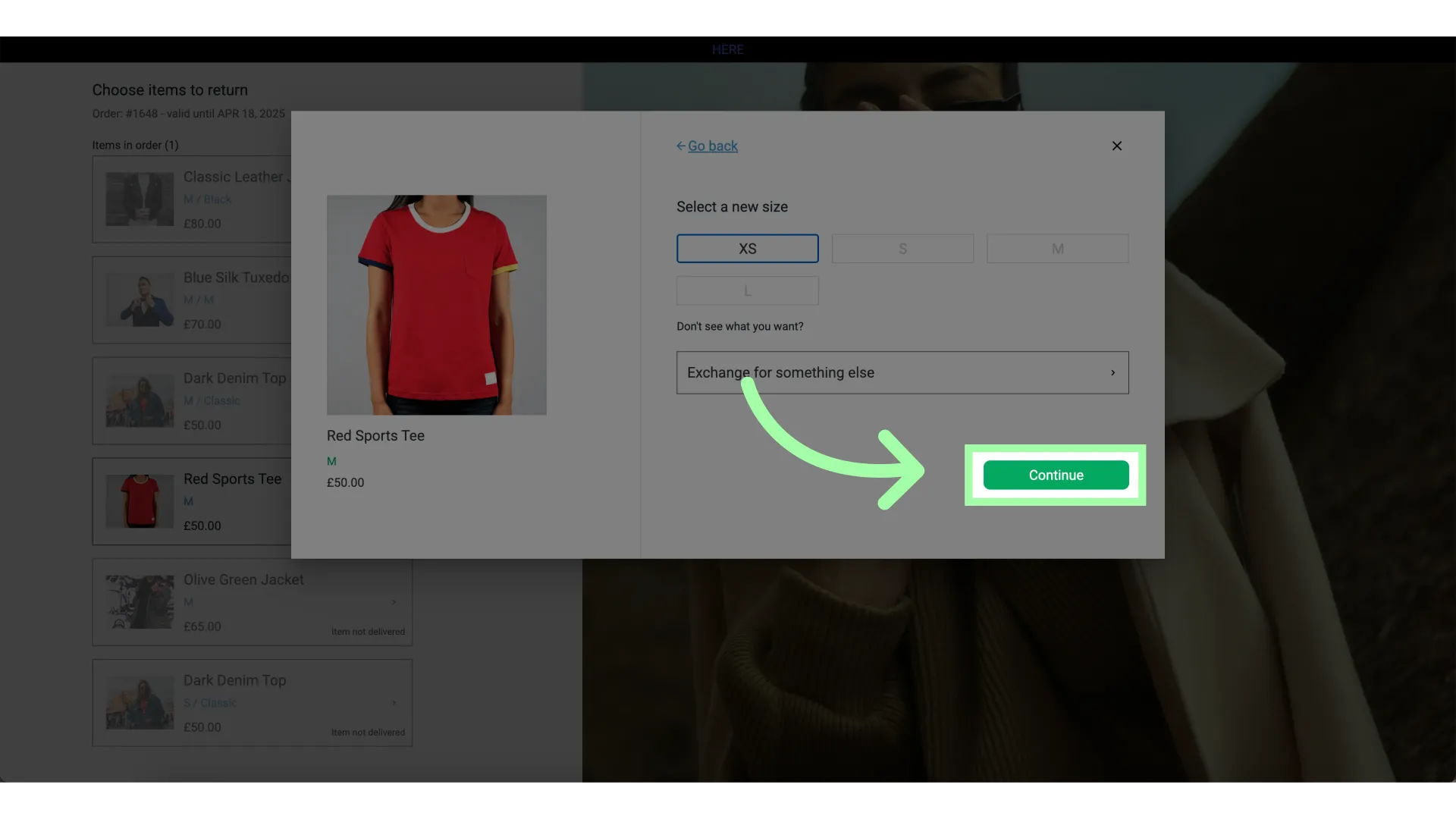
- Click "Continue"
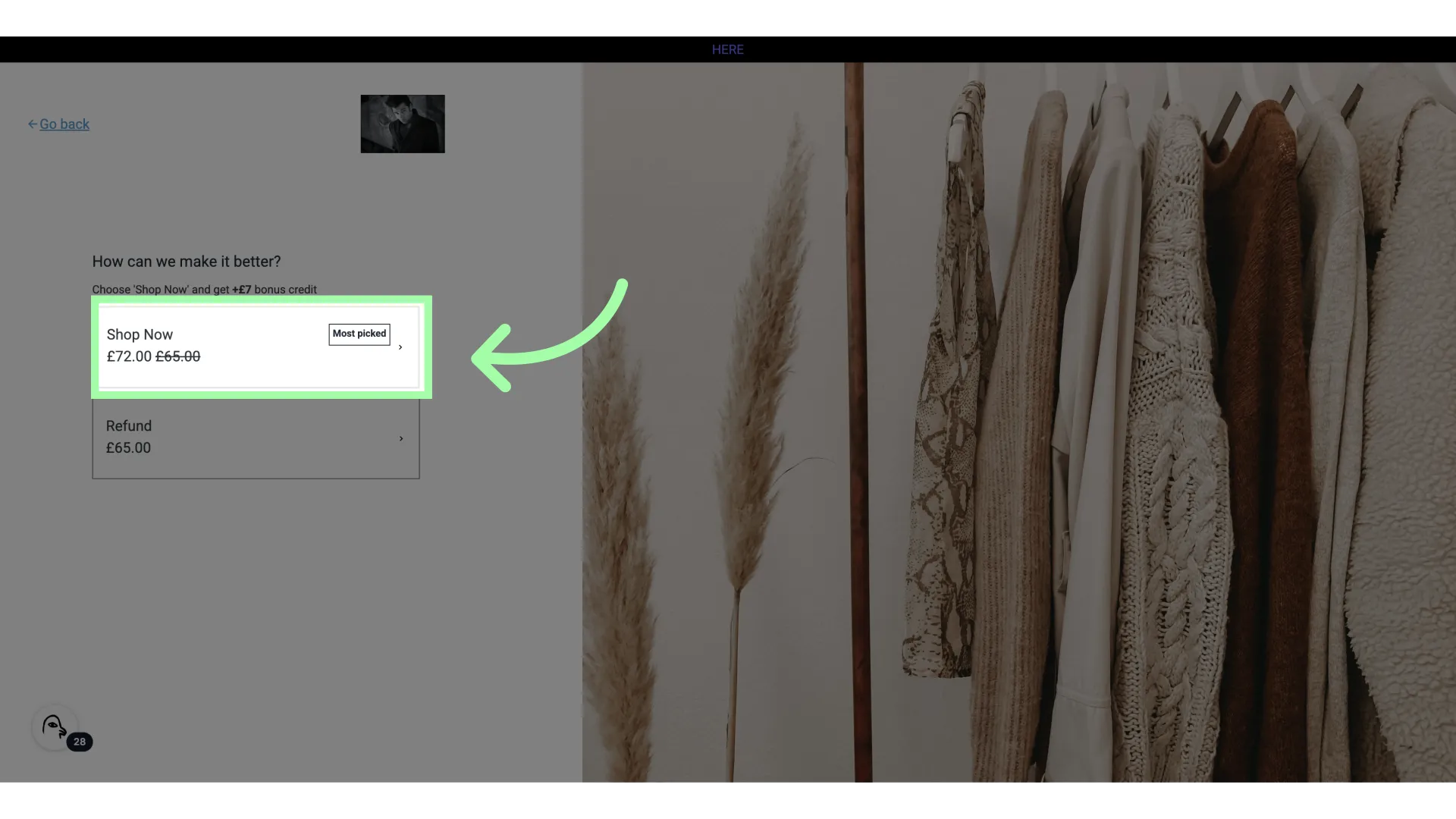
- Choose how to receive the value of the return. Shop Now lets the customer pick a replacement item straight away, and a refund returns the amount to the original payment method
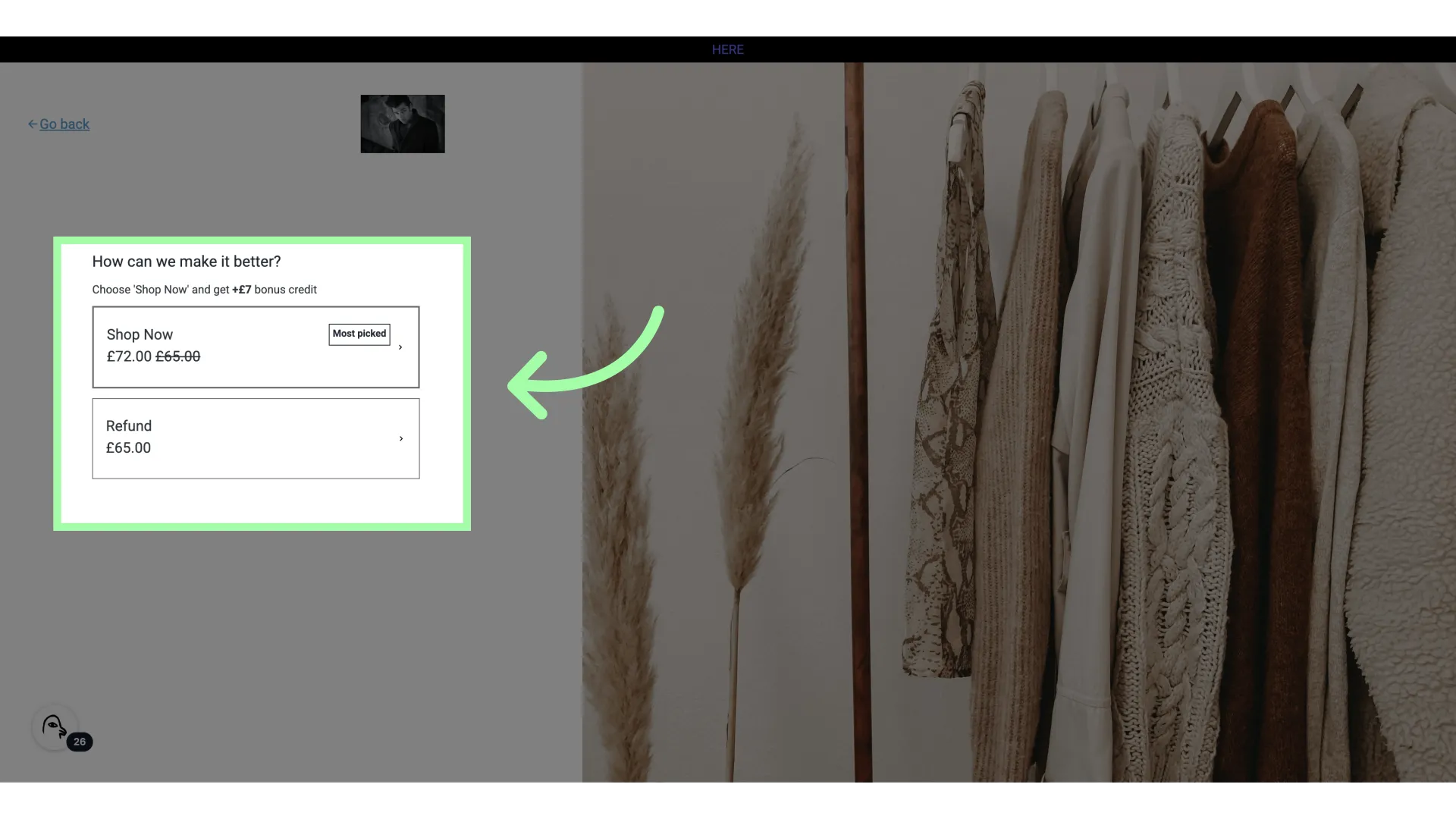
- We will select "Shop Now"
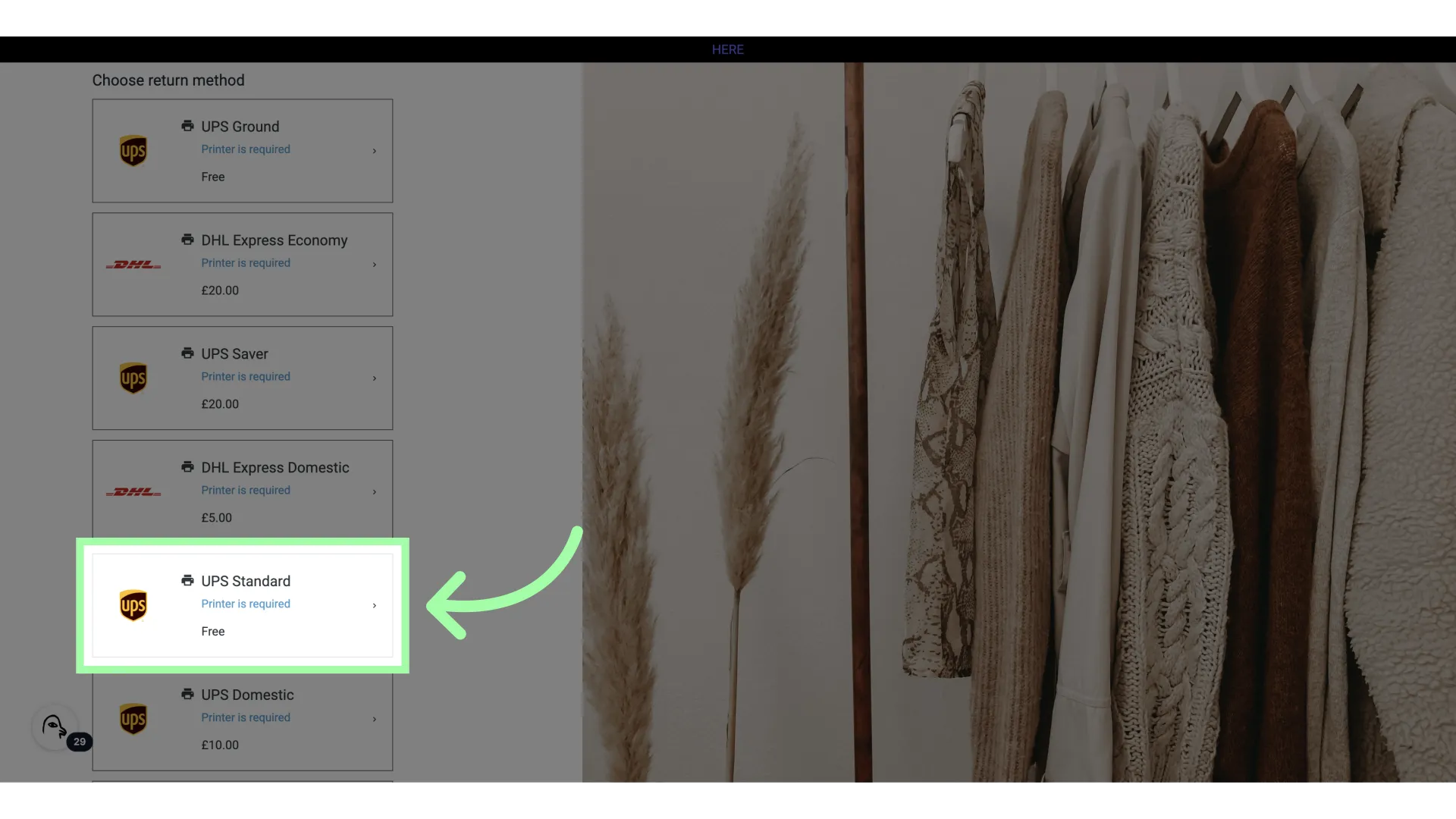
- Select a carrier
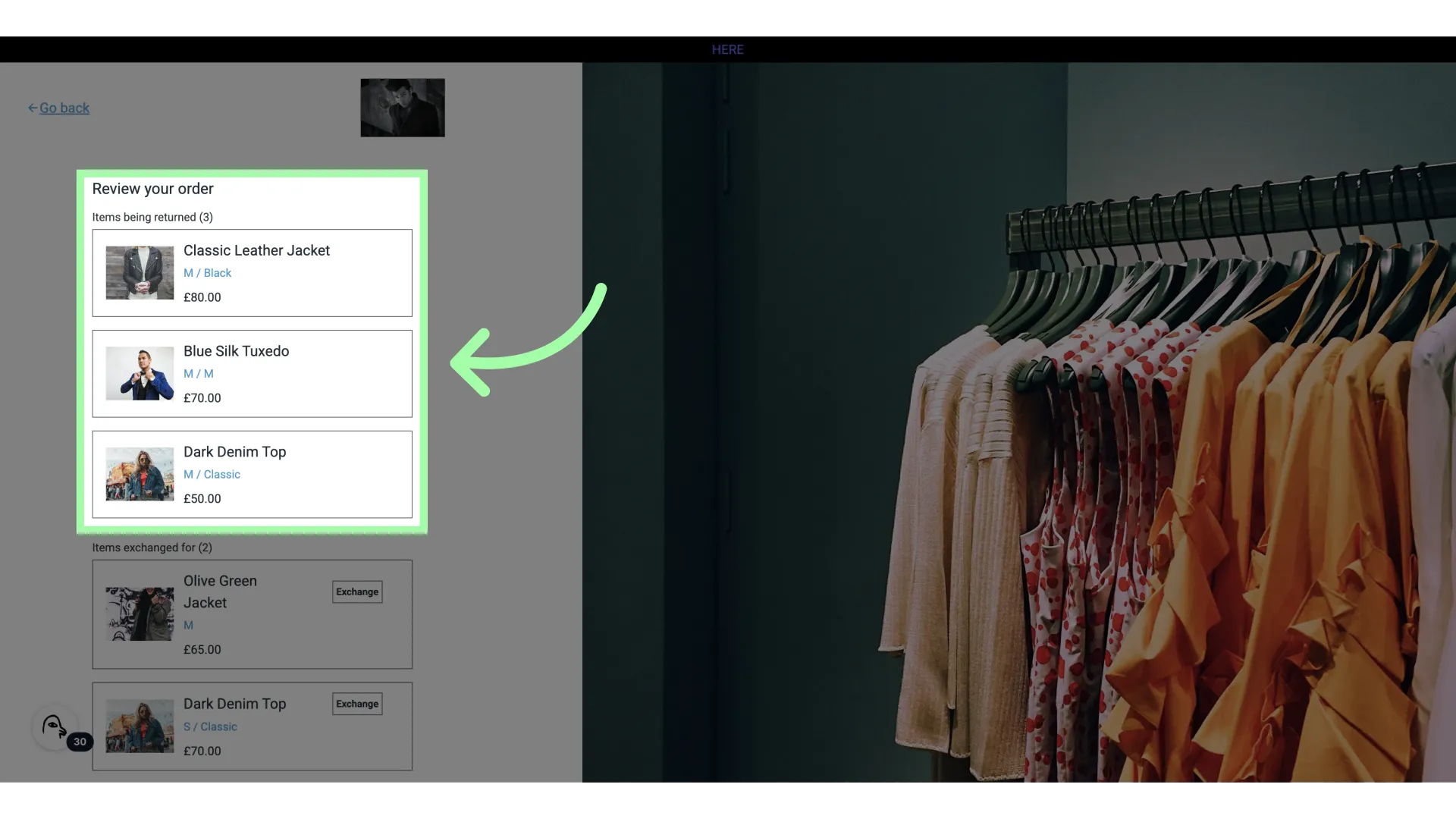
- These are the items being returned
- These are the items being exchanged for
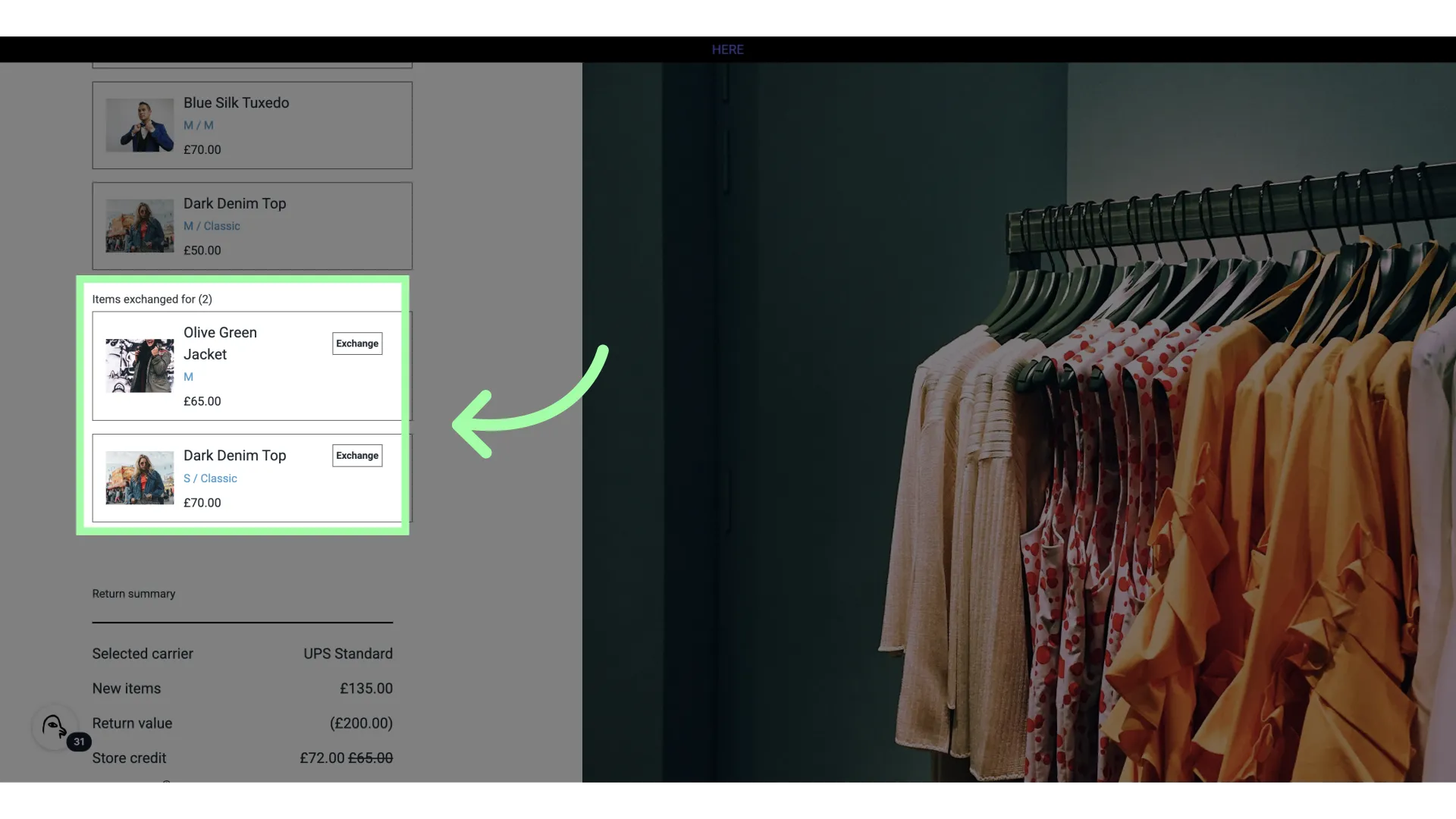
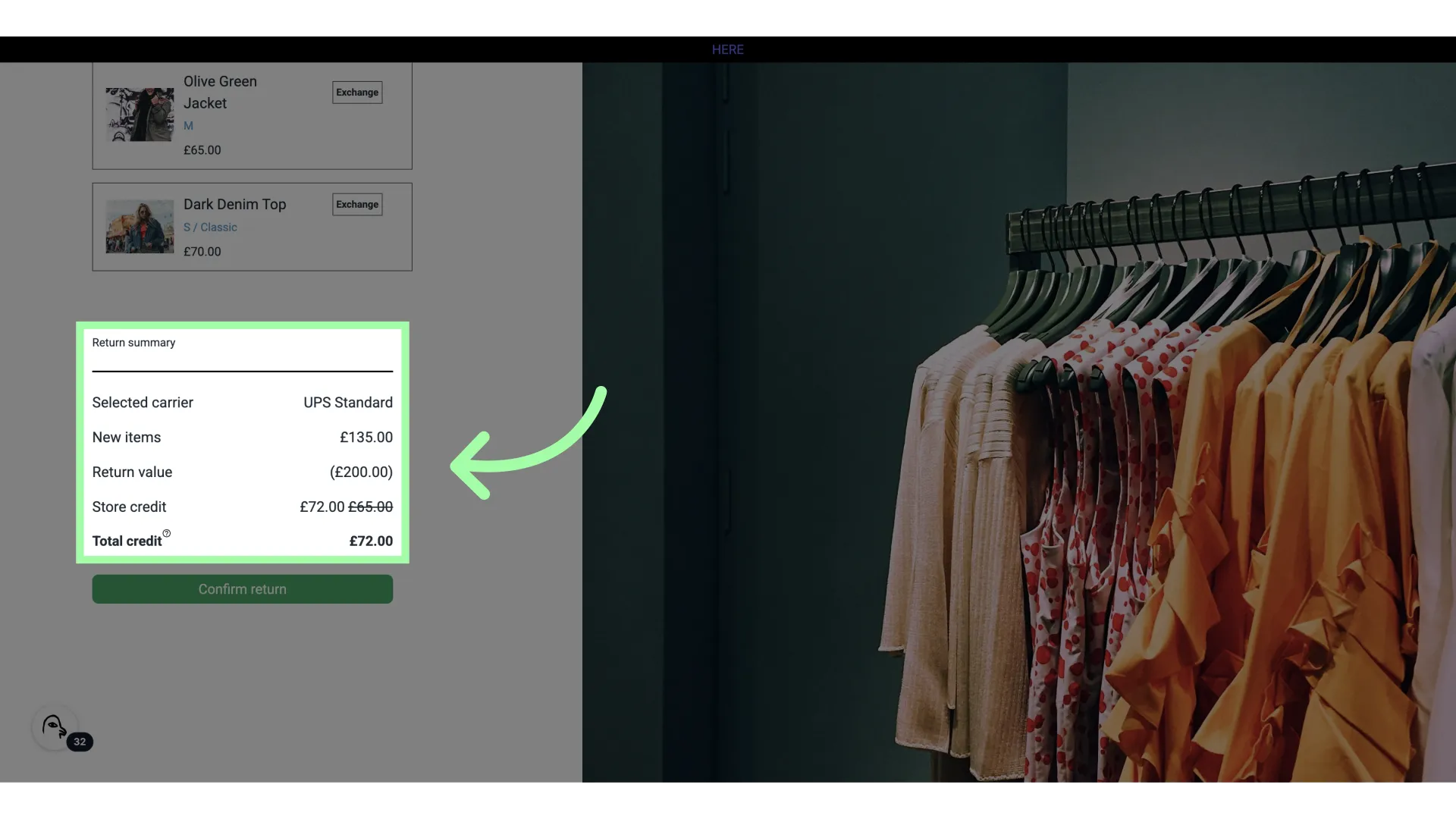
- This is the return summary. The total refund, credit, or additional payment will be displayed here.
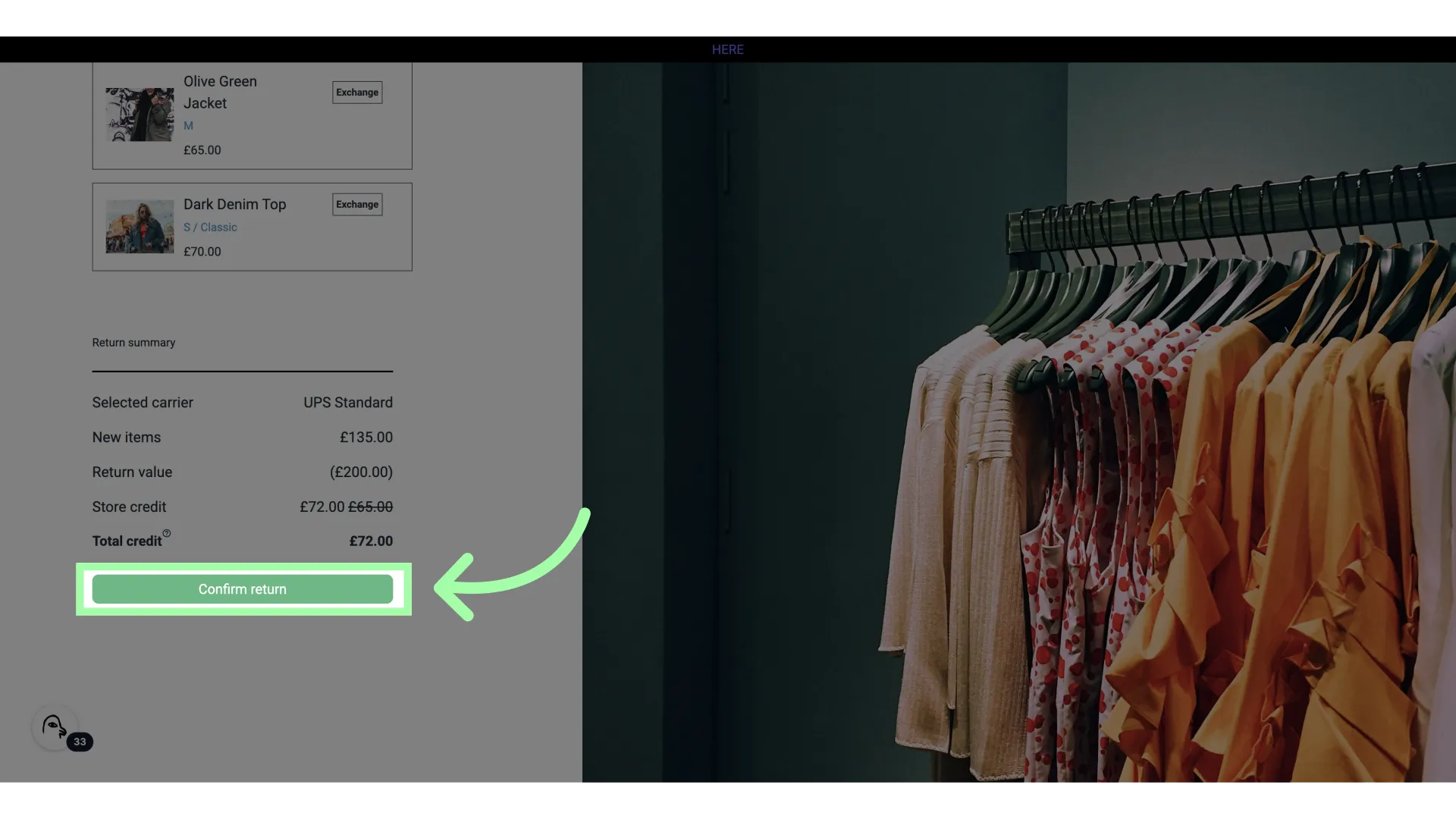
- Click "Confirm return"
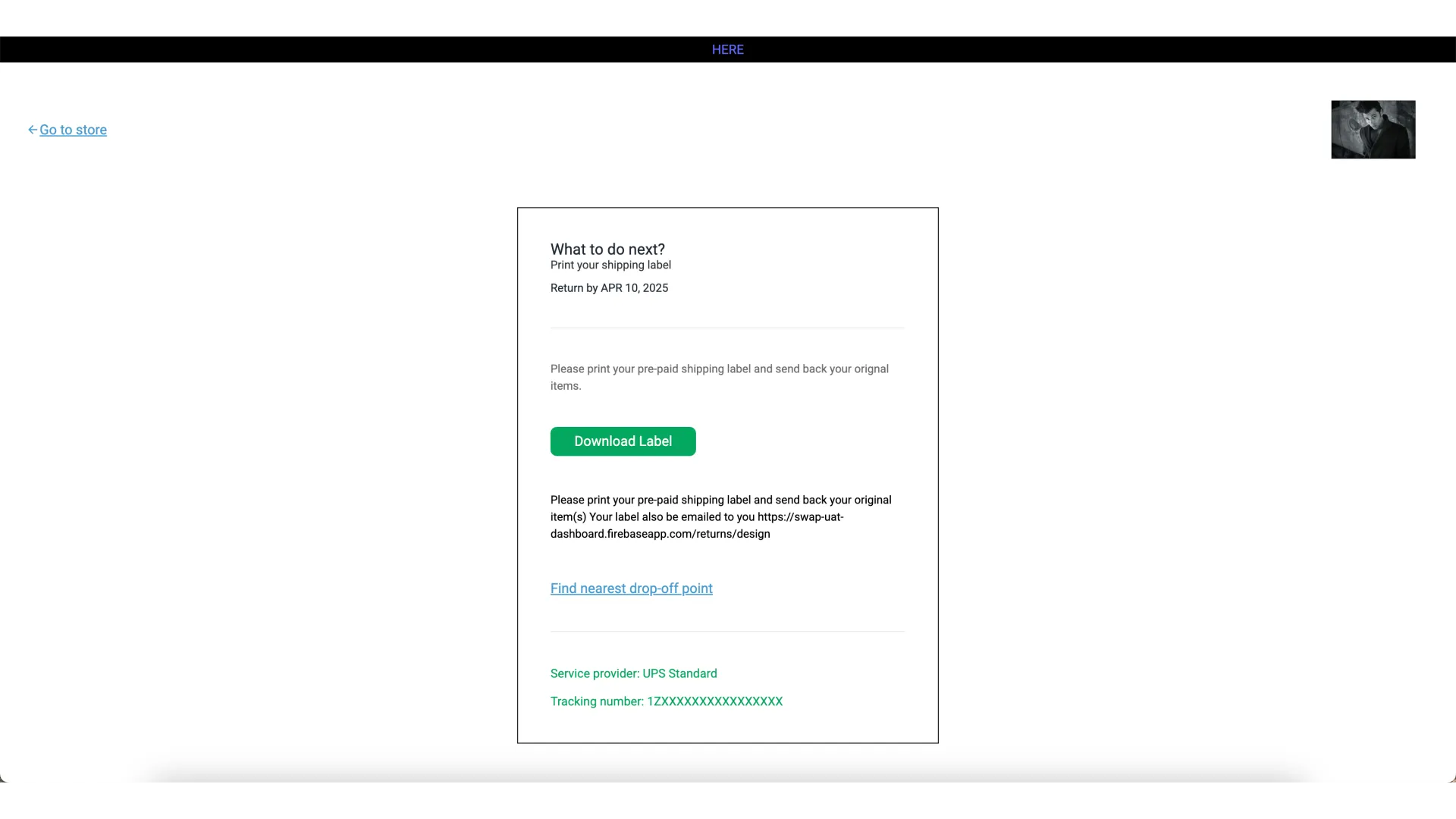
- This is the confirmation screen
After the return is confirmed
Once the customer confirms their return, the confirmation screen shows their return instructions:
- A QR code or a return label, depending on the carrier. Not every carrier provides a QR code.
- Links to download the QR code and label.
- A suggested date to drop off the parcel, if you have set a Suggested package drop off window in Returns → Settings → Returns. This date is a suggestion, not a deadline.
The same instructions are sent to the customer in the return submitted email. To change what this email says, see How to customise Swap emails (Returns V2).
Processing returns
To process a return, go to your Swap Dashboard. These articles cover each outcome: