
















The Swap Discovery action plan turns your AI visibility results into a queue of specific work. This article explains how to review a piece of work before it reaches your store, when it makes sense to let Swap Discovery publish without you, and where to find a record of what has changed.
What the action plan is
Each gap Swap Discovery finds becomes an opportunity, grouped by the tool that will do the work. Your dashboard shows the count of actions waiting for you, and Open plan takes you to the full list.
The opportunity types are:
- Blog Post Opportunities
- FAQ / Knowledge Base Gaps
- Product Audit Opportunities
- Collection Audit Opportunities
- Evergreen Page Opportunities
- Content Checker
- Reddit Opportunities
- Digital PR Opportunities
- LinkedIn Opportunities
- AGENTS.md
- Mirror Pages
Each shows how many items it has found and how many you have completed. Which types appear depends on your plan. Your plan also sets how many tailored action items are generated each month: 15 on Business, 50 on Growth, 70 on Scale and more than 120 on Custom. A tailored action item is one specific piece of work chosen for your store, such as a blog post, an evergreen page, an FAQ set, structured data or a collection improvement. The in-app agent prioritises the work and drafts each item for your brand, with the reason it was raised, so it arrives ready for your review.
The Action Plan has three tabs: Review queue, which carries a count of items waiting on you; Plan configuration, where you set how each type behaves; and an activity log of what has been reviewed and completed.
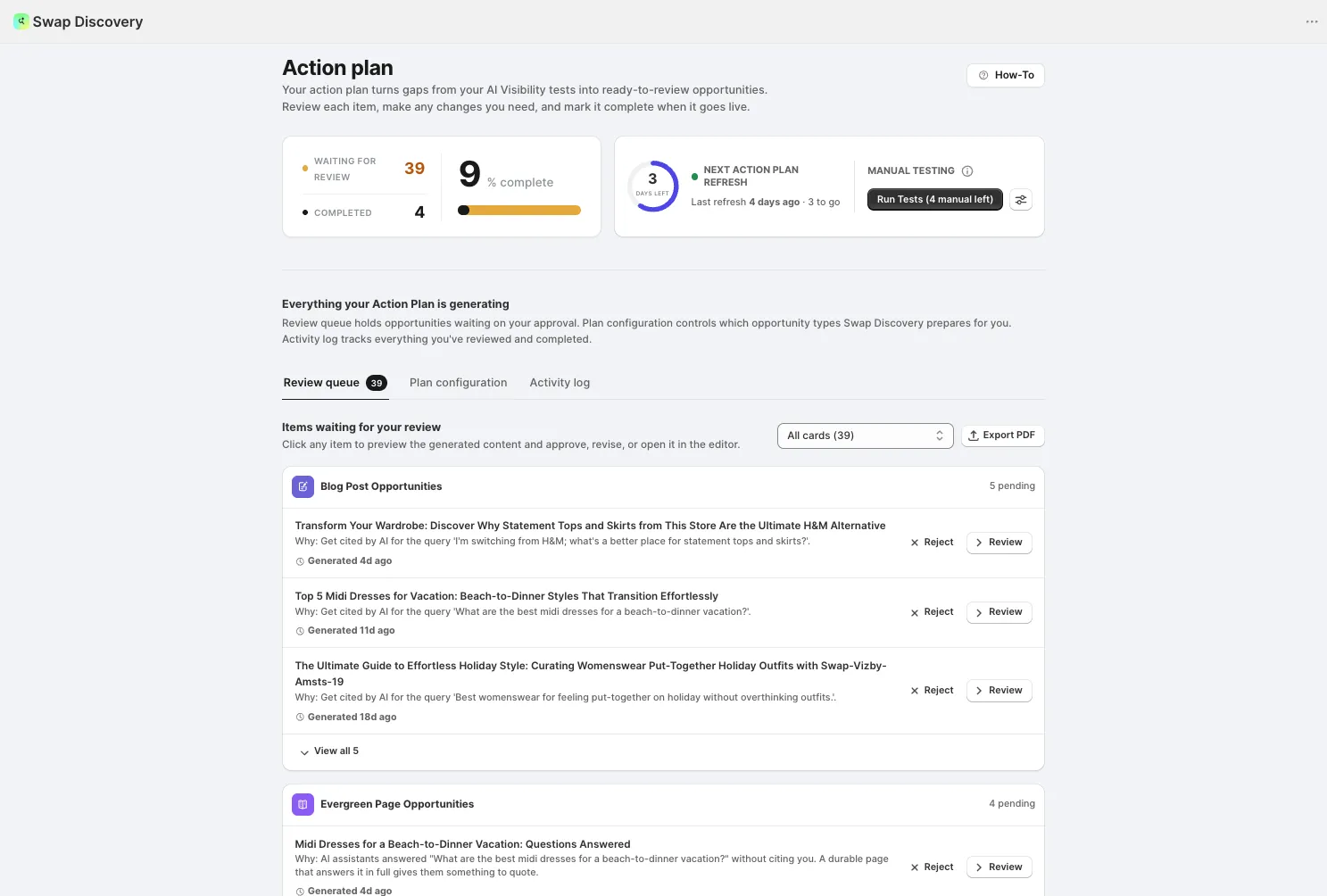
Nothing is published or sent on its own unless you have set that type to Auto-approve.
The opportunities come from what Swap Discovery finds: gaps in how AI answers questions about you, covered in Understanding AI Visibility in Swap Discovery, and gaps in your catalogue, which reach the queue as product and collection opportunities, covered in Understanding Product Audit in Swap Discovery.
How the plan keeps itself up to date
The action plan keeps itself up to date from your visibility tests. Every time an AI Visibility test runs, new action items are generated and added to the plan automatically, so you do not need to generate or refresh it manually.
- AI Visibility Autopilot reruns your visibility tests on the cadence your plan includes: weekly on Business, twice a week on Growth and Scale, and daily on Custom. It has its own on/off setting. Scheduled and manual tests share the same monthly allowance of AI answers, and when that allowance runs out, a scheduled run is skipped rather than exceeding your plan. The badge at the top of your dashboard shows your plan and your current refresh interval.
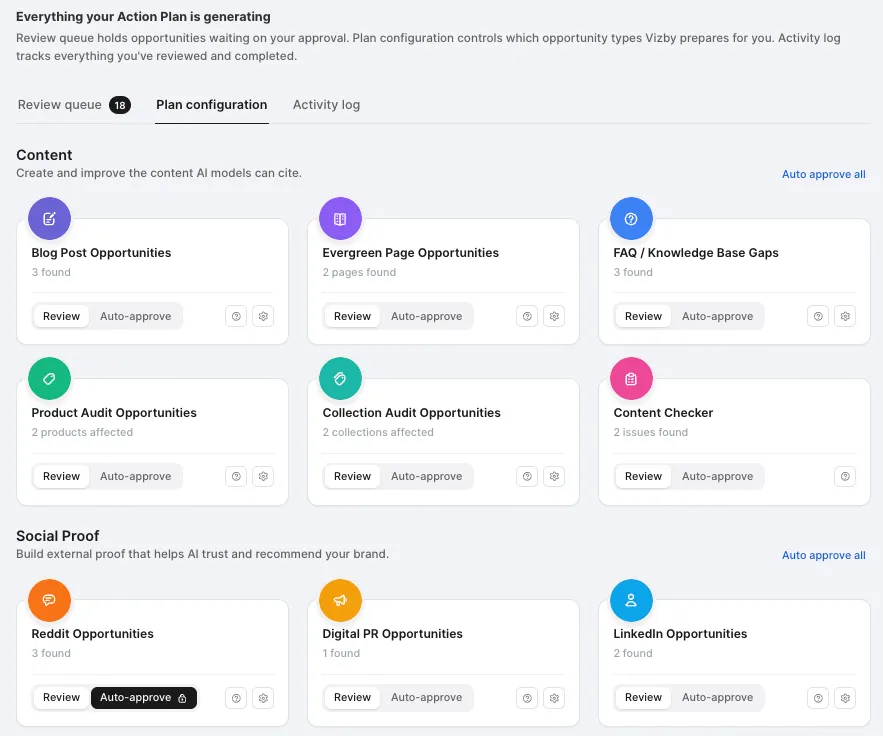
- Plan configuration sets how each opportunity type behaves. Each card can be switched on or off and set to Review or Auto-approve.
Each refresh adds new items without overwriting what is already there, so anything you have not got to yet stays in the queue.
AI Visibility Autopilot, Auto-approve and Blog Autopilot are separate controls. A scheduled test only adds items to the plan; what happens to each item depends on that type's Review or Auto-approve setting. Blog Autopilot campaigns have their own settings.
If your action plan is empty
The action plan builds from completed AI Visibility tests. New items are added automatically each time a test runs, so run a test first if none has completed yet.
The common reasons for an empty plan are:
- No completed AI Visibility test is available yet
- The latest test did not identify supported opportunities
- Your Business Profile in Brand Settings or your saved prompts are missing
- Your plan's monthly allowance of tailored action items is used up
- A run is still being built in the background
If Building your Action Plan does not finish and the page offers a retry, retry once. If it stalls again, contact support.
Choosing between review and automation
Automation is set in Action Plan → Plan configuration. A common route is to review a few generated items first, then set the types you are comfortable with to Auto-approve. Those items then run without individual approval, so you do not need to return to the app to approve each one.
Every opportunity type carries its own setting, so you can mix and match:
- Review — generated work goes to your Review queue, and nothing goes live until you approve it
- Auto-approve — supported work is completed automatically, without individual approval. Depending on the type, that publishes content, updates selected Shopify fields, posts to a connected LinkedIn account or sends a pitch through a connected Gmail account
Upcoming scheduled items appear in the Activity log, and you can open one to review or revise it before it runs.
Reddit opportunities are always review-only.
The usual pattern is to auto-approve safe, repetitive work and keep a human check on everything else. You can also set every type to auto-approve at once.
Reviewing an item
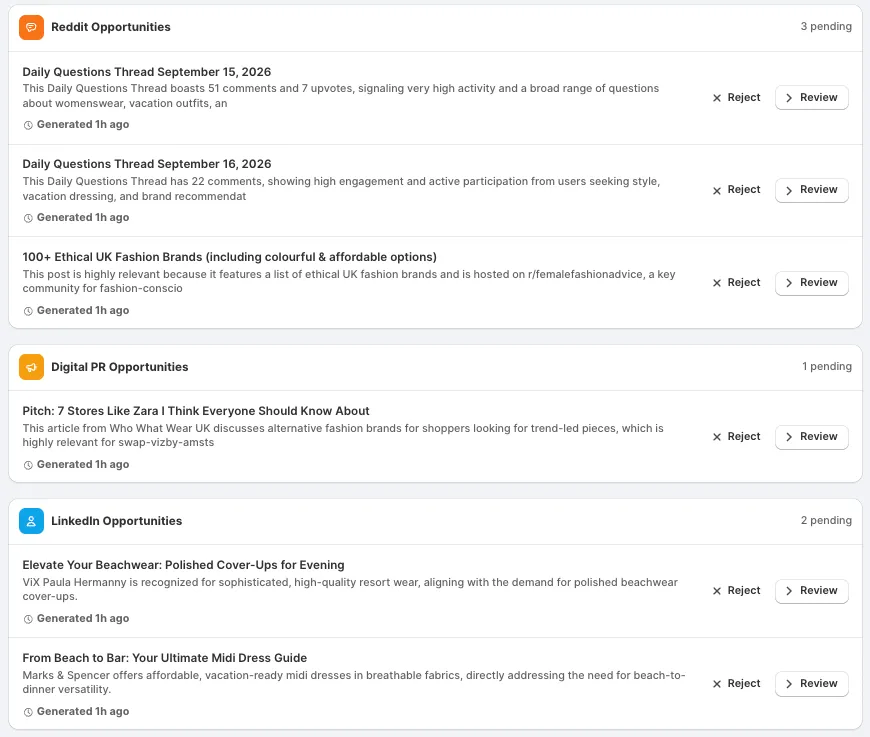
Anything set to Review lands in your Review queue, grouped by type. Each item shows what it is, why it was raised — usually the AI query it is meant to win — and when it was generated.
Open an item to see the generated content in full, edit it, and decide what happens to it. Reject and Revise appear throughout; the action that accepts an item depends on where it is going:
- A blog post opens in a full editor with its title, body, visibility, blog and author, and a featured image. Save to Shopify publishes it.
- An evergreen page publishes as a storefront page with FAQ structured data. It shows the questions it answers and the product it links to.
- An FAQ is a question and answer you can edit, with Publish on Knowledge Base. Publishing needs Shopify's Knowledge Base app. If Swap Discovery confirms the app is not installed, install it, then return and retry the approval.
- A product or collection audit lists each suggested change with a tick box and a short explanation of why it was suggested. Untick anything you want to skip; the accept button tells you how many changes will be applied.
- Content Checker proposes a rewrite of an existing article, with an article score and a breakdown, and lets you compare it to the original before refreshing it.
How off-site work is sent
Reddit, LinkedIn and digital PR opportunities are published away from your store, and each one handles sending differently.
- A Reddit opportunity gives you a suggested reply, a link to the thread, and a safety check — including whether the subreddit is higher risk and a reminder to read the discussion first. Replies are drafted without links. Reddit is always review-only: you copy or post the reply yourself, then mark the task complete.
- A digital PR opportunity identifies a publication and a named contact, explains why you are a fit, and drafts the outreach email. With Gmail connected and a usable contact, Swap Discovery sends the approved pitch from your Gmail account immediately. Gmail drafts are not supported. Without a connection or a usable contact, Swap Discovery opens Gmail or gives you the text to copy, and you mark the task complete once you have sent it.
- A LinkedIn opportunity gives you a teaser post and a long-form article, with a note on where they perform best. With LinkedIn connected, Swap Discovery publishes the approved content to the LinkedIn destination you have selected. Without it, copy the content or open LinkedIn, then mark the task complete.
Where no integration is connected, Done closes the item.
Mirror pages
One opportunity type is worth explaining on its own, because it sounds more invasive than it is. Mirror Pages creates a clean Markdown version of selected pages, products and collections, at a separate address alongside the original.
AI agents prefer plain structured Markdown to full HTML, and a mirror gives them your content without the theme, navigation, scripts and widgets wrapped around it. Mirrors carry live price, stock, SKU and barcode so an agent can verify them, include only in-stock variants so nothing sold out gets recommended, and are canonical-linked back to your HTML pages so your search rankings are unaffected.
The opportunity lists which of your pages have no mirror yet, with each one tickable, and tells you how many will be created and how large the whole set is.
The main body of each mirror is regenerated from Shopify and is not a free-form editor, which keeps catalogue facts current. To correct a fact in a mirror, correct it in Shopify. You can add an optional Agent instructions block to an individual mirror.
Removing Mirror Pages removes the published mirror index. Your original Shopify products, collections and pages are not affected.
Where to see what changed
The Activity log tab shows approved and automated Action Plan work. It also shows the items scheduled next, kept separate from work already applied. Open an upcoming item to review or revise it before it runs.
Brand Settings > Activity Log separately lists meaningful store activity across Swap Discovery, newest first, with a summary of the last 30 days.
Your dashboard also keeps a running count of what has been completed this month, broken down by type — blog posts approved, FAQ gaps closed, collections improved, content issues resolved, evergreen pages published and product pages fixed.
Treat the log as two things at once: the calendar of what Swap Discovery is about to do, and the record of what it has already changed. It is a report, not a backup, and it does not undo changes.
Undoing a change
Some changes can be reverted from Swap Discovery. Others are managed where they were published.
- Product Audit, Collections Audit and JSON-LD review show Revert Changes when a pre-change snapshot exists. Reverting restores the fields that snapshot covers. If Revert Changes is not shown, restore the content manually in Shopify.
- FAQs have no one-click undo. Delete the entry from Your Knowledge Base in FAQ Builder. This removes it from Shopify Knowledge Base and returns the suggestion to pending, so you can edit and republish it without running another scan.
- Published blog posts, evergreen pages, emails and social posts are not reversible from Swap Discovery. Manage them in Shopify, Gmail or LinkedIn.
One-time fixes are separate
Your dashboard also carries a checklist of important one-time fixes — setup jobs that only need doing once, rather than recurring work. They are not part of the action plan and do not appear in your review queue. Understanding one-time fixes in Swap Discovery covers them. They are worth doing early, because several affect everything the action plan does afterwards.
Before you turn automation on
- Complete your brand profile first. Everything Swap Discovery generates is grounded in it, and an auto-approved type will publish against whatever that profile currently says.
- Check your plan's monthly allowances, so an auto-approved type does not spend them on lower-value work.
- Watch the activity log for the first few weeks after switching a type to Auto-approve.