
















Product Audit scores your Shopify products for AI readiness and prepares fixes you can apply across the catalogue. This article explains what it checks, how to read a score, and what it changes in your store.
Why product data decides whether you are recommended
An AI assistant making a recommendation needs to be able to tell what a product is, who it suits and how it differs from the alternatives. Where a product page does not answer those questions, the assistant either leaves it out or describes it vaguely — so a brand can be well known and still lose the recommendation at the product level.
Product Audit finds the products where that is happening. Where the gap is in your content or your presence elsewhere on the web rather than your catalogue, Understanding AI Visibility in Swap Discovery is the place to start.
Reading the catalogue view
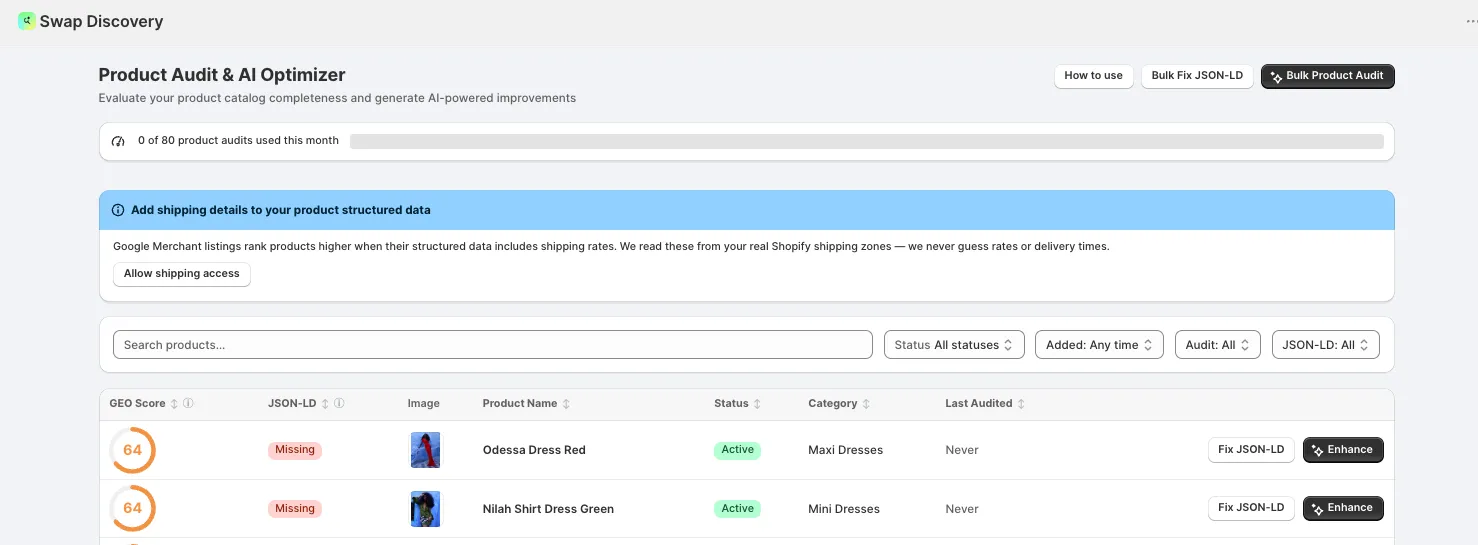
Product Audit & AI Optimizer lists your whole catalogue, one row per product, with:
- GEO Score — a single readiness score from 0 to 100, based on multiple product-content signals including title, description, media information, product details and JSON-LD completeness. It measures how well the content is prepared; it is not a Google ranking or a guarantee of recommendation. Opening a product shows the same figure as its AI Readiness Score, broken down by signal so you can see which part is dragging it down
- JSON-LD — whether that product's structured data is complete, incomplete or missing. On a password-protected storefront, Missing can mean Swap Discovery could not read the live page rather than that no schema exists; select the badge to rescan
- Status, Category and Last Audited
You can search, sort by any column, and filter by status, when a product was added, whether it has been audited, and its JSON-LD state. A counter at the top shows how much of your monthly allowance you have used.
Scanning the GEO Score column is the fastest way to see which products are strong and which need work.
Adding shipping details
If you see a prompt to allow shipping access, it is worth doing. Including accurate shipping details helps Google understand and display your delivery information alongside eligible product results. Swap Discovery reads these from your real Shopify shipping zones rather than estimating them — rates and delivery times are never guessed. Without shipping access, Swap Discovery leaves shipping details out of the product's structured data rather than inventing them.
Structured data
Alongside its readiness score, Product Audit tracks the state of each product's structured data — whether its JSON-LD is complete, incomplete or missing — and can correct it for you, either one product at a time or across the whole catalogue at once. Structured data from your theme or other apps is preserved; Swap Discovery updates only the JSON-LD it manages.
This happens separately from your storefront. Your live pages stay exactly as you designed them; what changes is the schema AI crawlers read. So a merchant who has had their theme carefully built can let Swap Discovery keep structured data accurate without any risk to the page itself.
Improving a single product
Enhance on any product row starts the improvement flow. Swap Discovery works out the highest-intent questions buyers ask AI about products like yours — the prompts you would want that product to win — and uses them to check competing products found through Shopify Catalog, so the suggestions that follow are aimed at a real gap rather than at a generic checklist. This focused competitive check is separate from the main AI Visibility Test and has its own allowance. If competitor data is unavailable, the audit continues from your store information.
The panel opens with the product's current score and the score it would reach if you applied everything, then lists each suggested change: Product Title and SEO Title; an AI optimized description which can include a rewritten intro, a key features and specs list, a comparison table, recommended use cases and a set of FAQs; SEO Description, Tags and Image Alt Text; and JSON-LD, embedding product and FAQ schema so AI engines can parse the page.
Every suggestion is ticked by default and carries a short explanation of why it was made. Untick anything you want to skip, edit anything you want to reword, and route individual pieces to a metafield — including your own custom metafields — so generated content lands where your theme expects it. The button tells you how many changes will be applied.
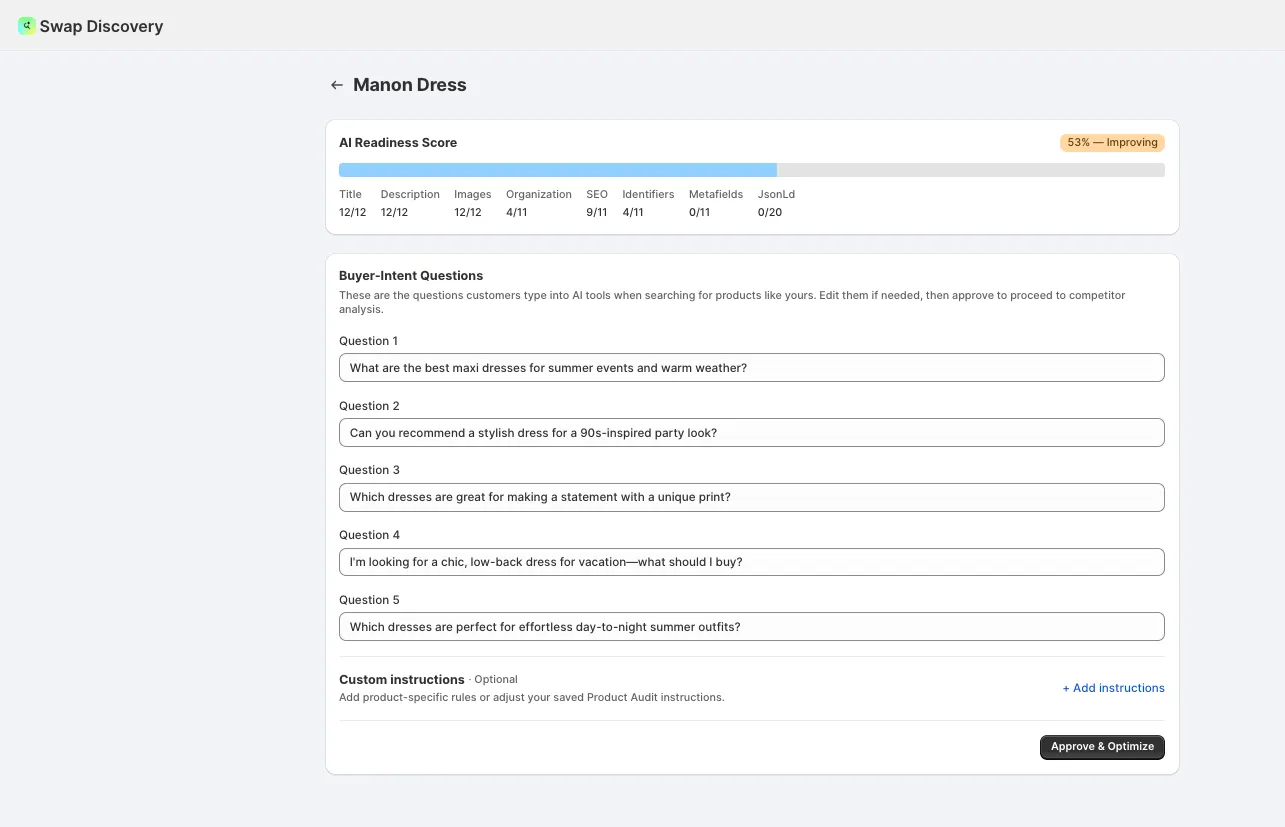
In this single-product flow, nothing reaches Shopify until you approve the set. Review before you do: the copy is grounded in your brand profile and your existing store content, but it is describing your products to your customers — treat approving it as a publishing decision.
If Shopify rejects an individual metafield (because of its definition, type, validation or allowed length), the other accepted fields still save, and Swap Discovery reports the ones it skipped.
Optimize Again generates a new audit for the product. Refine Results lets you add guidance, such as "Explain bed-base compatibility more clearly", and regenerate the suggestions. For rules that apply to every audit, such as "Use UK spelling", add Custom Instructions in Brand Settings.
Working across the catalogue
Automation for product work is set in Action Plan → Plan configuration. Review a few generated product items first, then set Product Audit Opportunities to Auto-approve once you are comfortable with the results. Those items are then applied without individual approval, so you do not need to return to the app to approve each one. See Understanding the Action Plan in Swap Discovery.
Two bulk actions sit at the top of the page, separate from Plan configuration:
- Bulk Fix JSON-LD — corrects structured data across the catalogue without touching your storefront
- Bulk Product Audit — optimises a selected batch of products in the background. You choose the fields, description sections, metafield destinations and batch instructions. When the batch starts, the selected fields are applied to Shopify automatically; it does not pause for approval of each product, so inspect a few products individually first
Bulk operations are available on the Scale and Custom plans. A bulk run can include up to 500 items. That is the size of a batch, not an allowance: each product optimised in a run counts towards your plan's monthly allowance of products optimised. On the other plans you work through products individually. Your plan sets how many products can be optimised each month: 20 on Business, 40 on Growth and 80 on Scale, with an allowance configured for your account on Custom. Every product is analysed on every plan; a product counts towards the allowance when optimisations are generated and applied for it.
Shopify Flow offers an Audit Product action for the same kind of background work, also separate from Plan configuration. Triggered by a store event, such as a new product being added, it runs the audit and applies the optimisation without individual approval, and uses your Swap Discovery allowance. Treat enabling the workflow as authorising those changes.
Products needing attention also surface in your action plan as opportunities, so you can work through them alongside everything else rather than coming here to look. A product opportunity opens the same Product Audit flow, which you can also reach from Product Audit in the navigation or Tools → Products Audit.
What it changes in your store
Changes are written to your live Shopify products and collections, not to a copy or a staging catalogue. For products, that covers:
- Titles, descriptions and SEO fields
- Image alt text, which needs file-write permission; older installs prompt you to grant it
- FAQs and tags
- Product attributes and metafields, which only appear to shoppers where your theme uses them
- A suggested Shopify category, only where the product has none; an existing category is not replaced
- Product structured data: Swap Discovery updates only the JSON-LD it manages and preserves third-party JSON-LD. Shipping details are included only with shipping access
Understanding Swap Discovery sets out the full list of what it can read and edit in your store.
Undoing changes
Revert Changes is shown per product when a pre-change snapshot exists. It restores the saved pre-change values for the fields affected by the latest optimisation snapshot; other fields are left as they are.
If Revert Changes is not shown, no snapshot exists for that product, so restore the content manually in Shopify. Collections work the same way.
Collections
Product pages are not the whole picture. Collections are how an assistant understands the groupings you sell in, so a collection with a thin or missing description makes your category harder to recommend. Collections are audited on the same principles — clear descriptions, correct categorisation and internal linking.
Collection Audit is a separate tool, at Tools → Collections Audit, with its own monthly allowance: 5 collections on Business, 10 on Growth, 20 on Scale and more than 40 on Custom. A collection can also be opened from an Action Plan collection opportunity.
When to re-run it
Refresh a product's optimisation when its product facts, your business priorities or the competitive evidence change, or when a new gap appears. A new visibility run on its own is not a reason to rewrite the same product.
The same applies to collections: revisit one when its assortment, buying guidance or competitive context changes.