















To start using Swap, install the Swap Returns & Exchanges app in your Shopify store. Once installed, Swap connects to your store automatically and prepares your dashboard.
Install the Swap app
- Go to the Shopify App Store.
- Search for Swap Returns & Exchanges, or go straight to the Swap Returns & Exchanges app listing.
- Click Install.
- Review the permissions requested by Shopify.
- Click Install app to confirm.
Once installation is complete, Swap connects to your Shopify store automatically.
Save the Swap dashboard as a bookmark so you can go to it directly. Opening the app from Shopify with Open app can reinstall the app or restart the onboarding flow.
What happens after installation
When you open the app for the first time:
- Swap detects your Shopify store automatically.
- Your onboarding manager helps you set up Swap Returns.
- The Swap dashboard is ready to configure.
From there, set up your return settings, exchange options and other Swap features. Getting started with Returns V2 takes you through each step in order.
Updating the app
Update the Swap app only when Swap asks you to. Updating makes sure you are on the latest version.

To update the app:
- Go to your Shopify admin.
- Navigate to Apps.
- Find Swap Returns & Exchanges.
- The app can also appear as Swap Shipping & Returns.
- Click Open app.
- Select the option to update the app or update permissions.
This reinstalls the app and applies any required updates.
If there is nothing to update, clicking Open app does not take you to your dashboard — you'll see the Swap onboarding page instead. This happens because Shopify sends the same event for installing and opening an app, so Swap cannot distinguish between the two actions. To reach your dashboard directly, use the bookmark saved during installation (see above) rather than Open app in Shopify admin.
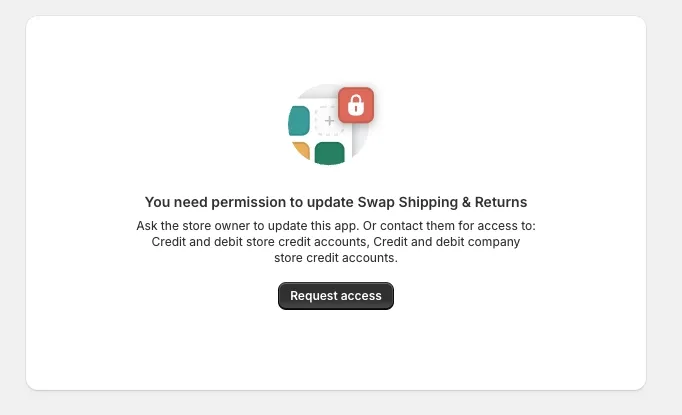
If Shopify says you need permission to update the app, your Shopify account does not have the store permissions to do this. Ask your Shopify store admin to update the app for you.
Legacy apps
Legacy versions of the Swap app keep working for stores that already have them installed, but Shopify does not allow new installations of legacy apps. If you are setting up Swap for the first time, install Swap Returns & Exchanges from the Shopify App Store.
