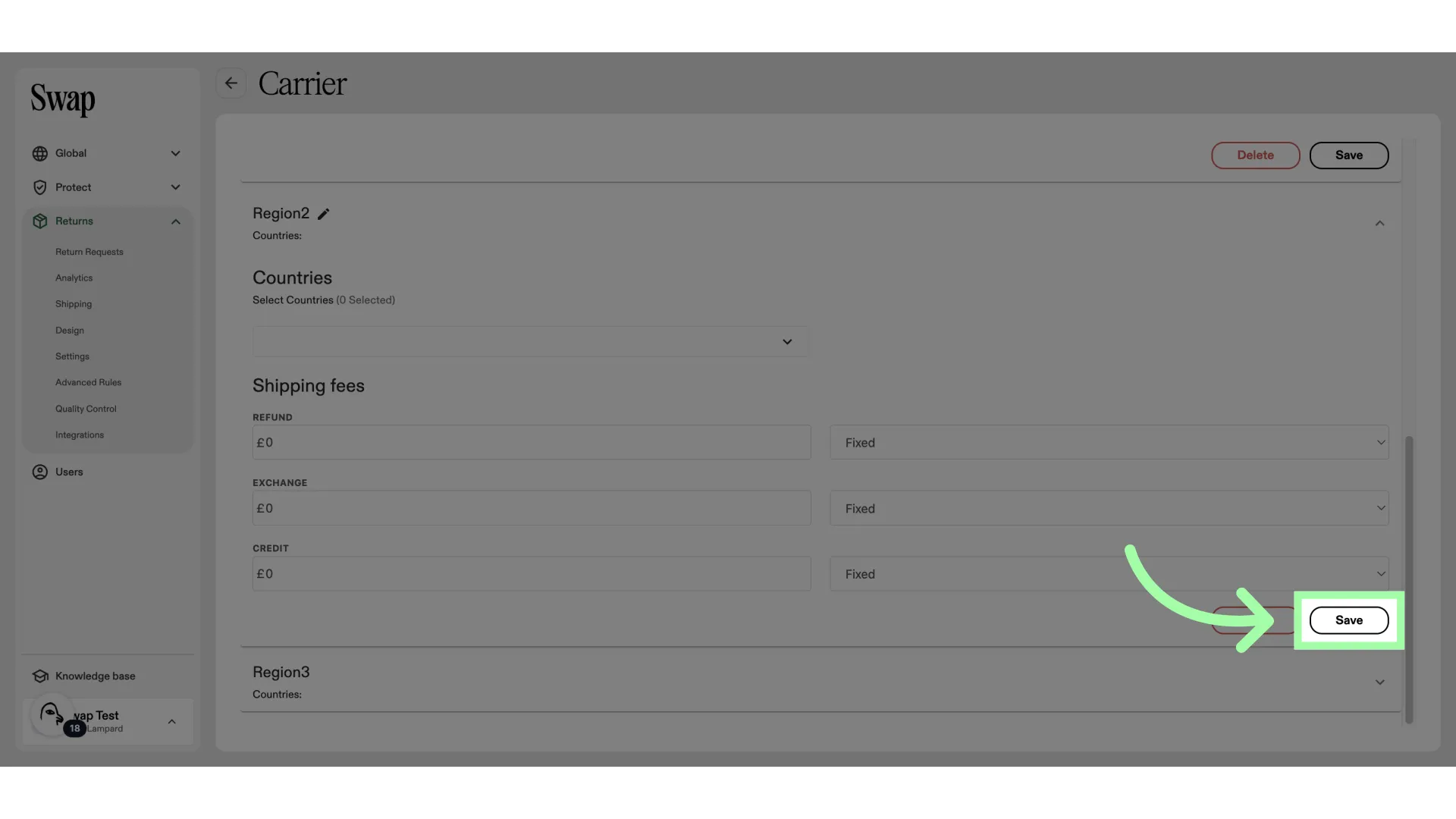















This guide outlines the process of adding countries for international returns in Swap Returns.
How to Add Countries
- Go to your Swap Dashboard
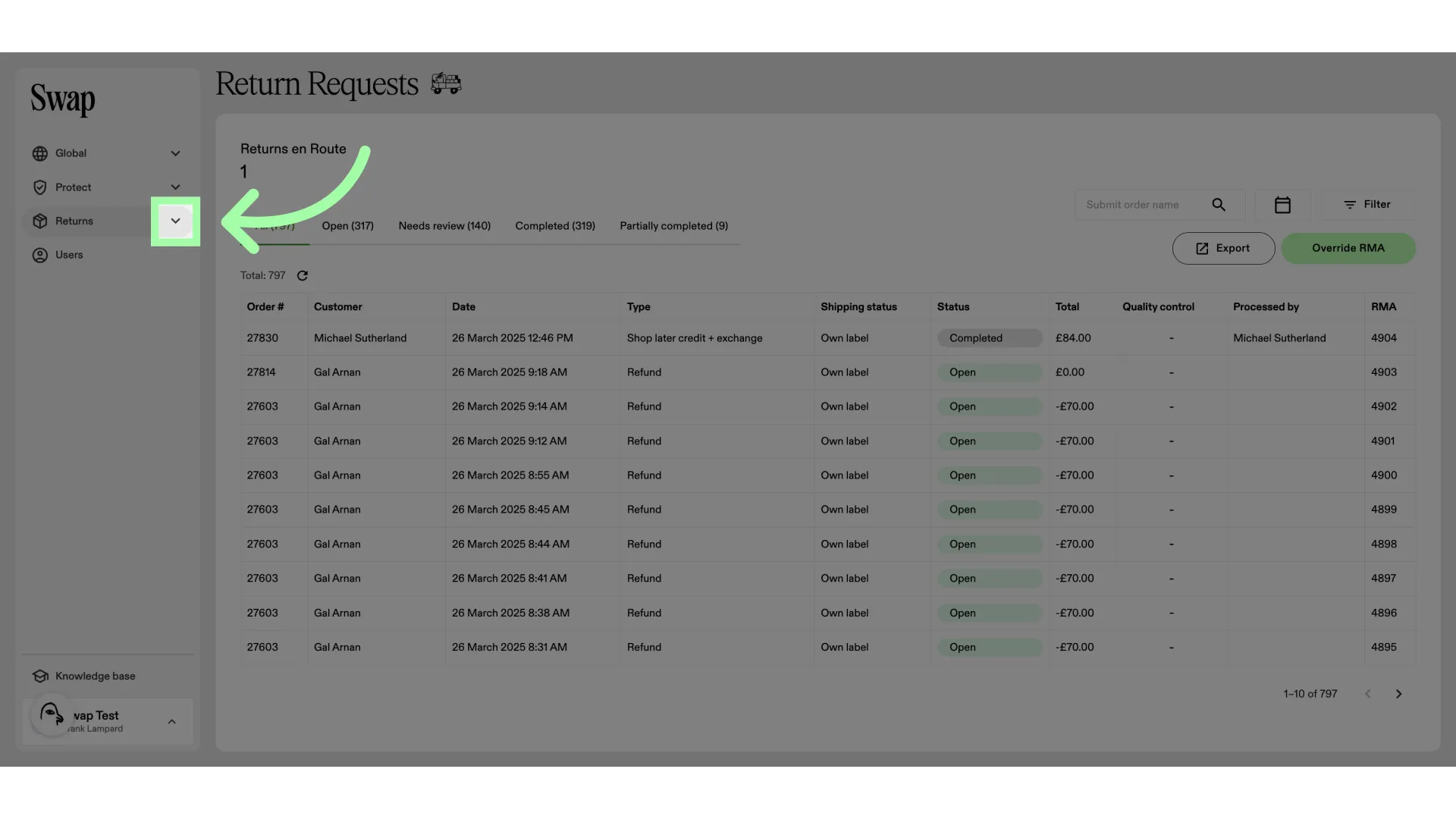
- Open the Returns drop-down menu
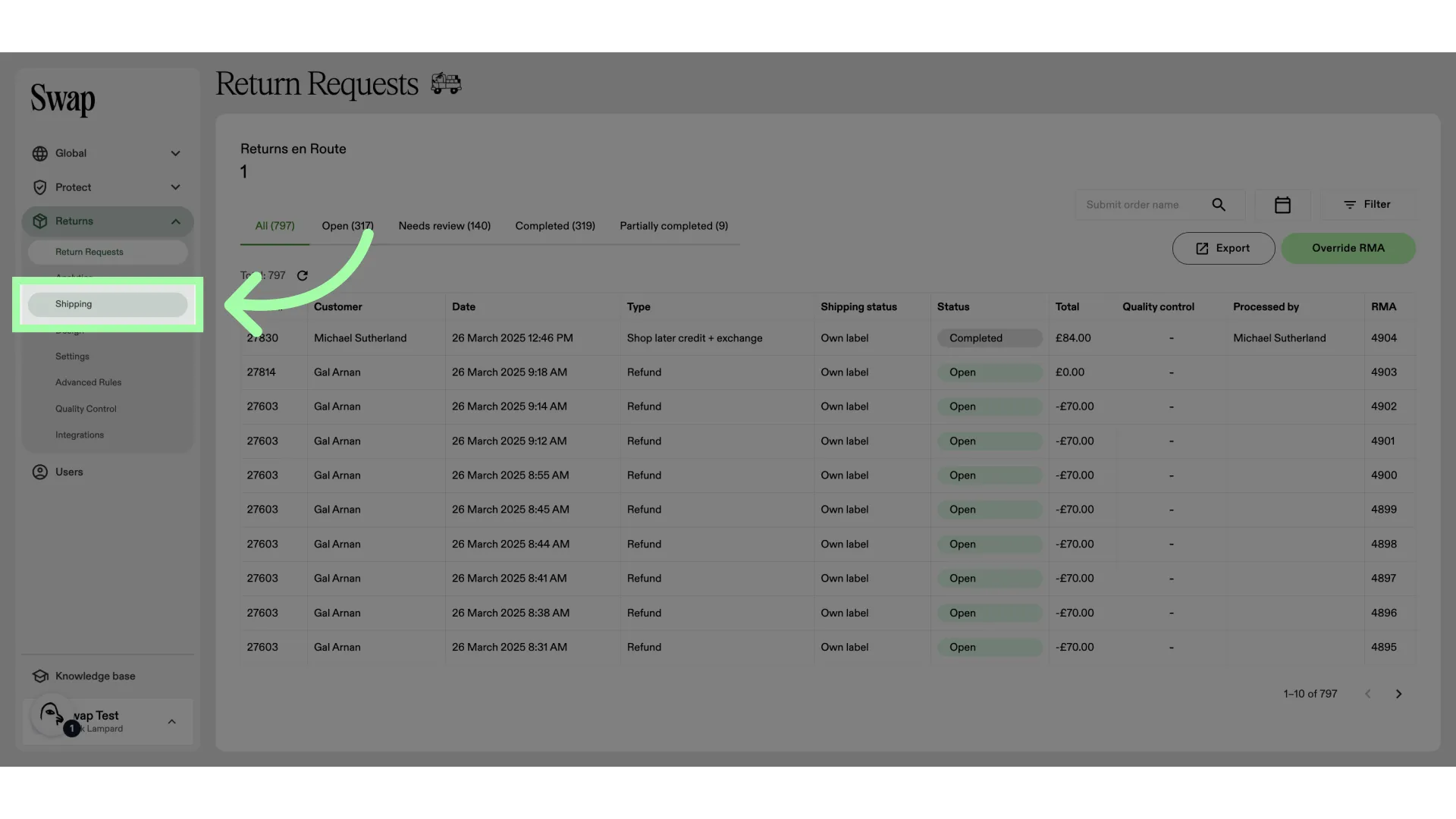
- Click "Shipping"
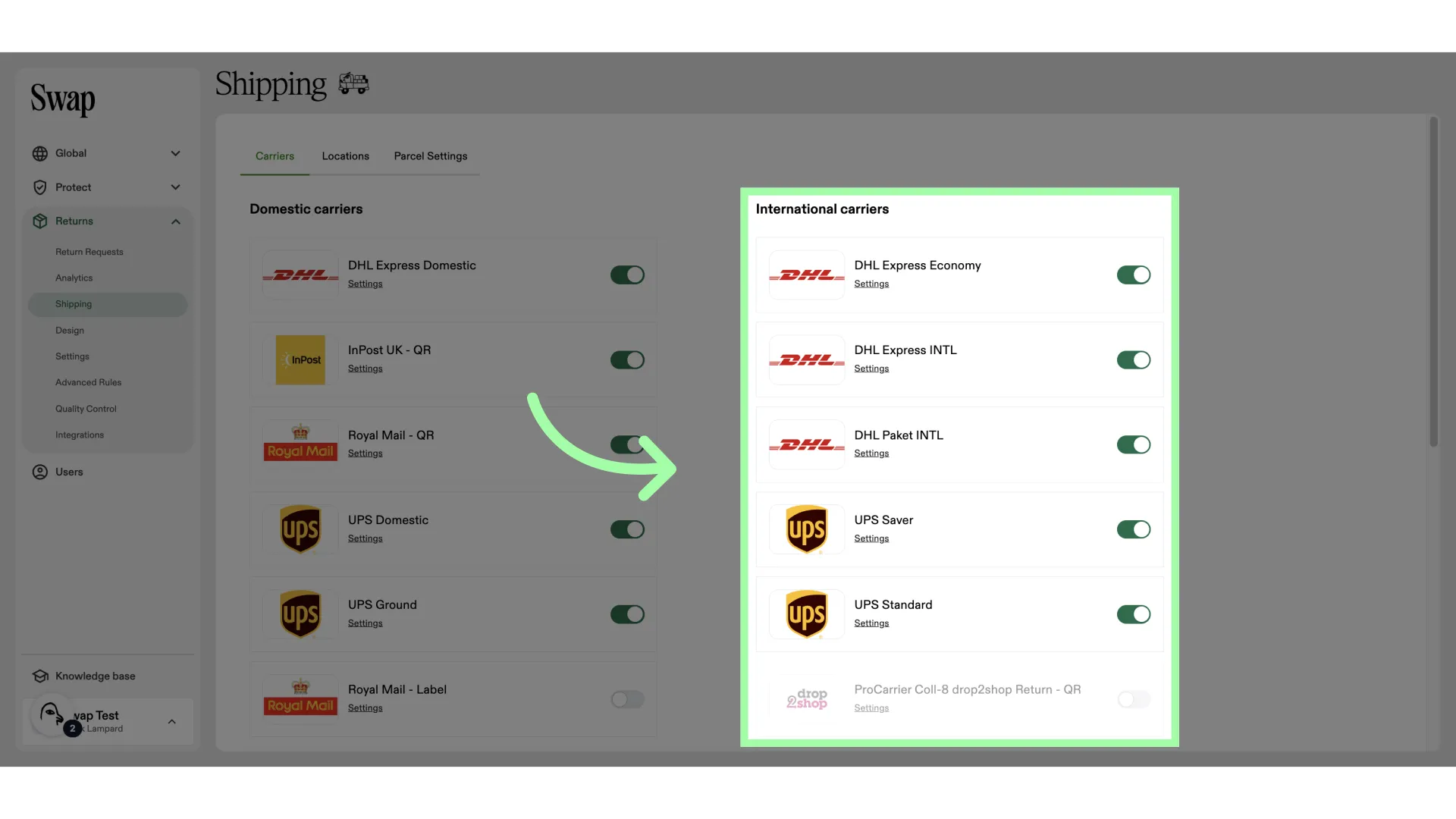
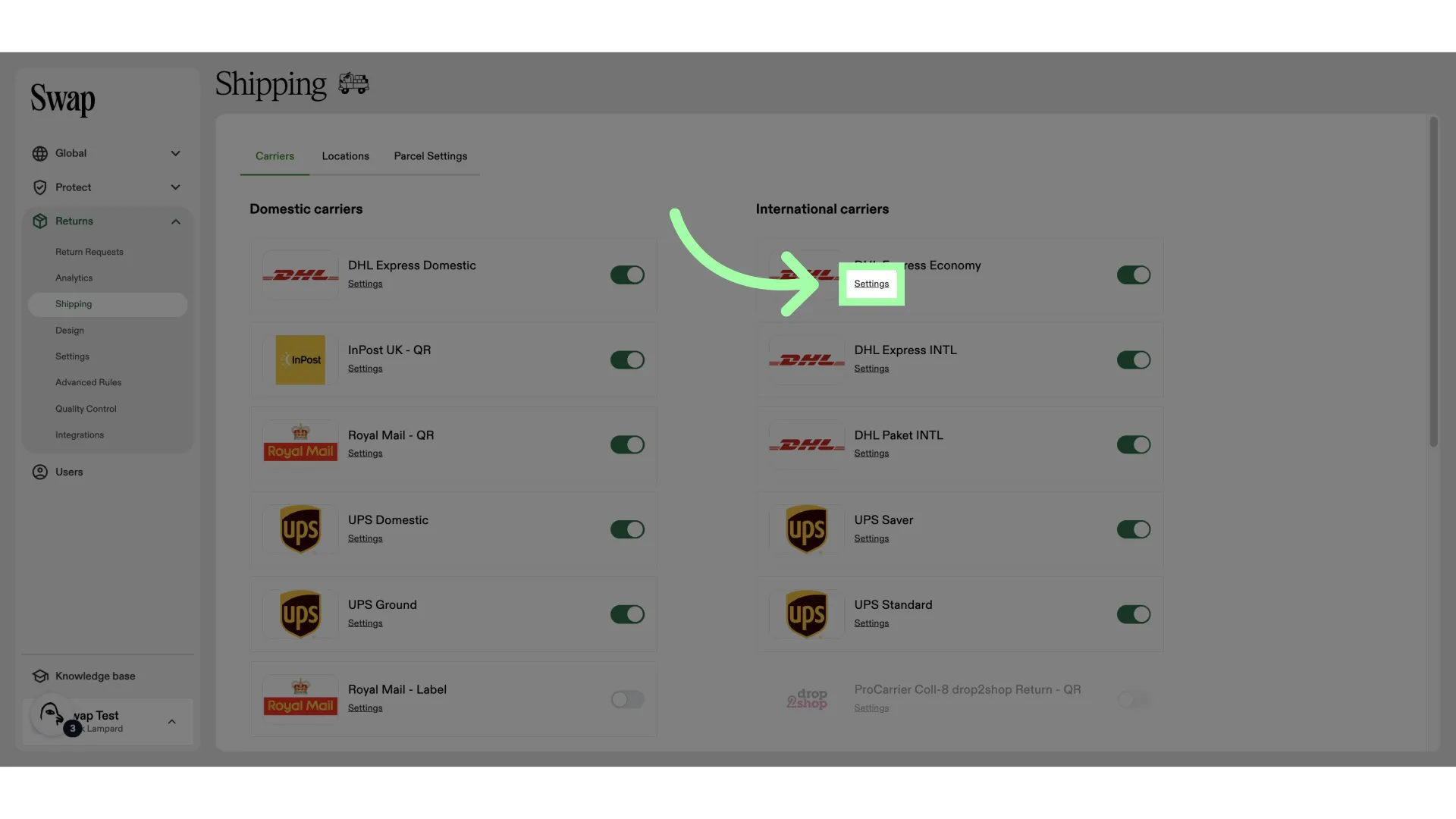
- These are your international carriers
- To add a country to a carrier, click settings
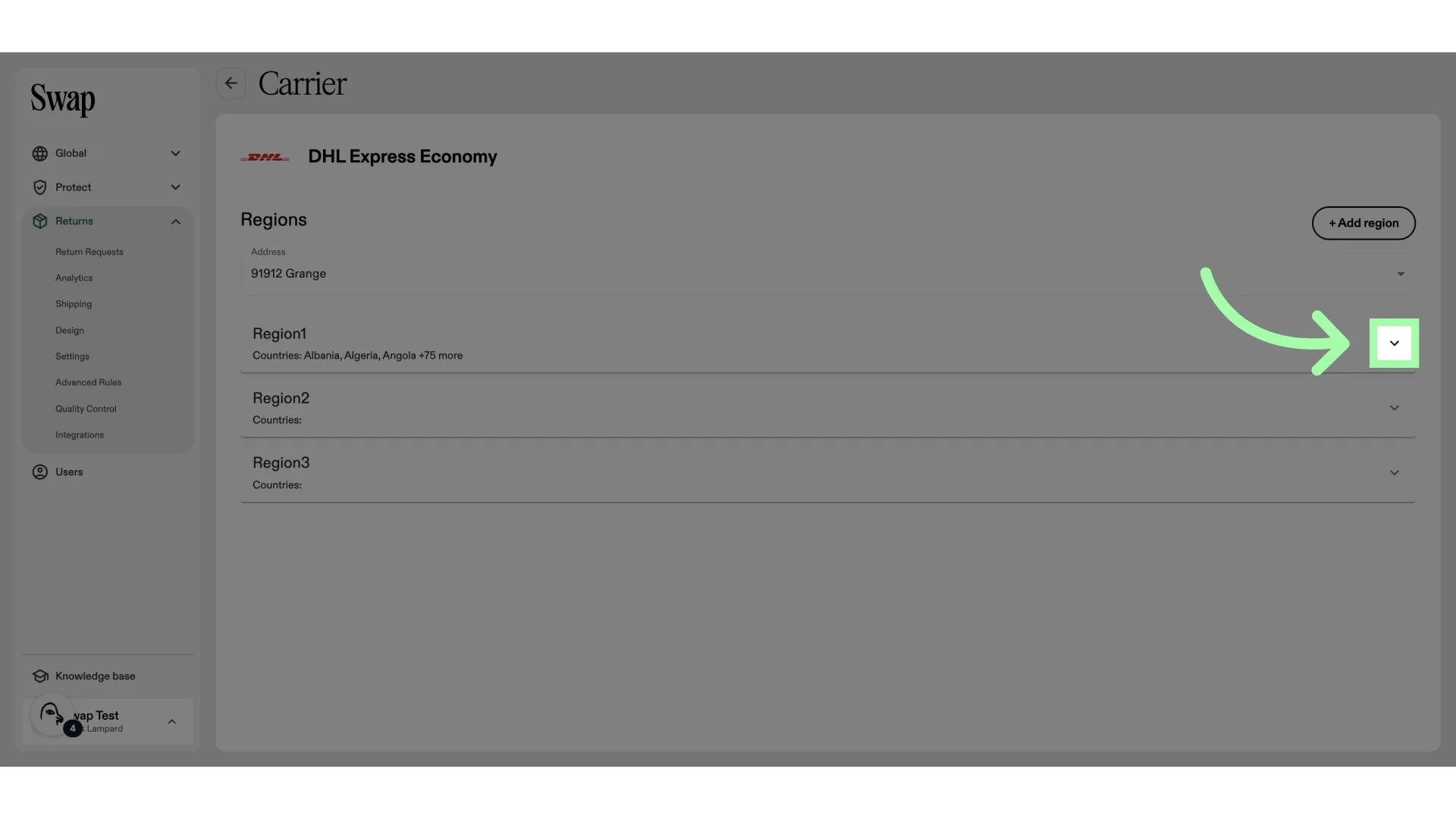
- Open the region you wish to add a country to
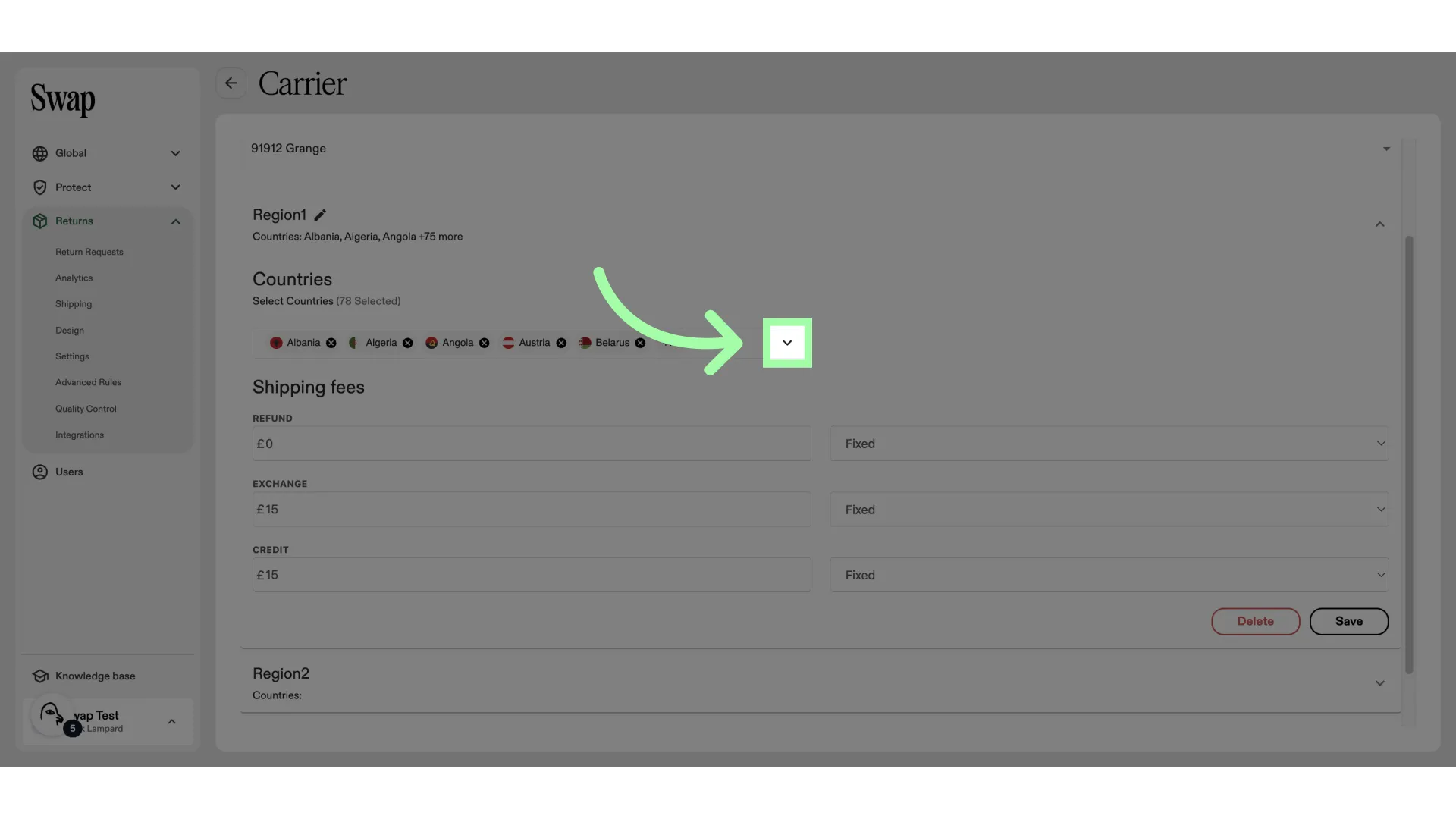
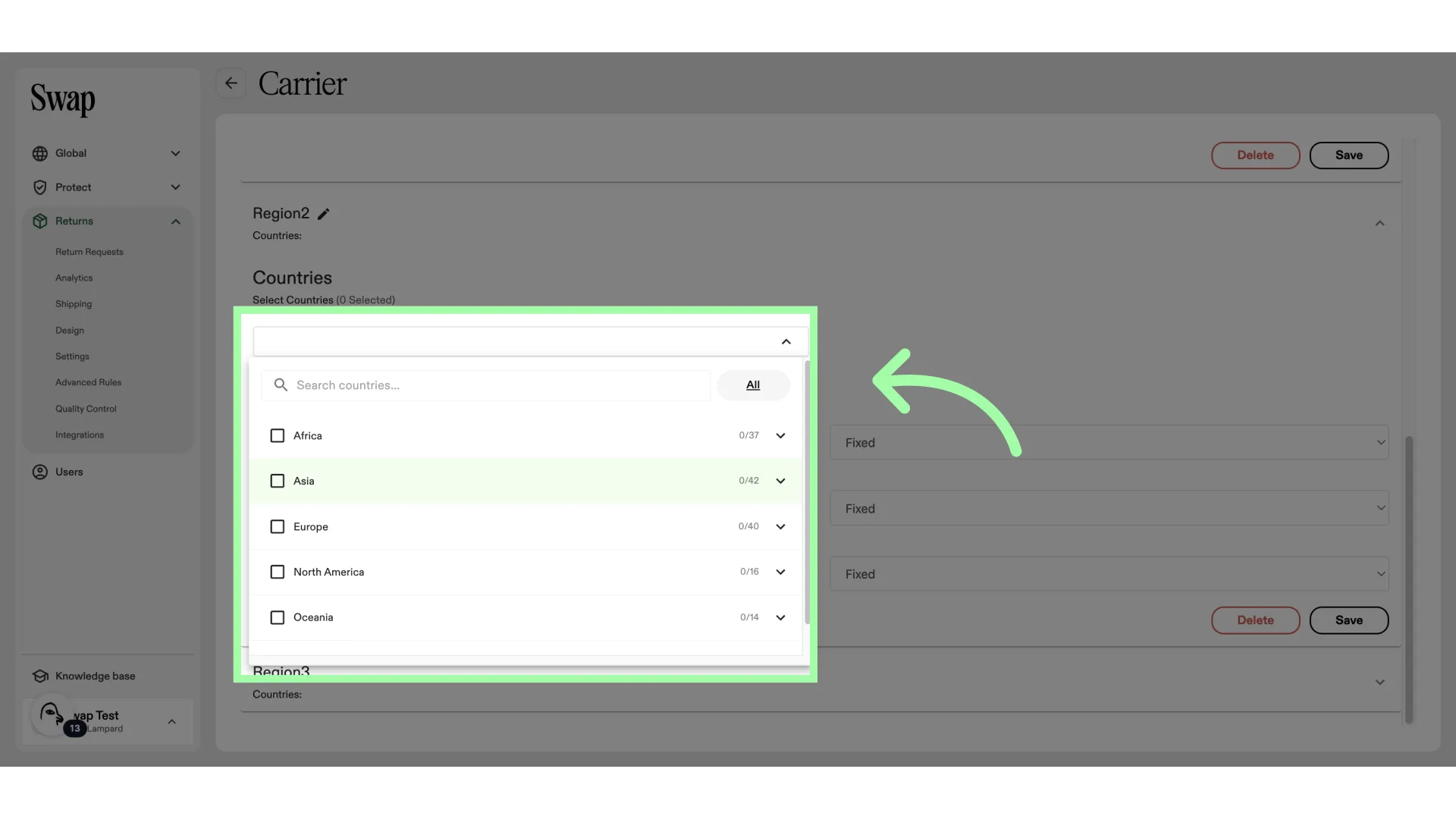
- Open the drop-down
- You can use the search bar to find the country
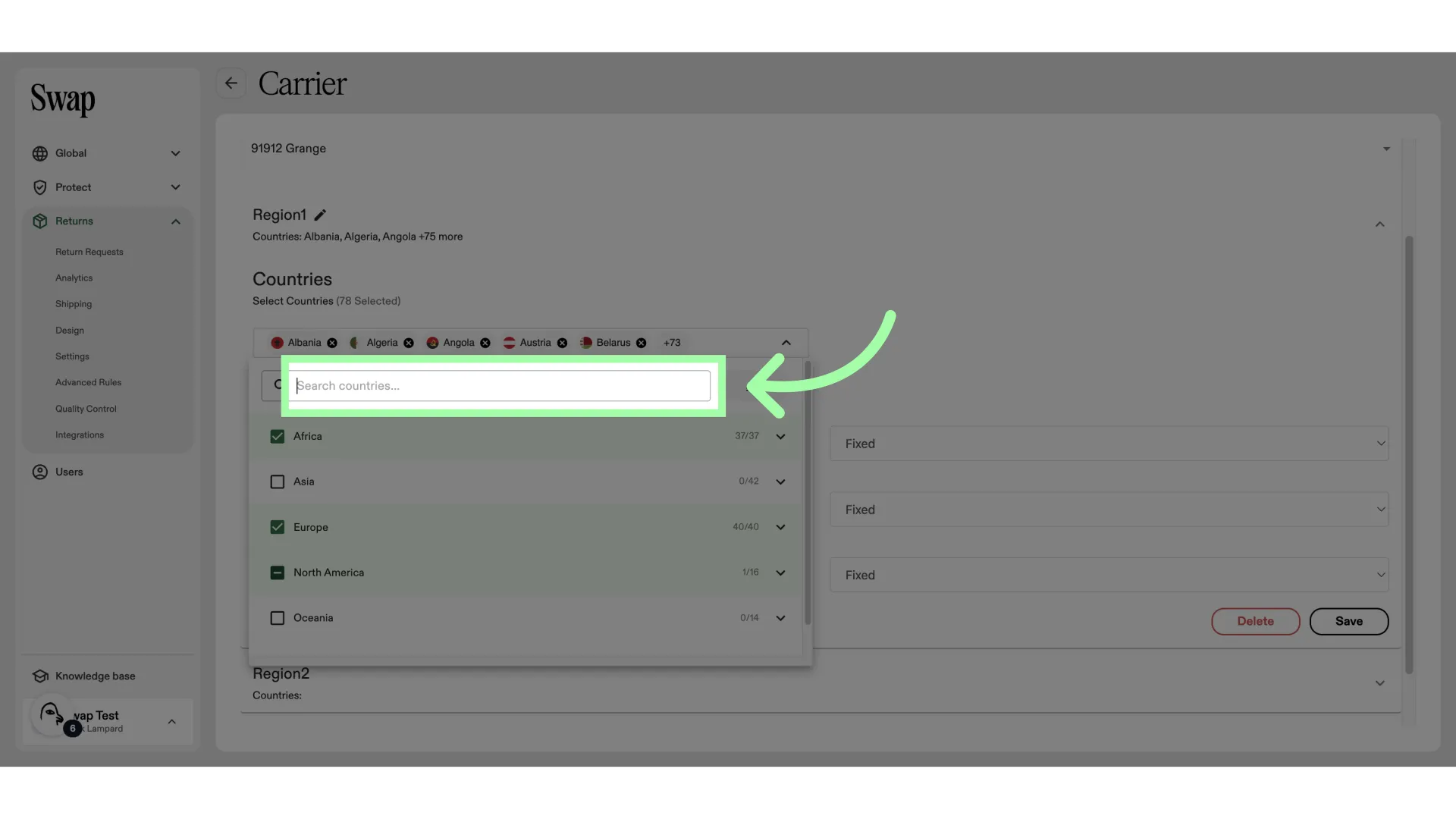
- Or if adding more from the same continent, use the drop-down to display the countries within
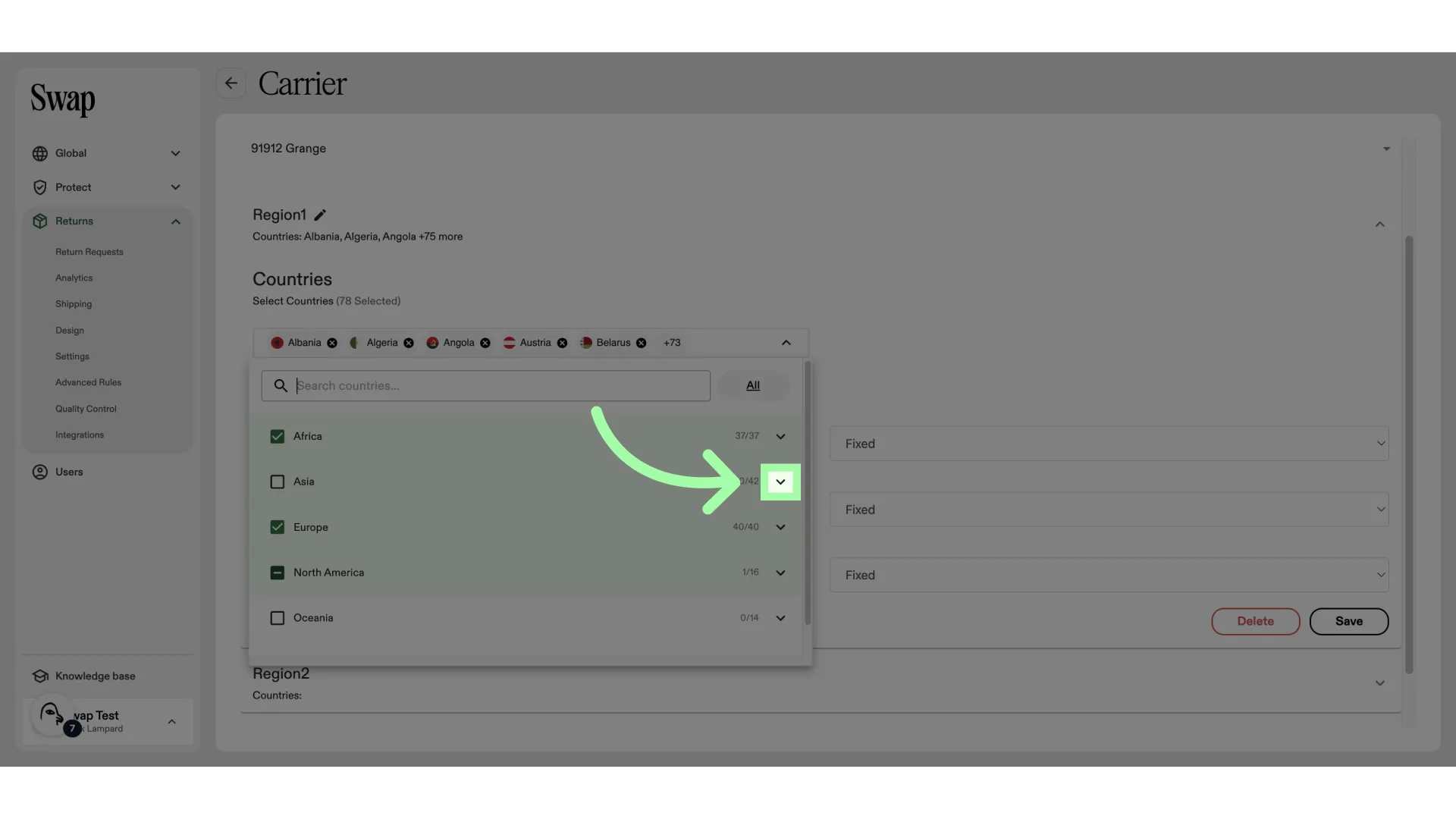
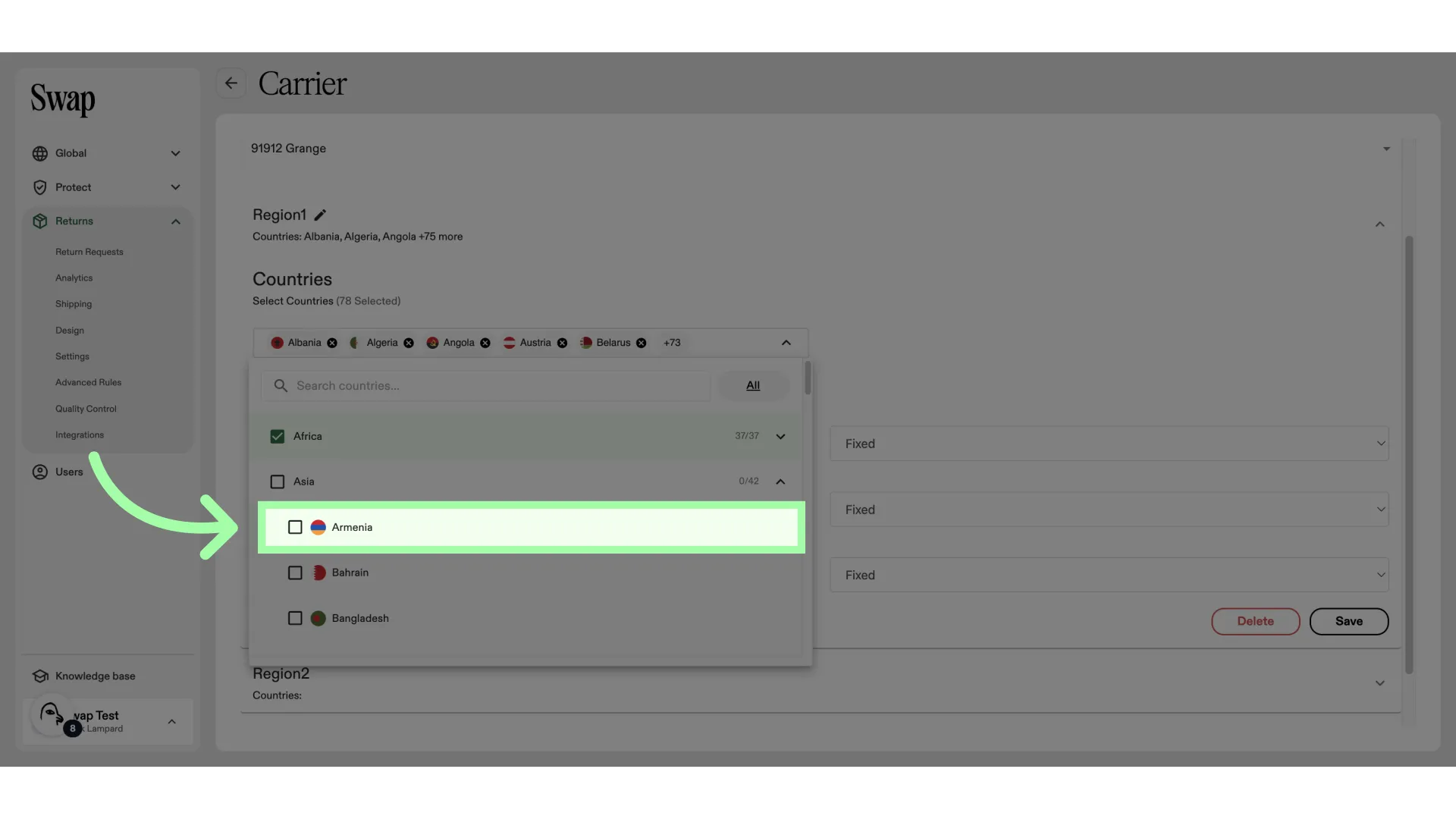
- Simply click on a country to add it
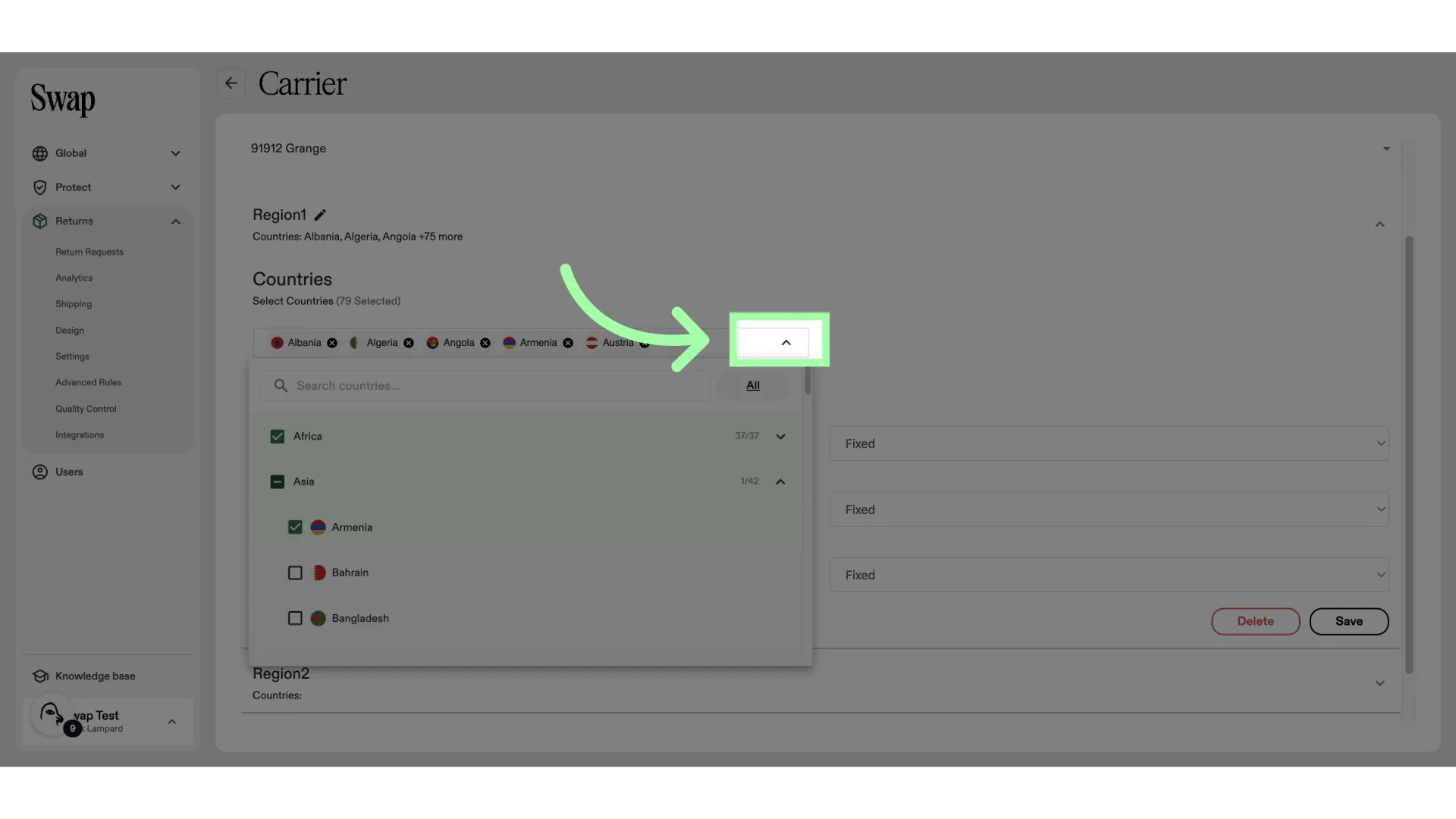
- Close the drop-down
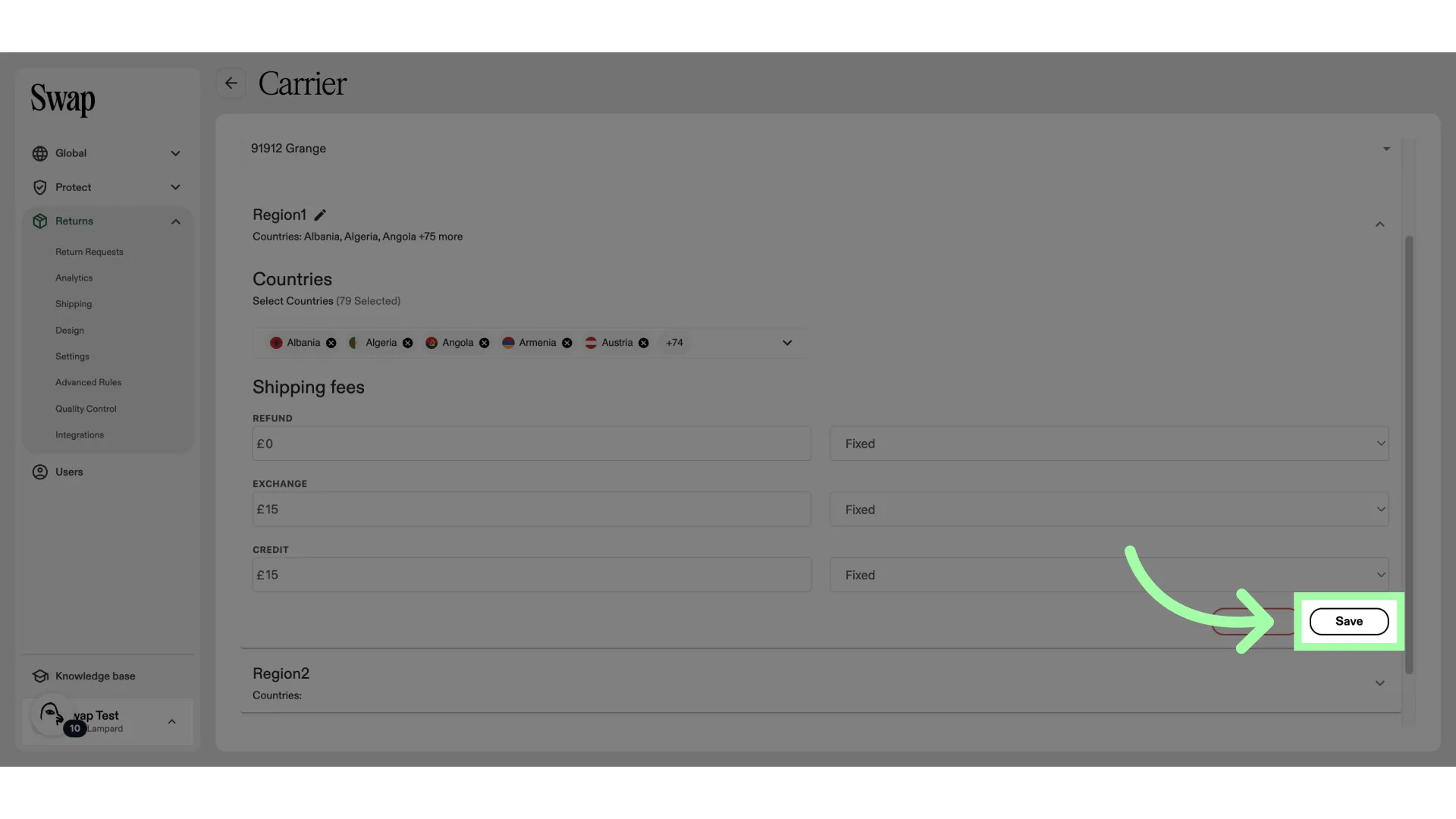
- Click "Save"
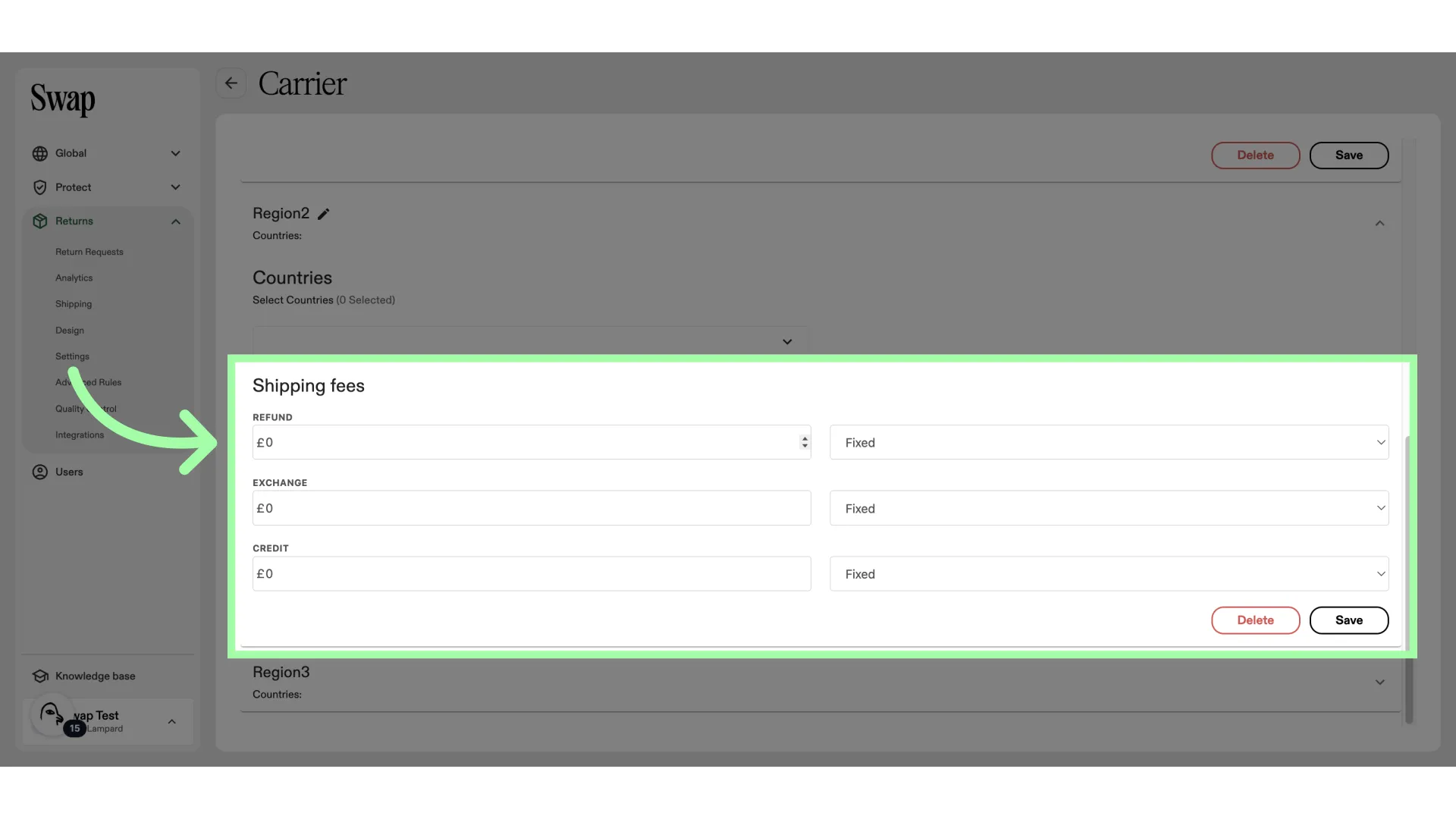
- If you wish to add a country, but would like to add different shipping rates, you can add them to a new region
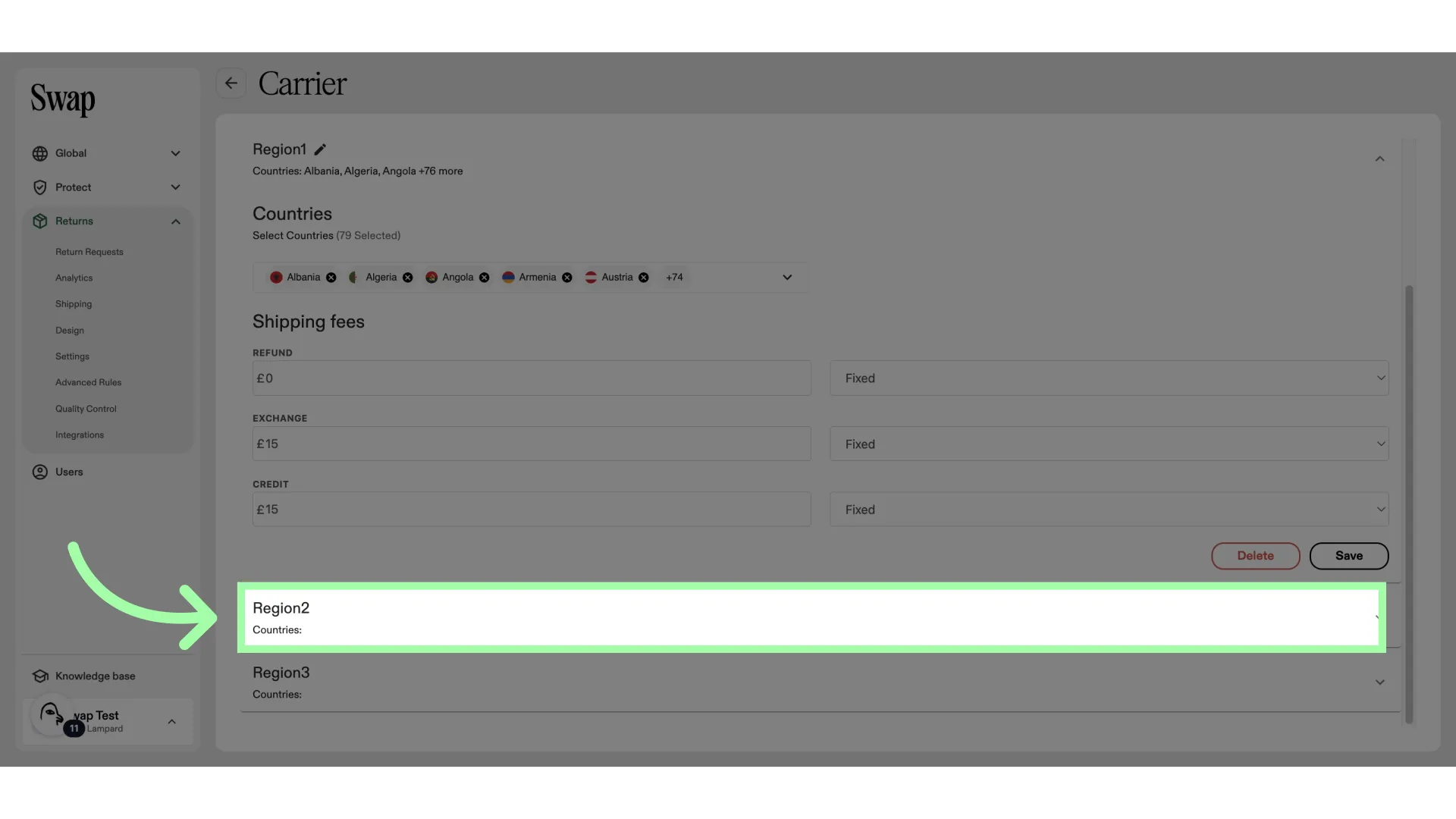
- Adding a country works the same way
- Add the rates here
- Click "Save"