












It’s possible to download a copy of a customer’s return label, QR code, and commercial invoices (where relevant), and check the shipment tracking within the RMA in the Swap dashboard. It is also possible to regenerate a label.
How to Access Your Customer's Shipping Information
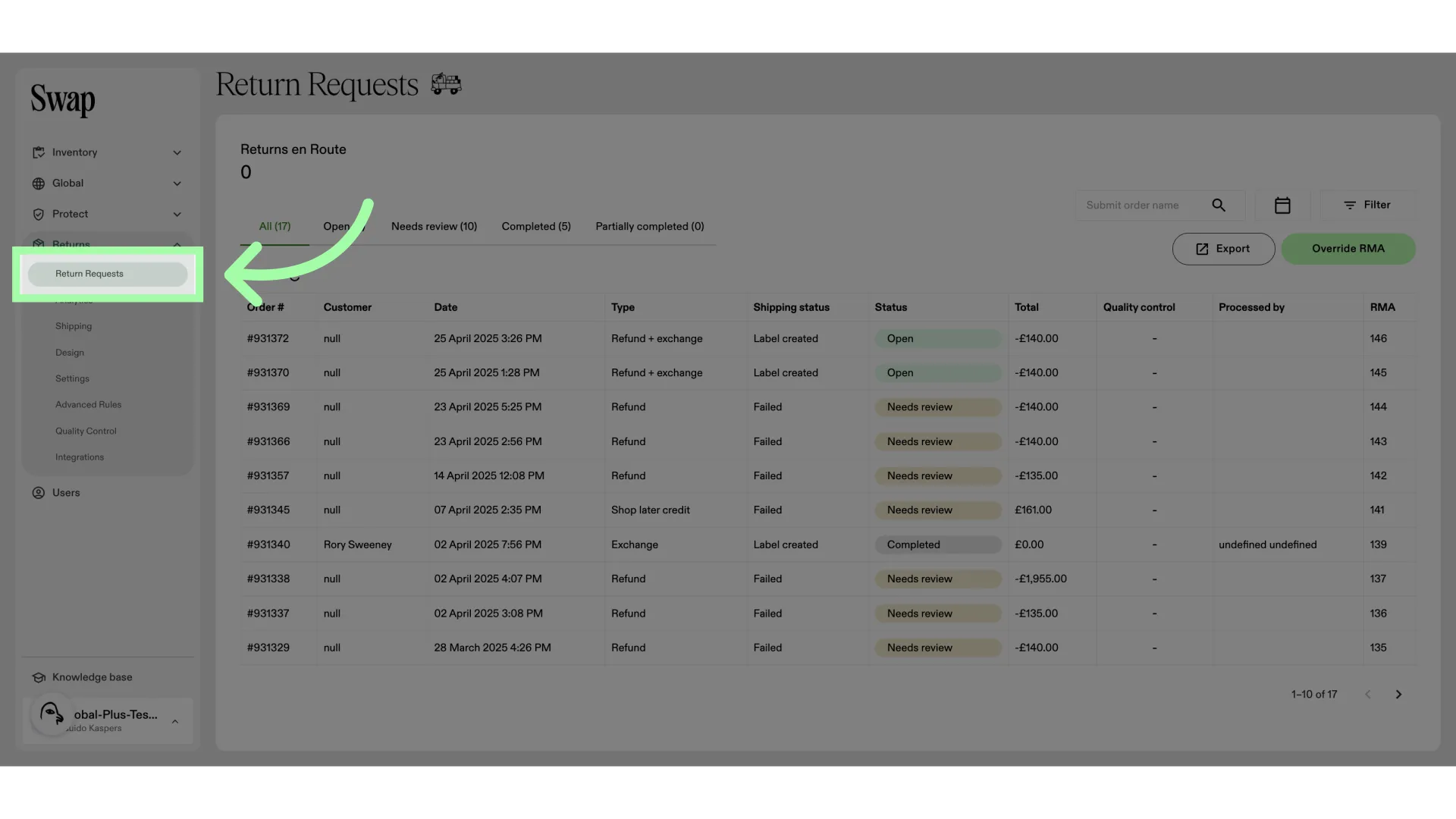
- Click "Return Requests"
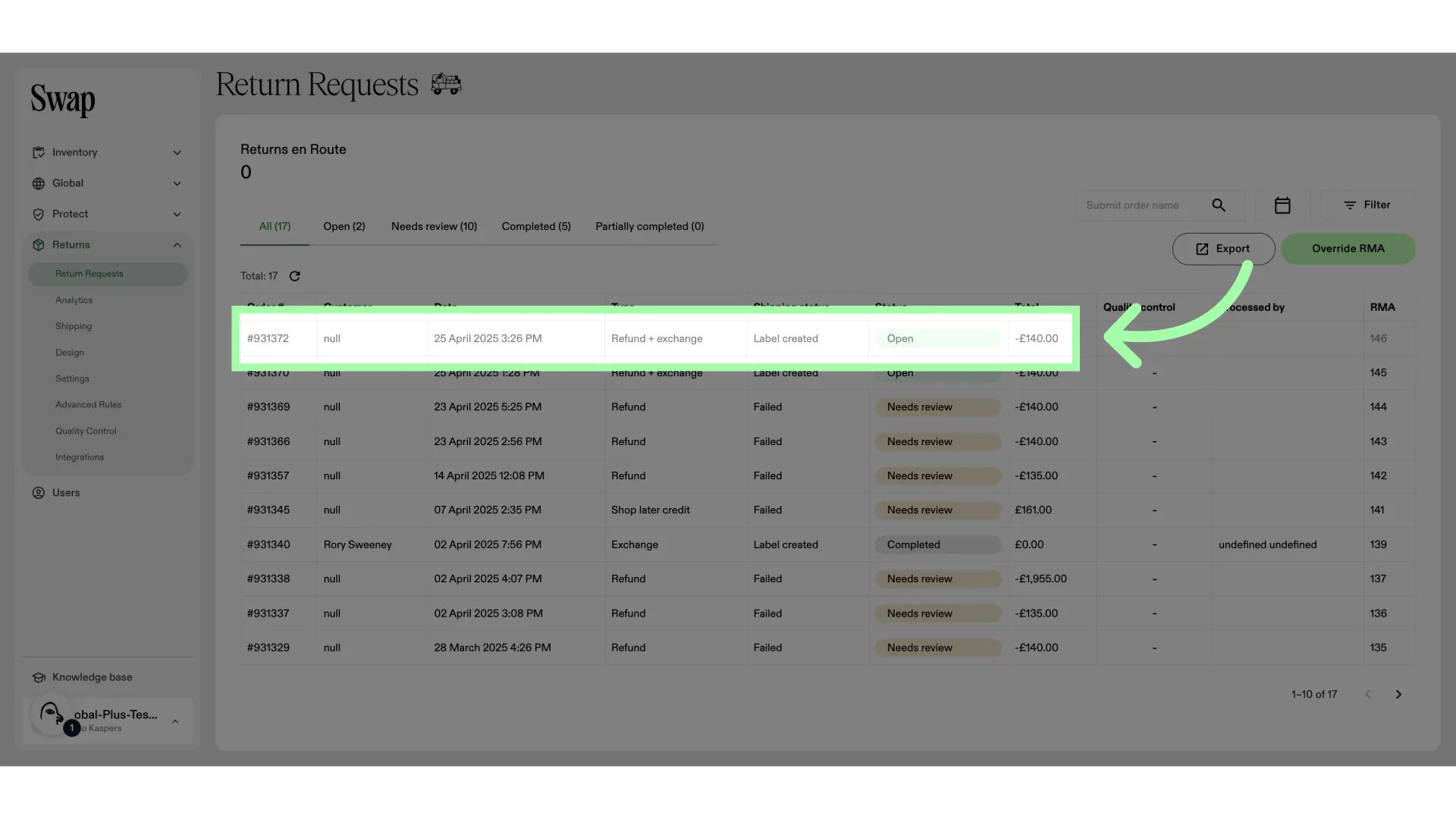
- Open the RMA you wish to access the shipping details for
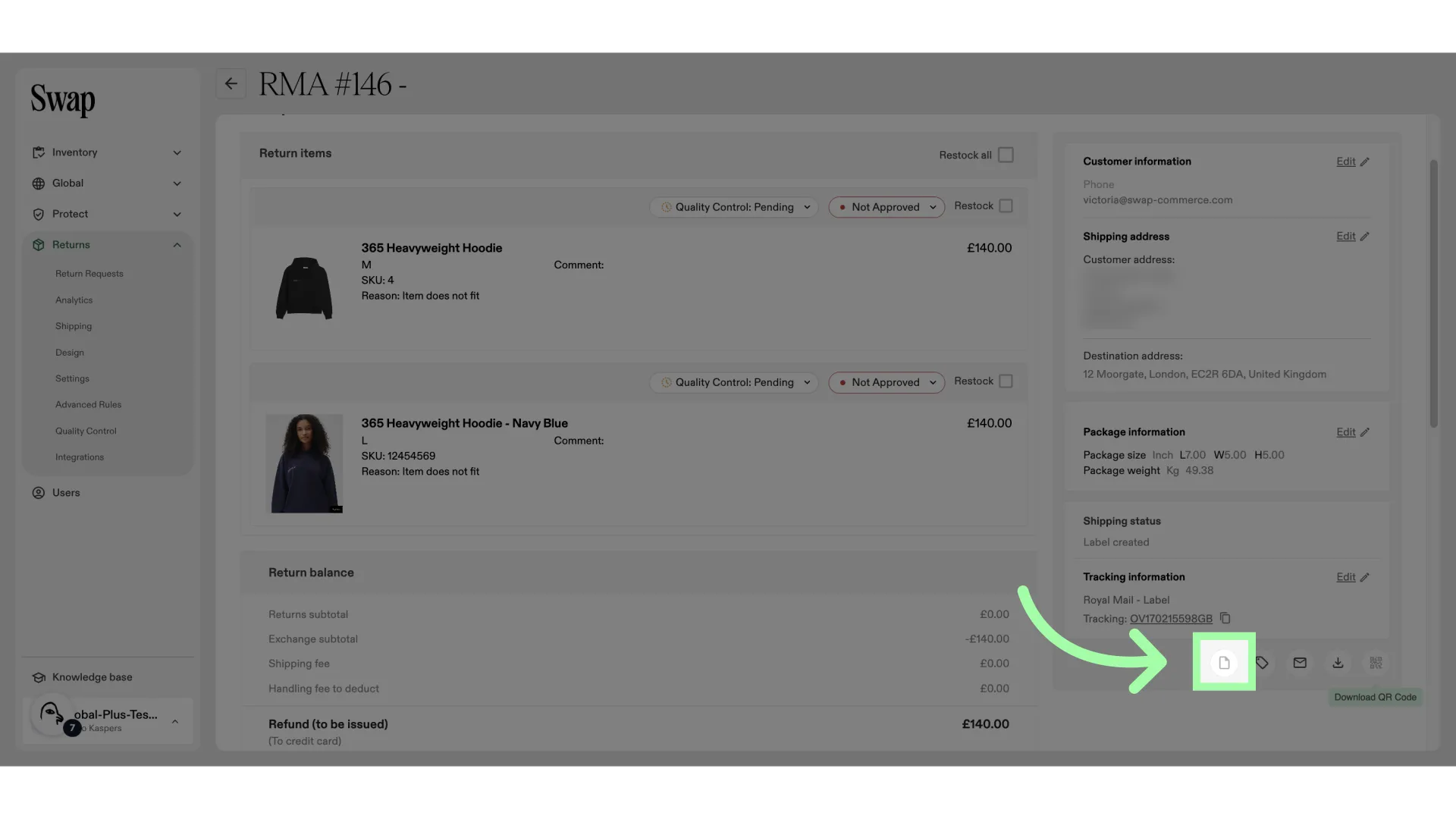
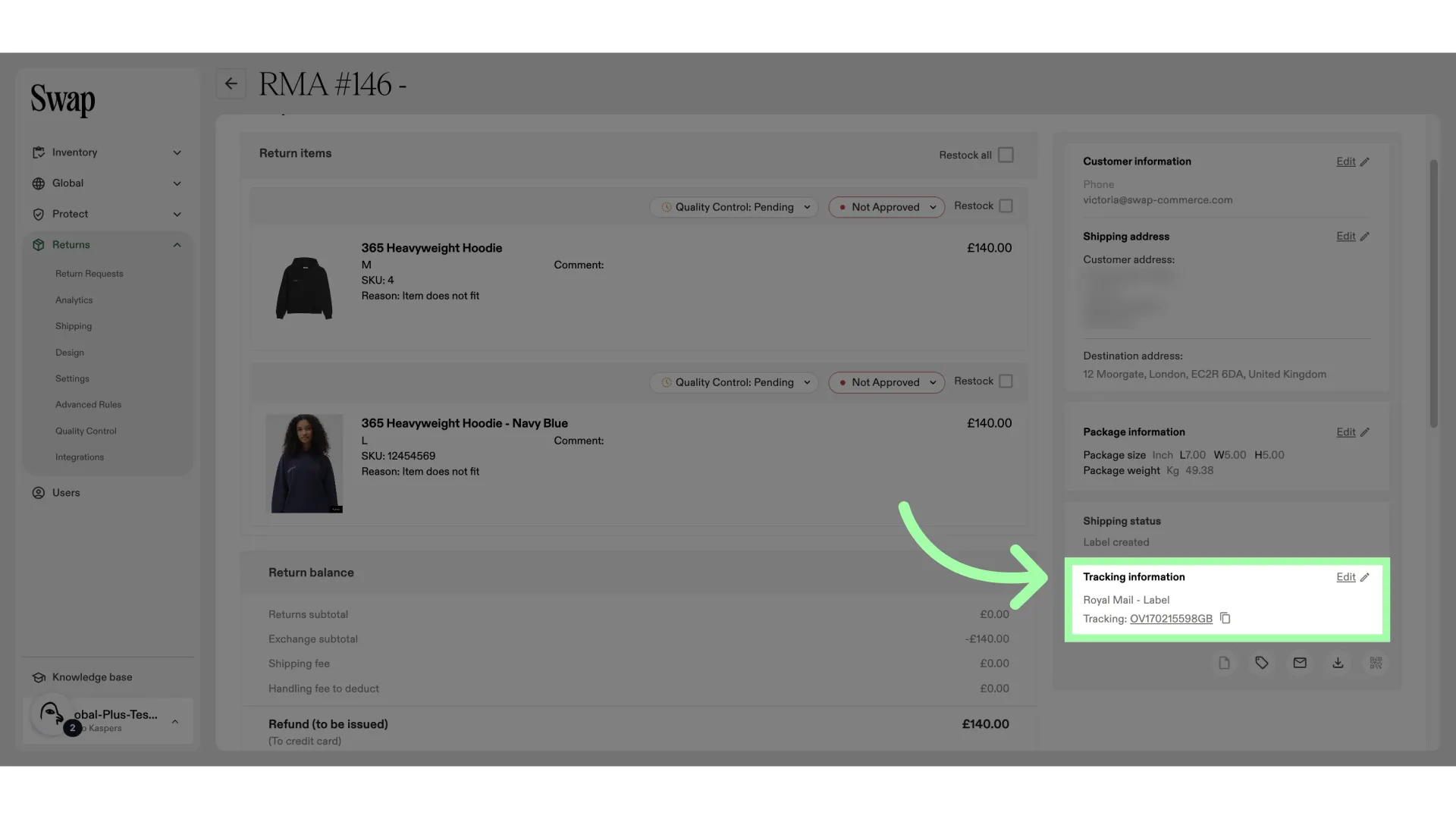
- Here, you can find the tracking information
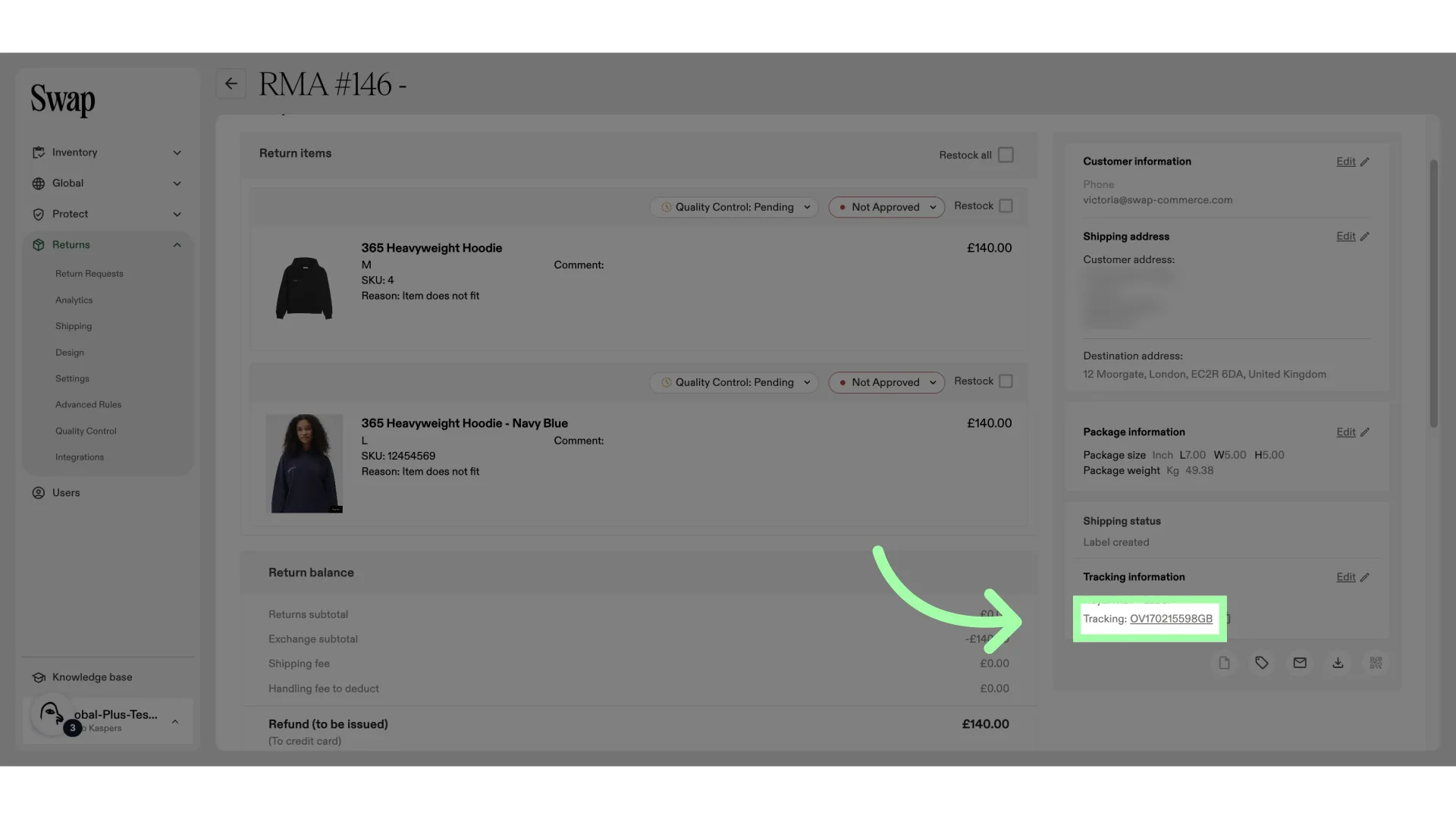
- Click on the tracking number to track the parcel
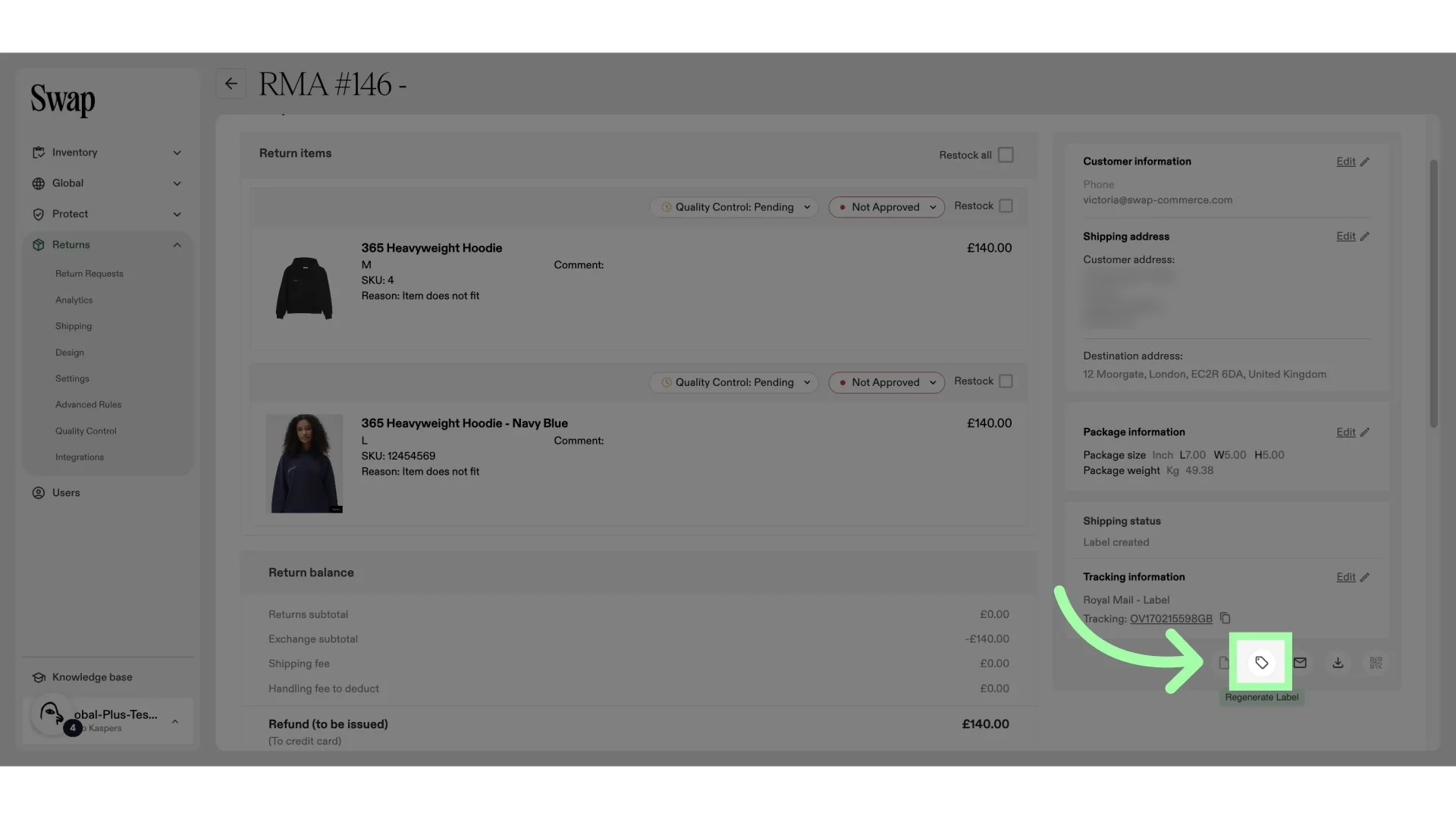
- Click here to regenerate a label
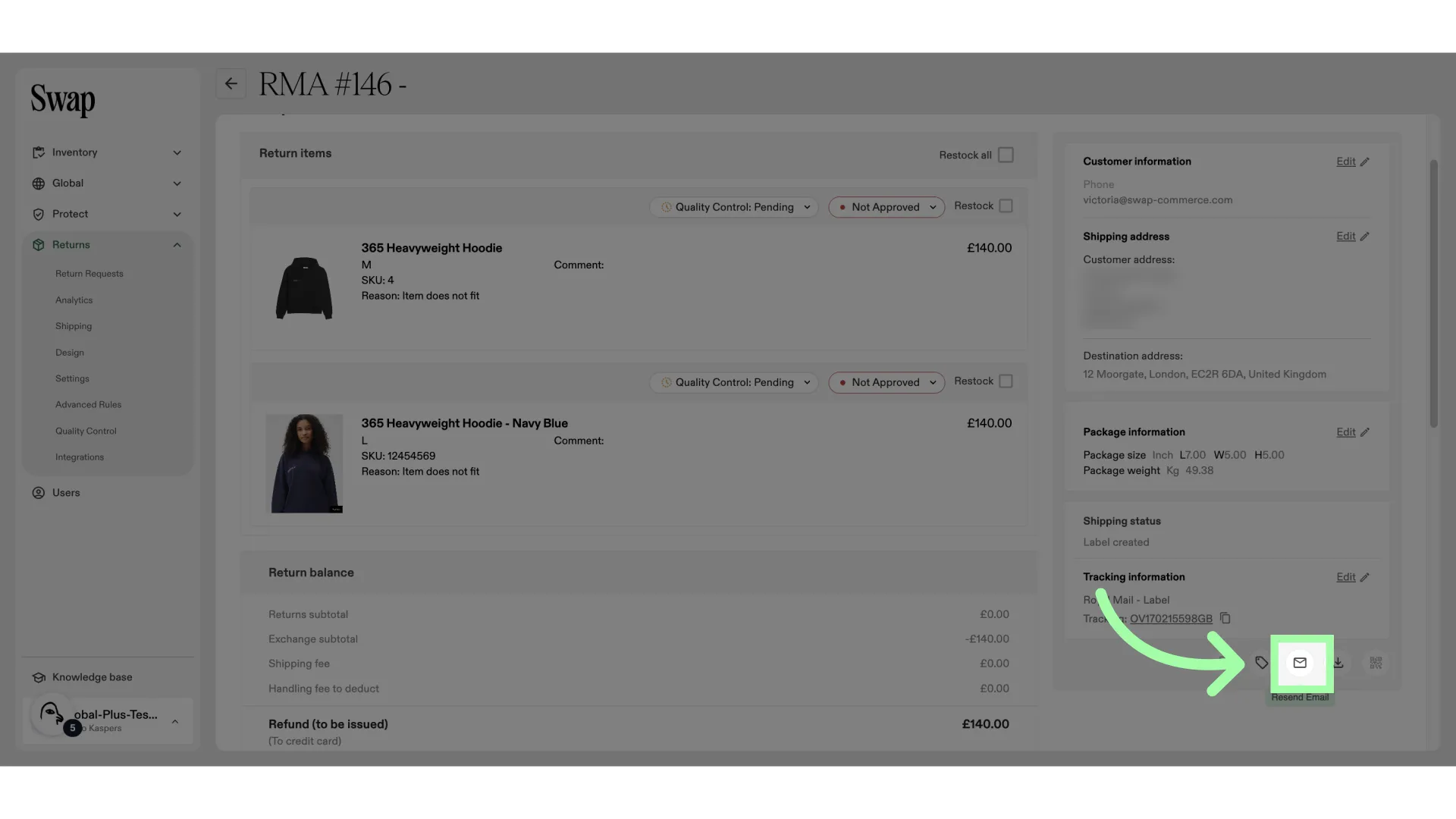
- Click here to resend the confirmation email
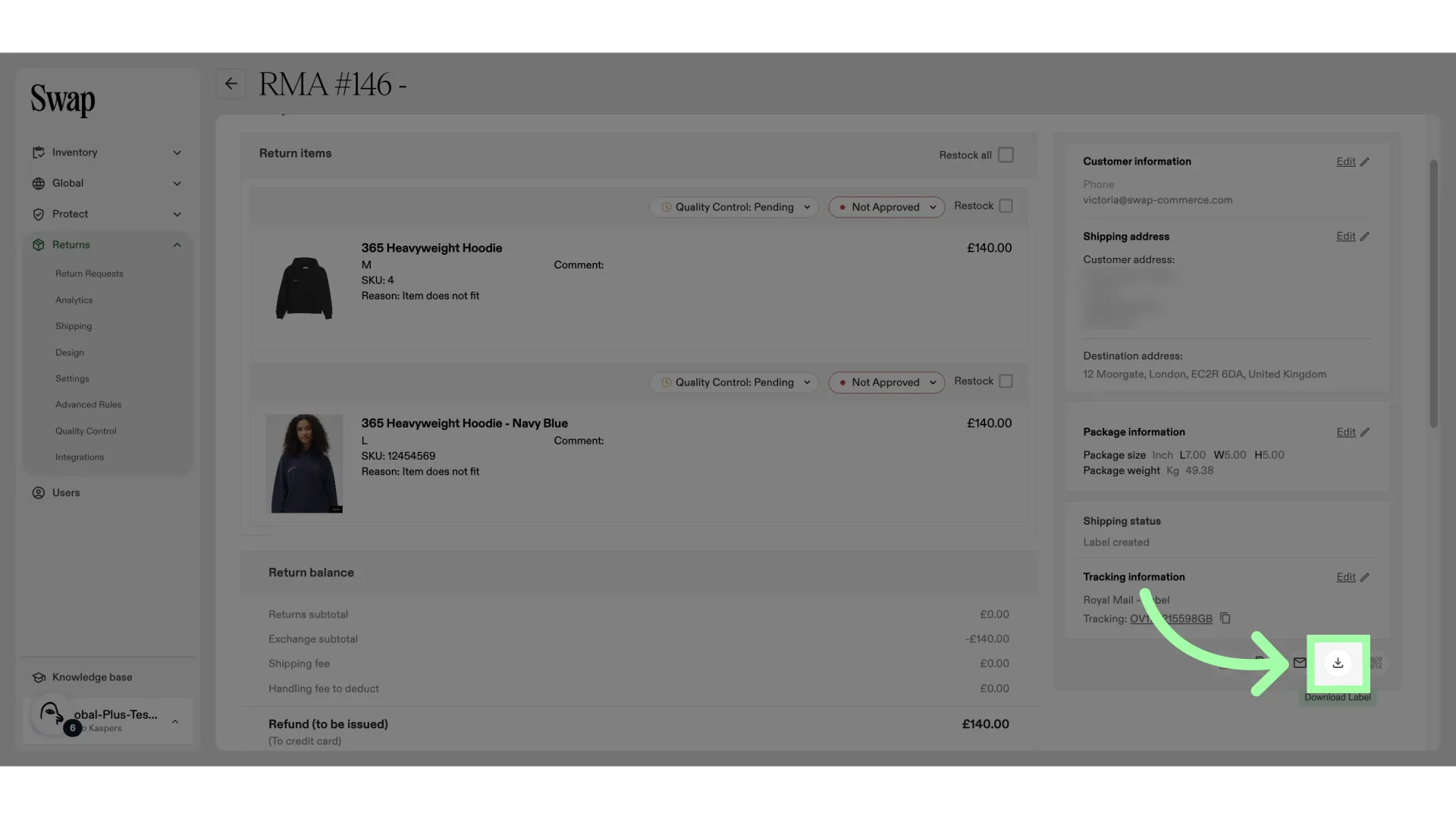
- Click here to download the label
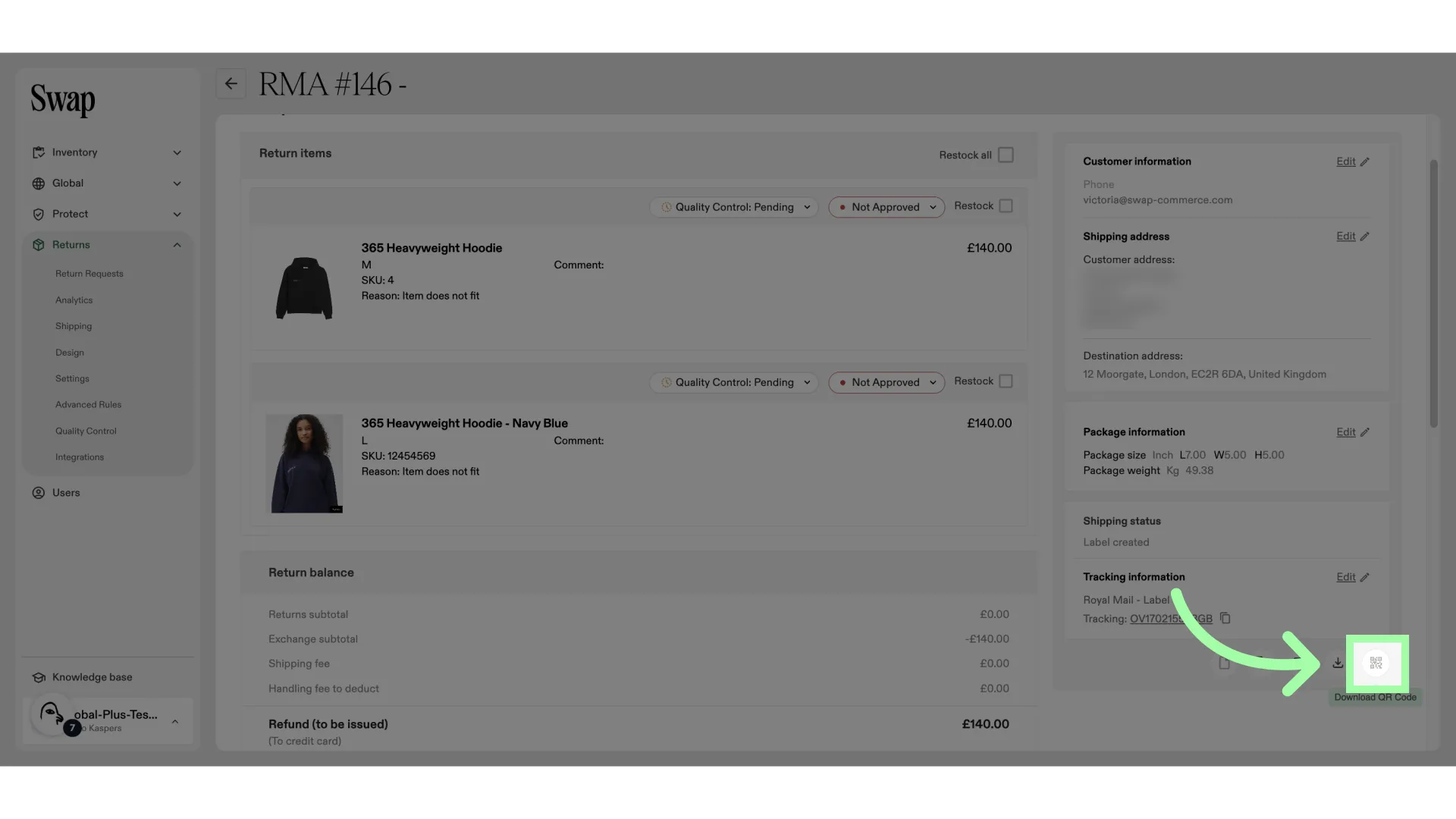
- Click here to download the QR code, if applicable
- Click here to download the commercial invoice, if applicable