














This article explains how Split Return Shipments lets you return items from a single order to multiple destinations, useful when items are shipped from different warehouses or regions.
Split shipments send items from one order to different return addresses; split labels let a customer put items going to the same address into more than one box. For split labels, see Understanding split labels (Returns V2).
Key benefits
- Multiple Return Addresses: Items can be returned to different locations depending on rules.
- Accurate Fulfilment: Ensures returned items go to the right warehouse for processing.
Setting up split shipments
1. Turn on Split shipment for a carrier
Routing rules only apply to carriers with Split shipment turned on.
- Go to Returns → Shipping and open the Carriers tab.
- Click the arrow (>) next to the carrier to open its configuration.
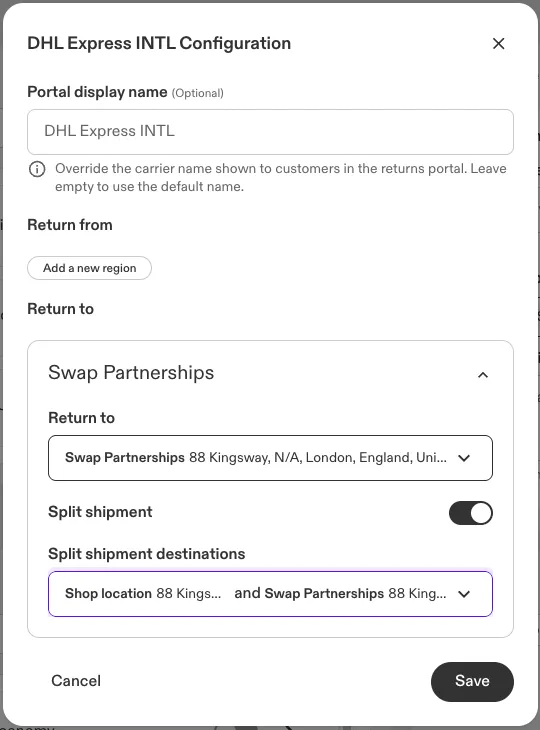
- Under Return to, select the carrier's default address in the Return to dropdown.
- Turn on Split shipment.
- In Split shipment destinations, select every location your routing rules send items to.
- Click Save.
Repeat for each carrier that should support split shipments.
Note: Items that no routing rule matches go to the carrier's Return to address, so always set one.
2. Configure return destinations
Return destinations define where items are sent back to during a return.
There are two types of destinations:
- Custom Return AddressesAdd any custom warehouse or partner locations manually under Returns → Shipping → Destinations.These addresses appear in the Return Addresses table. Add one with +. You can edit an address at any time, but you can't remove it while a carrier uses it as its Return to address.
- Shopify Fulfilment Locations (for Routing Rules)Shopify fulfilment locations do not appear in the Return Addresses table.However, they are automatically available when creating Routing Rules.This allows you to route items directly back to their original fulfilment location without manually adding the address here.
3. Define routing rules
Routing Rules determine where items are sent based on specific conditions.
Navigate to Returns → Shipping → Destinations.
- In the Routing rules table, click +.
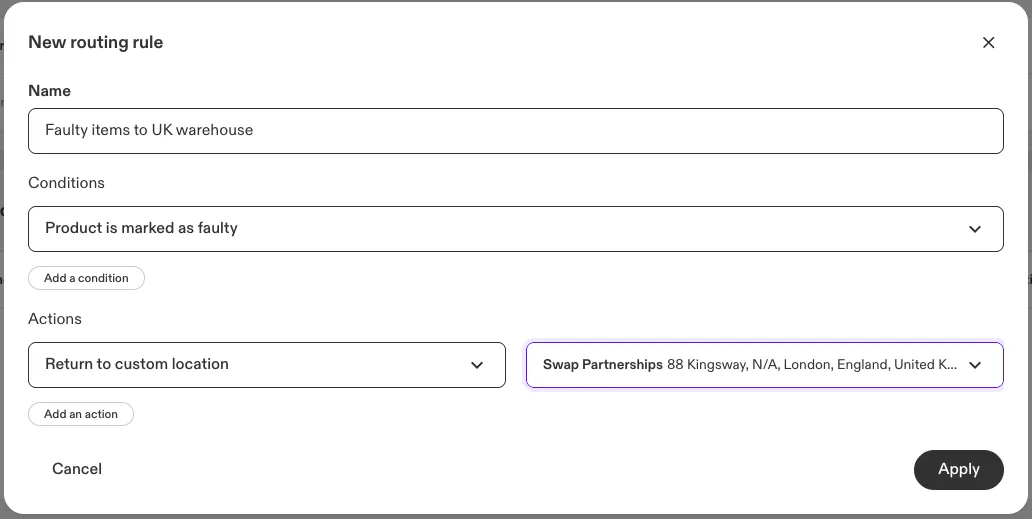
- Enter a Name for the rule.
- Under Conditions, choose a condition and its value. Click Add a condition to add more.
- Under Actions, choose where matching items go:
- Return to custom location sends them to an address from the Return Addresses table.
- Return to this Shopify fulfillment destination sends them to one of your Shopify fulfilment locations.
- Select the location and click Apply.
Rules can contain multiple conditions. When multiple conditions are added to a rule, they are evaluated using AND logic, meaning all conditions must match for the rule to apply.
You can assign products or orders to destinations using one or more of the following conditions:
Available condition types
Product Vendor
Route items based on the product's vendor.
- Each vendor condition can contain only one vendor.
- Vendor-based routing is useful when products from different suppliers must be returned to different warehouses.
Product Tags
Route items based on product tags.
- Multiple tags can be used in a rule.
- Useful for grouping products across collections or categories.
Fulfilment Location
Route items based on the original Shopify fulfilment location.
- This allows returns to go back to the warehouse that fulfilled the order.
- Works independently or in combination with other conditions.
Product Marked as Faulty
Route items that are marked as faulty in the return.
- Useful for sending faulty items to a different warehouse from the rest of the return.
Orders Originating from Specific Countries
Route items based on the customer's country.
- Countries are selected using the country selector.
- This condition uses the customer's shipping country.
- Can be combined with other conditions for more specific routing.
Note: Northern Ireland (postcodes starting BT) and the Orkney Islands (postcodes starting KW15, KW16, or KW17) are available as UK sub-regions. Puerto Rico (state PR) and Guam (state GU) are available as US sub-regions. Sub-regions are selected on every carrier by default. Where a carrier does not serve one, untick it on that carrier, tick it on a carrier that does, and click Save. DPD Return to Shop, for example, does not cover Northern Ireland (BT postcodes), so Northern Ireland is unticked on DPD and assigned to a carrier that serves it. A carrier with a sub-region unticked is no longer offered for a return from an address in that sub-region, so the returns portal only offers carriers that cover the customer's sub-region.
Example:
- Orders fulfilled from Warehouse A → return to Warehouse A
- Orders fulfilled from Warehouse A AND customer country is US → return to Warehouse B
These two rules interact. The two-condition rule is the more specific of the two, so orders fulfilled from Warehouse A with a US shipping country return to Warehouse B, and all other Warehouse A orders return to Warehouse A.
Rule evaluation and priority
When multiple routing rules could apply to the same item, the system determines which rule to use based on the following order:
1. Specificity first
Rules with more conditions take priority over rules with fewer conditions.
A rule with two conditions (for example, Vendor AND Country) overrides a rule with one condition.
This ensures that more specific routing logic always wins.
2. Condition type priority
If two rules contain the same number of conditions, condition types are evaluated in the following order:
Vendor > Tag > Fulfilment Location > Country
Examples:
- A rule with one Vendor condition overrides a rule with one Tag condition.
- A rule with one Tag condition overrides a rule with one Fulfilment Location condition.
3. Creation time
If rules are equally specific and contain the same condition types, the rule created first is applied.
Automatic routing behaviour
When a return is created:
- Each item is evaluated against all routing rules.
- The system selects the most specific matching rule.
- The item is assigned to the destination defined in that rule.
If no rule matches, the item goes to the carrier's Return to address.
Always set a Return to address on every carrier so returns can be processed even if no routing rule applies.
4. Customer portal flow
- Labels for each shipment are generated automatically.
- Optional shipping fees can apply per shipment.
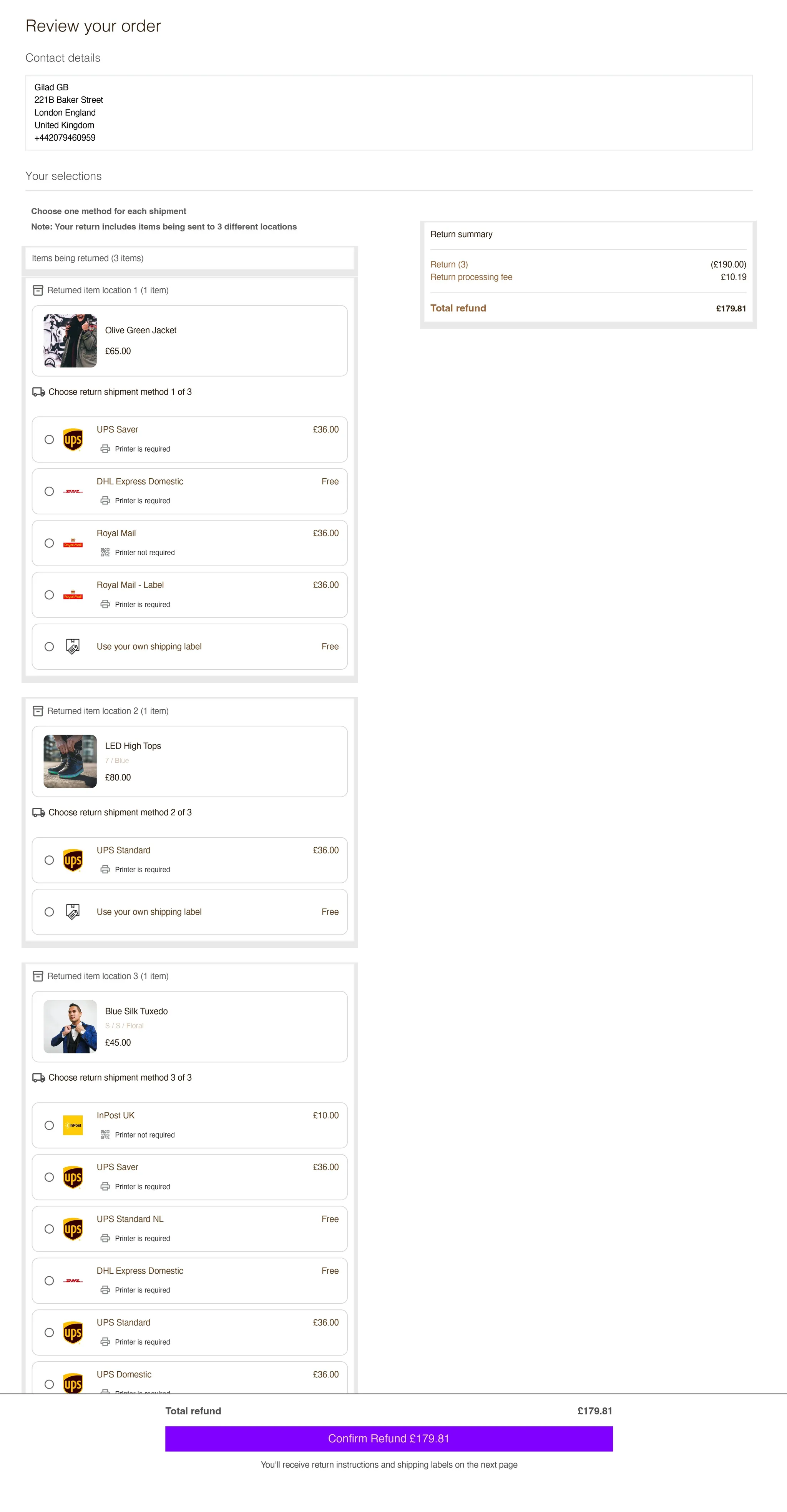
5. Managing RMAs in the dashboard
- Each return merchandise authorisation (RMA) splits into packages per destination.
- View shipment details, labels, and item assignments for each package.
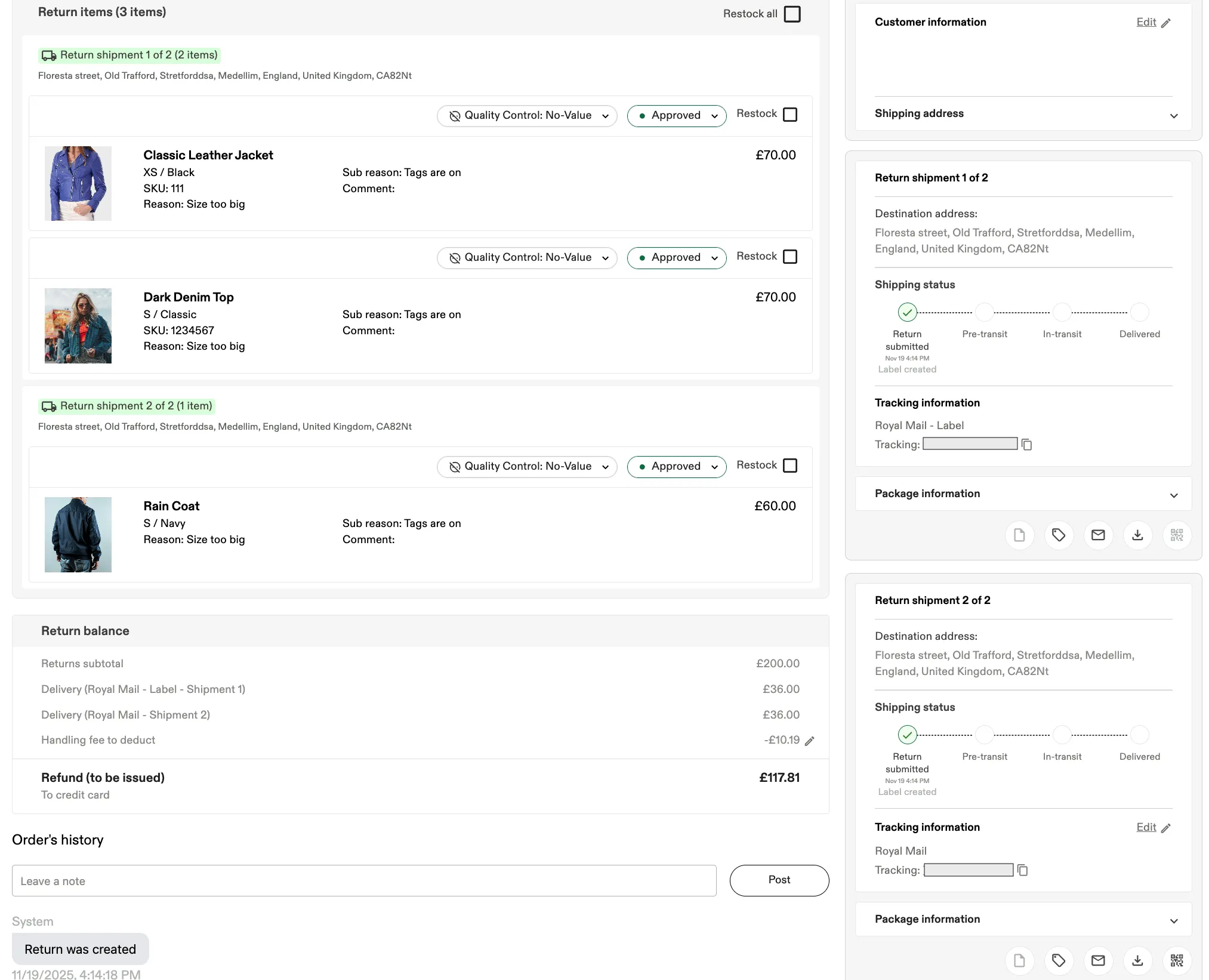
Instant Exchanges
Instant Exchanges fully support split shipments. When a return contains multiple shipments, each shipment is processed independently. This ensures correct payment handling and prevents issues when different shipments arrive at different times.
How it works
- Swap monitors each shipment separately.
- When a shipment meets the Instant Exchange conditions (for example in transit or delivered in time), only the value of the items in that shipment is deducted from the total payment hold.
- Other shipments remain unchanged until they meet the conditions.
- Once all shipments have arrived, the payment hold is released fully.
Payment adjustments
- Returned items trigger payment updates only for the items in their shipment.
- Where the hold is the full value of the return item(s), the hold amount and the payment amount decrease together and remain equal.
- Where the hold is the $1 placeholder, only the payment amount changes.
- The UI and Stripe both update instantly.
- A log entry is added for each update, for example:
Shipment 2 is delivered. £40 removed from the total hold amount.
The log is written when a shipment reaches the status the store requires, which is either in transit or delivered, and the amount removed is the value of the return items in that shipment.
Charge check loop for split shipments
The charge check loop ensures Instant Exchange calculations stay accurate when shipments arrive at different times.
Monitoring shipment status
Each shipment in the RMA is continuously checked for its status (created, labelled, in transit, delivered).
Hold and payment updates
When one shipment qualifies:
- The value of that shipment's items is removed from the hold amount and the pending payment.
- Where the hold type is Full value of return item(s), the hold amount and the payment amount decrease together so they always match.
- Where the hold type is Equivalent of $1 USD, the $1 placeholder hold stays in place until all shipments meet the requirements, and only the payment amount changes.
- The system does not run calculations after the hold has already been released.
Logs
Every update adds a log to the RMA indicating:
- Which shipment changed
- Its status
- How much was deducted
- The updated hold amount
Reminder emails
Reminder emails are still sent if at least one shipment has not met the conditions.
If all shipments meet the conditions, reminder emails are cancelled.
The email amounts always reflect the latest payment calculation.
Customer emails for split shipments
Swap automatically sends customer emails that include all shipments in a return.
When a return contains multiple shipments, the email displays each shipment separately, including:
- Carrier
- Tracking number
- Label download
- Items in that shipment
- Drop-off and tracking links
Return confirmation email behaviour
The return confirmation email is sent automatically only if all return labels are created successfully.
If one or more labels fail to generate, the email is not sent automatically from the portal.
You can still send the email manually from the RMA:
- Regenerate the labels inside the RMA and resend the email
- Or choose to send the email manually even if not all labels were generated
Example email with multiple shipments
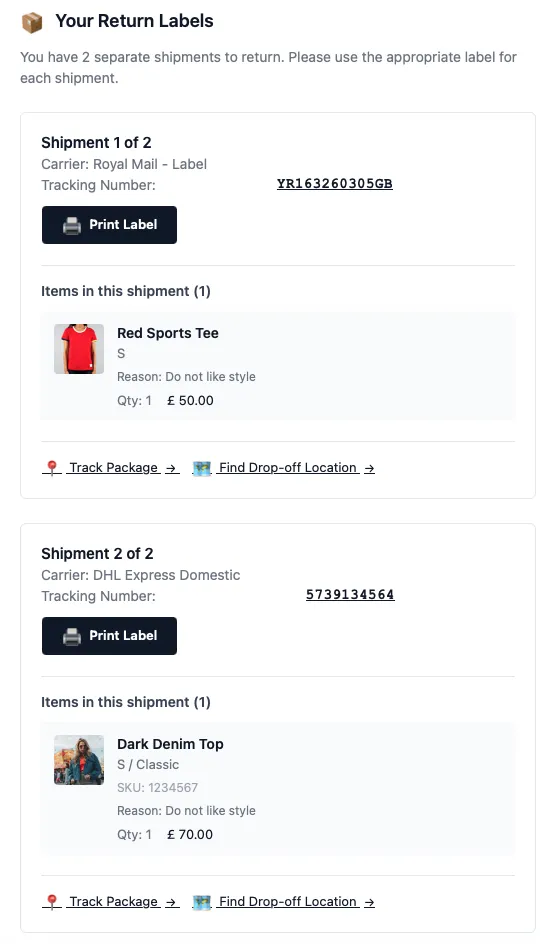
Best practices
- Always set a Return to address on every carrier.
- Use multiple conditions to create precise routing rules where necessary.
- Be aware that Vendor rules take priority over Tag rules when both apply.
- Avoid creating overlapping rules unless the priority behaviour is intentional.
- Verify that all destinations are within carrier coverage.
- Test country-based routing rules to ensure correct international handling.