
















Shopify POS orders usually have no shipping address, because the customer took the item away with them. Swap collects the missing address during the return flow so those orders can still be returned or exchanged online.
Why This Is Needed
POS orders often do not include a shipping address.
Without an address:
- Carrier options cannot be correctly calculated
- Return labels cannot be generated
- Exchanges cannot be shipped to the customer
This feature ensures the required address is collected before the return is created.
How to enable returns for POS orders
This setting is on by default, so most stores need do nothing. To check or change it:
- Go to Returns → Settings in your Swap dashboard.
- Open the Returns tab.
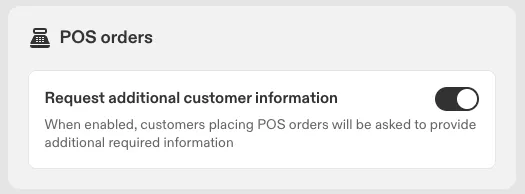
- Find the POS orders card.
- Turn on Request additional customer information. When it is on, customers placing POS orders are asked to provide the additional information Swap needs before starting a return.
How it works
How Swap identifies a POS order
When a customer logs into the returns portal, Swap checks:
- Whether the order was created via the POS channel
- Whether a shipping address is missing
If the address is missing, the customer is prompted to provide it.
Collecting the address
Before entering the return flow, the customer sees a pop-up asking for:
- Full name
- Address
- City
- Postal code
- Country
Where your login settings require an email address, the email on the order is pre-filled and cannot be edited. Where email is not required at login, the field is not pre-filled.
Label creation and the return summary
After submission:
- The return label is created using the provided address
- The new address appears on the return summary page
- The address is visible inside the RMA
The address is stored in Swap against that return and used for carrier eligibility. It is not written back to the Shopify order.
After the return is processed
Once the return is approved:
- If an exchange is created in Shopify, the exchange order uses the newly collected address, so the replacement is shipped to the right place.
- The address is collected per return, not saved to the order. A later return on the same order asks the customer for their address again. This is deliberate: it avoids reusing an address that may have changed since.
Orders with only a billing address
Orders that have a billing address but no shipping address use the same address pop-up, controlled by a separate setting. To turn it on, find the Billing-only orders card on the same Returns tab and turn on Request address for billing-only orders.
When it is on, customers whose order has only a billing address are asked to confirm their shipping address before starting a return. The customer can enter any address; Swap applies no restriction.
The confirmed address is used for the label, the RMA and the return summary page, in the same way as the POS address described above.
When a POS order still cannot be returned
The order has no email address and your login settings require one. Login is blocked before the address pop-up is ever reached, so the address collection never gets a chance to help. The fix is on your side: add the customer's email to the order in Shopify, then ask them to try the return again.
The setting is switched off. A POS order with no shipping address cannot proceed, because carrier options cannot be worked out without one. The customer sees: "POS orders are not supported for returns at this time. Please contact support for assistance."
Things to know
- Split shipments do not apply to POS orders. A POS order is tied to a single store location, so there is nothing to split.
- An invalid email address on the order can stop an exchange being created. Where the email does not meet Shopify's own formatting rules, Shopify rejects the exchange order and that rejection is not currently surfaced back to the portal, so the failure is silent. If an exchange on a POS order does not appear in Shopify, check the email address on the original order first.
Customers on marketplace orders are prompted for an address in the same way. See How to enable order-tag login for marketplace orders.