













When a return is processed, Swap can put the returned item back into your Shopify inventory, and you can control which location it goes back to.
How to set a default restocking location
- Go to Returns → Settings → Returns in your Swap dashboard.
- Find the Restock management card.
- Choose a location from Restocking default location.
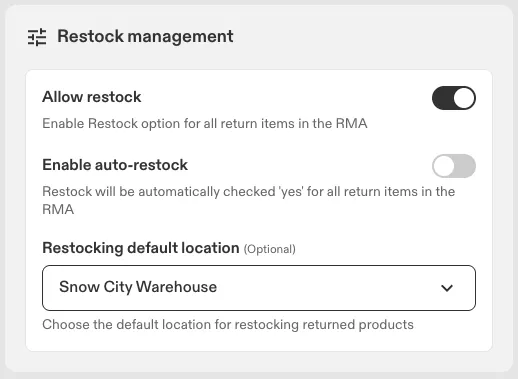
By default, Restocking default location is set to Shopify's default, so unless you choose a location, restocking follows the original order.
Restock options on the RMA
The same card has two settings that control the restock option on each RMA:
- Allow restock: shows the restock option for every return item on the RMA.
- Enable auto-restock: ticks restock for every return item on the RMA automatically, so items are restocked when the return is processed unless you untick them.
Which locations you can choose from
The dropdown lists the locations held in your Shopify account. That includes custom app locations and POS locations, not only your warehouses — so on a store with many locations, expect the list to be long and to contain locations you may not think of as stock-holding.
Where a returned item is restocked
- A location is selected — returned items are restocked to that location, regardless of where the original order was fulfilled.
- Shopify's default is selected — returned items are restocked to the original fulfilment location.
What restocking does not do
There is no rule for restocking to different locations depending on the return. If you need returns from different regions to go back to different warehouses, set Restocking default location to Shopify's default so that Shopify's own rules decide where stock lands, rather than Swap forcing every return to one place.
Restocking also does not apply to Instant Exchanges.
How a restock appears in Shopify
What a restock does to the original order depends on your accounting type — one type restocks without touching the original order at all, so no note is added to it. See Understanding accounting types for the behaviour of each type.
To change the location on a single exchange item rather than setting a store-wide default, see How to edit an exchange item on an open RMA.