
















Capped returns lets you limit how much Swap refunds automatically in a day, a week or a month, so you can keep return automation switched on without losing control of when cash leaves the business.

How the cap works
When the cap is on, Swap checks every automatic refund against your limit before it is issued.
- If the refund fits inside the limit, Swap processes it as normal.
- If it would take you over the limit, Swap holds the return in a queue and processes it automatically when the window resets.
The cap only constrains automatic processing. It never blocks you from processing a return yourself, and you can process any queued return manually at any time.
The cap applies to:
- Returns auto-processed by Quality Control, including partial QC results
- Returns auto-processed by an Advanced Rules refund action
The cap does not apply to:
- Returns you process manually, which are never blocked (they still count towards your usage, see below)
- Instant Exchanges, which are never held back — though any refund they issue still counts towards your usage
- Withdrawal returns submitted through the Withdrawal Portal
Setting your refund cap
- Go to Returns → Return requests in your Swap dashboard.
- Click Cap on the cap card above the returns table. The Refund cap window opens.
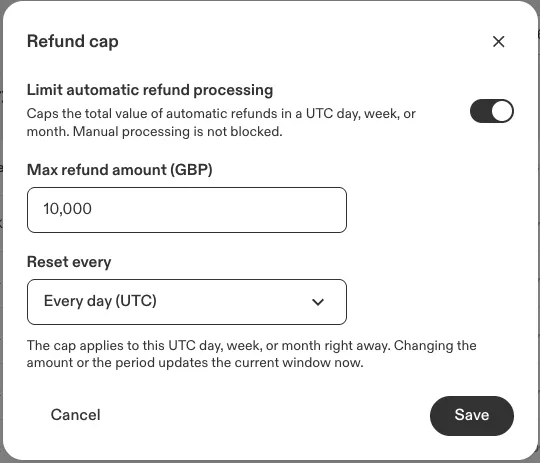
- Turn on Limit automatic refund processing.
- Enter the Max refund amount. This caps the total refunded in that window, in your store's currency. The currency code is shown in the field label, for example Max refund amount (GBP).
- Under Reset every, choose Every day (UTC), Every week (UTC) or Every month (UTC).
- Click Save.
You can also set the cap from Returns → Settings.
Swap never issues a partial refund to fit a return under the cap. If a return does not fit in full, it waits.
When each window resets
All windows run in UTC, not your local time.
Period | Window |
Day | 00:00 to 24:00 UTC |
Week | Monday 00:00 UTC to the end of Sunday |
Month | The 1st to the last day of the month |
What counts towards the cap
The refund amount is counted in your store's currency, whatever currency the customer paid in.
Return | Counts towards the cap |
Automatic refund | The refund amount |
Automatic exchange with money back | The refund amount |
Automatic return with no cash refund | Nothing |
Instant Exchange with a refund | The refund amount |
Instant Exchange with a card hold only | Nothing |
Store credit is never capped, and neither are Shop Later bonuses. Only cash refunds count.
Tracking your usage
The card above the Return requests table shows how much you have refunded in the current window, how much of the cap is left, and when it resets. A Cap reached badge appears once the cap is full.
The card includes refunds you process manually and refunds issued by Instant Exchanges, as well as automatic refunds. Manual refunds move the bar but are never held back, so you can go over the cap by processing returns yourself.
Queued returns are processed automatically when the cap resets, oldest first.
If you do not use automatic processing
The cap setting and the usage card are available whether or not Quality Control auto-processing is on. If you do not use automatic processing, Quality Control does not refund returns automatically, so the cap has nothing to hold from that source. An Advanced Rules refund action can still be held, and refunds you process yourself still show on the usage card.
Returns larger than the whole cap
A single return worth more than your entire cap can never fit in any window, so it stays queued indefinitely. Process it manually, or raise the cap so it fits.
Changing or turning off the cap
Changes take effect immediately — there is no scheduled or next-period option. Swap uses the current window's real usage, not a fresh count.
What you do | What happens |
Raise the limit | Queued returns are released and re-checked against the new limit |
Lower the limit | Refunds already issued stand. New automatic refunds queue until the window resets |
Change the period | Queued returns are released and re-checked against the new window's usage |
Turn the cap off | Swap shows a warning, then releases the queue |
Released returns are processed in the background rather than all at once, oldest first. Any return that still does not fit waits for the next reset.
Permissions
Anyone who can view the returns list can see the usage card. Only Managers and above can click Cap.