









This article explains how to customise the emails sent during the return journey, using Swap's built-in email templates.
You can:
- Enable or disable specific emails
- Edit the message content
- Customise button text and links
- Preview how emails will appear to customers
Accessing email settings
- In the Swap Dashboard, go to:Returns → Settings → Emails
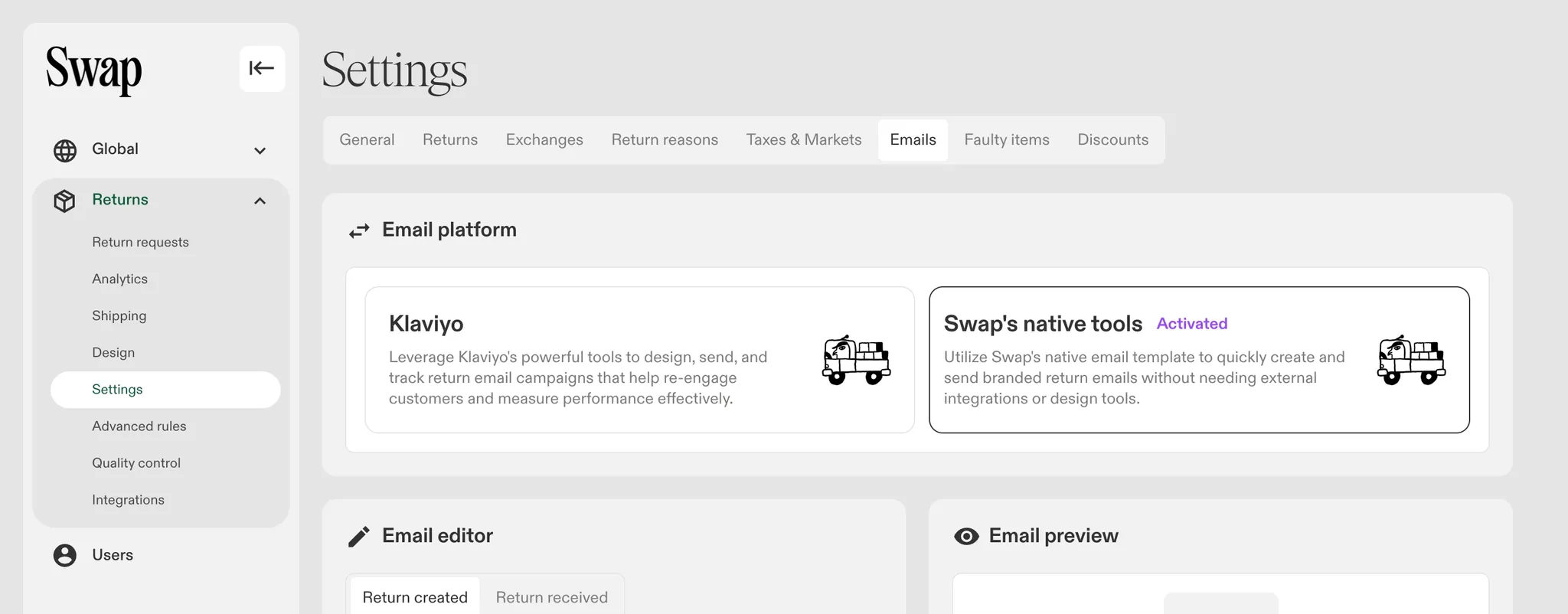
- Select your email platform:
- Swap's native tools
- Klaviyo
Using Klaviyo
If Klaviyo is your preferred email platform, you still need to disable Swap native emails. It is possible to use both at the same time.
See: Klaviyo Integration (Returns V2)
Email types
You can customise the following email types:
- Return created – Sent when a return is submitted
- Return received – Sent when returned items are delivered to the return address
Select the email type in the editor to begin editing.
Enabling or disabling emails
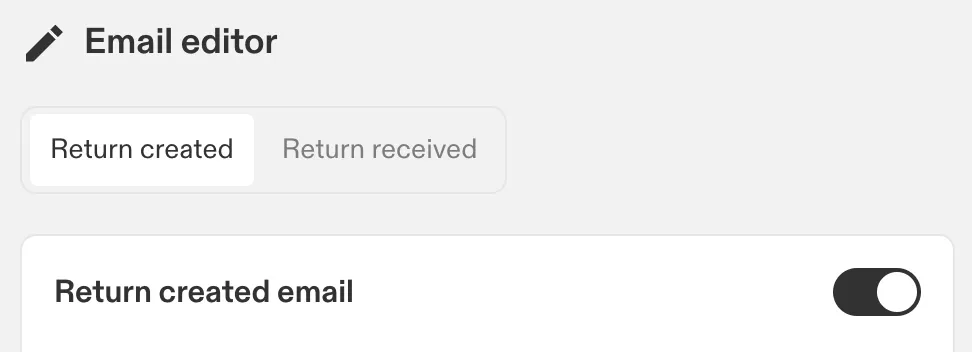
Each email can be toggled on or off.
- When enabled, the email is sent automatically
- When disabled, no email is sent for that event
Choosing who sends the Return created email
The Return created email card has a Send with option:
- Swap: Swap sends its own email, using the content you set in the editor. This is the default.
- Shopify: Shopify sends its native Return created email, including the return's tracking details and label.
Shopify is only available if your store uses Shopify's Returns API or Exchange API. When it's selected, the body text, subtext and button you set in the editor aren't used, and some returns still get Swap's email, for example returns that need more than one label. For the full list, see Understanding Swap's integration with Shopify's Returns and Exchange API.
The Return received email is always sent by Swap.
Customising email content
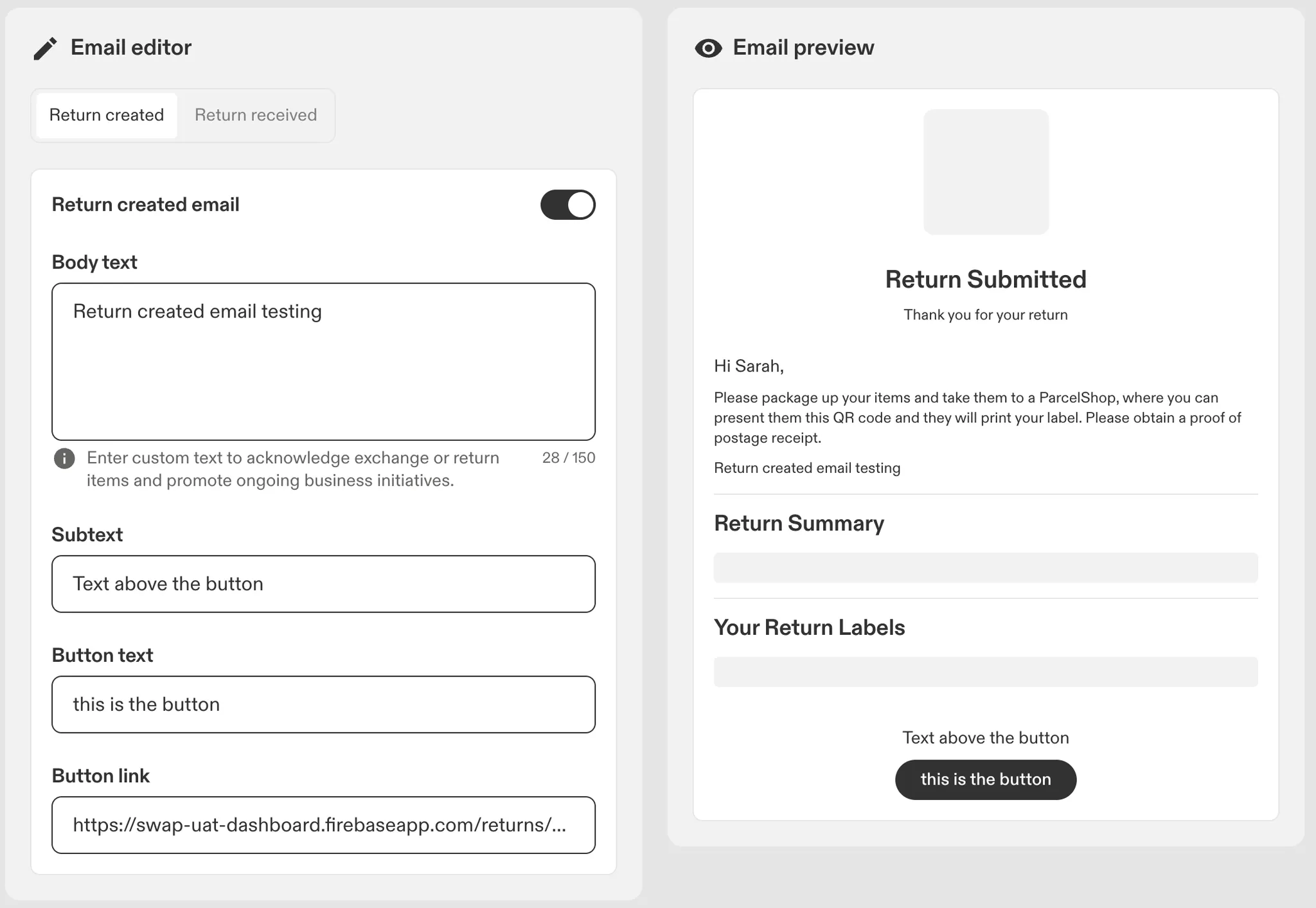
The Email preview panel shows how the email will appear. Use the preview to verify content and layout.
You can edit the following fields for the Return created email template:
Body text
This is the main message shown in the email.
- Appears within the email content
- Used to provide additional instructions or messaging
Subtext
This text appears above the button in the email.
- Used to guide the next action
Button text
Defines the label shown on the call-to-action button.
Button link
Defines where the button directs the customer.
- Must be a valid URL
Important notes
- Changes apply to all future emails of that type
- Changes do not apply to emails that have already been sent
- Each email type must be configured separately
- Ensure button links are correct before enabling emails