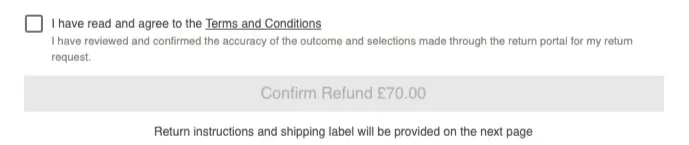
















You can ask customers to agree to your terms and conditions before they submit a return. The checkbox appears on the returns summary page, and the customer can't confirm the return until they tick it. This article covers how to turn it on and what each option does.
How to turn on the checkbox
- Go to Returns → Settings → General.
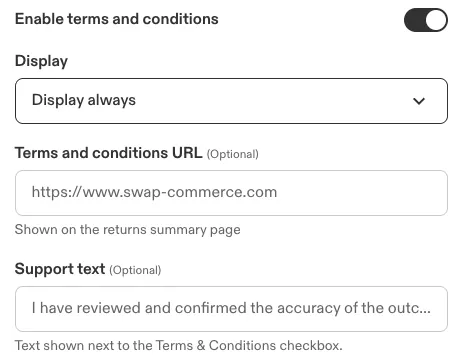
- In the Portal settings card, turn on Enable terms and conditions.
- In Display, choose which returns show the checkbox.
- Optionally, add a Terms and conditions URL and Support text.
Options
Display
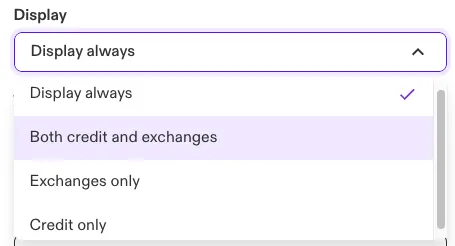
Choose which returns show the checkbox:
- Display always (default)
- Both credit and exchanges
- Exchanges only
- Credit only
Terms and conditions URL (optional)
Add the address of your terms and conditions page. The words terms and conditions next to the checkbox then link to it, and the page opens in a new tab. Without a URL, the words appear as plain text.
Support text (optional)
Add your own text, shown under the checkbox label, for example to explain a charge the customer will see when they confirm the return.
What customers see
- The checkbox reads I have read and agree to the Terms and Conditions, with your support text underneath.
- The confirm button stays disabled until the customer ticks the checkbox. Its label depends on the outcome, for example Confirm Refund. Hovering over it tells the customer they need to accept the terms and conditions.
- If the return also needs a payment through Stripe, the payment checkbox and the terms and conditions checkbox both appear, and the customer must tick both.