














Two advanced rules support Checkout+ in your returns portal: one hides the Checkout+ product from the return list, and one waives return postage on protected orders. We recommend setting up both. Whether to offer free returns, and in which regions, is your decision.
For what Checkout+ is and how the commercial model works, see Getting started with Checkout+. For the full list of conditions and actions, see Understanding advanced rules (Returns V2).
Before you start
You will need:
- Checkout+ live on your store, with Swap Protect activated in Widget mode.
- The name and SKU of the Checkout+ product as they appear in your Shopify catalogue. On stores migrated from a legacy setup, the product can be named Protect Product or Shipping Protection instead.
- Your Checkout+ contract to hand, so you know which regions it covers.
Rule 1 — Hide the Checkout+ product from the returns portal
The Checkout+ product is a line item on the order like any other, so without a rule it appears in the list of items a customer can select to return. This rule removes it from that list.
- Go to Returns → Advanced rules.
- Click + New Rule.
- Enter a name in the Title field, for example "Hide Checkout+ product".
- Under Condition, select product name is [name] and enter the Checkout+ product name exactly as it appears in Shopify. You can use product SKU is [SKU] instead if the SKU is the more reliable identifier on your store.
- Under Action, select This Product Is Hidden From The Return List.
- Click Apply.
![Add a new rule window with the title “Hide Checkout+ product”, the condition “product name is [name]” set to Checkout+, and the action “This Product Is Hidden From The Return List”](https://cdn.sanity.io/images/yqjhv3kv/production/bb9665ff053ae1615dab6e41f5934067669ae46b-1031x535.png?tag=swap-web&w=2048&q=80&fit=max&fm=webp)
The product no longer appears in the return item list and cannot be selected.
Rule 2 — Waive return postage on Checkout+ orders
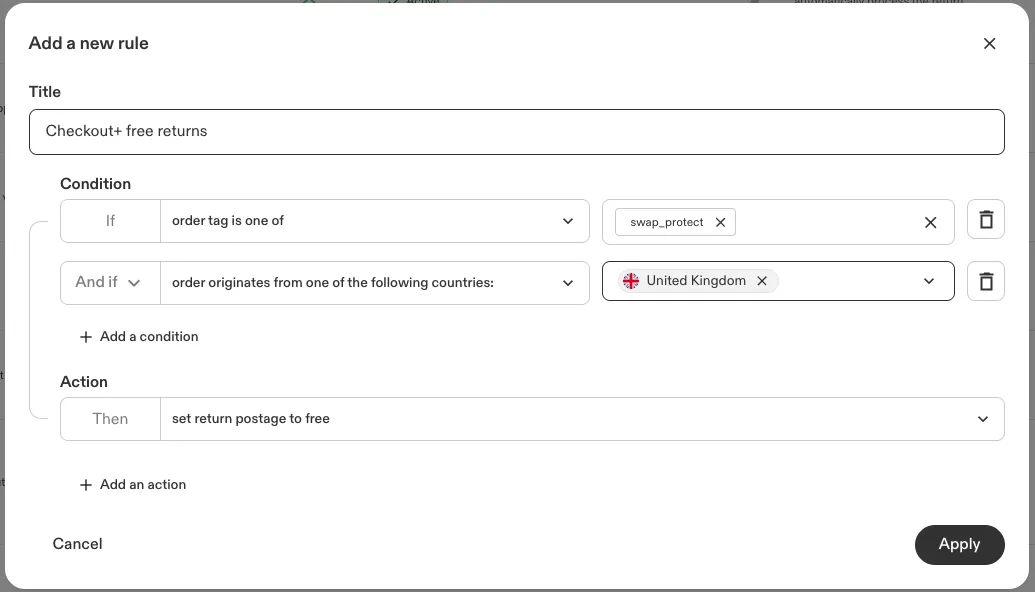
Every order containing the Checkout+ product is tagged swap_protect in Shopify. This rule uses that tag to make the return label free. We recommend it, but offering free returns is your decision.
- Go to Returns → Advanced rules.
- Click + New Rule.
- Enter a name in the Title field, for example "Checkout+ free returns".
- Under Condition, select order tag is one of and add
swap_protect. - Click Add a condition, select order originates from one of the following countries:, and choose the countries your contract covers.
- Under Action, select set return postage to free.
- Click Apply.
Which regions to select
Select countries according to your Checkout+ contract. Returns from countries you leave out fall back to your standard postage rules.
Testing your rules
Before going live, place a test order and run a return through it:
- In Shopify admin, create a draft order containing a physical product and the Checkout+ product, and mark it as paid.
- Confirm the order carries the
swap_protecttag and appears in your Protect dashboard. - Submit a return for the order through your returns portal.
- Confirm the Checkout+ product is not listed among the returnable items, and that no return postage is charged.
If postage is still charged, check that the order carries the tag and that the tag was added before the return was created. A tag added afterwards does not apply — recreate the return to test again.
Things to know
- Rules take effect immediately. You can deactivate either rule at any time from the Advanced rules list, and it stays saved.
- The rules work independently. Hiding the product does not affect postage, and waiving postage does not hide the product. Set up the ones that suit your store.
- Customers who do not opt in are unaffected. Their orders carry no tag, so neither rule applies and your standard return rules stand.
- Rule activity is recorded. When a rule is applied, a note is added to the RMA history.