















Batch processing
Batching lets you book and print labels for multiple orders at once, along with commercial invoices and packing slips.
Batch limits
Account type | Orders per batch |
Standard | Up to 50 |
Orders Plus | Up to 150 |
How to initiate a batch process
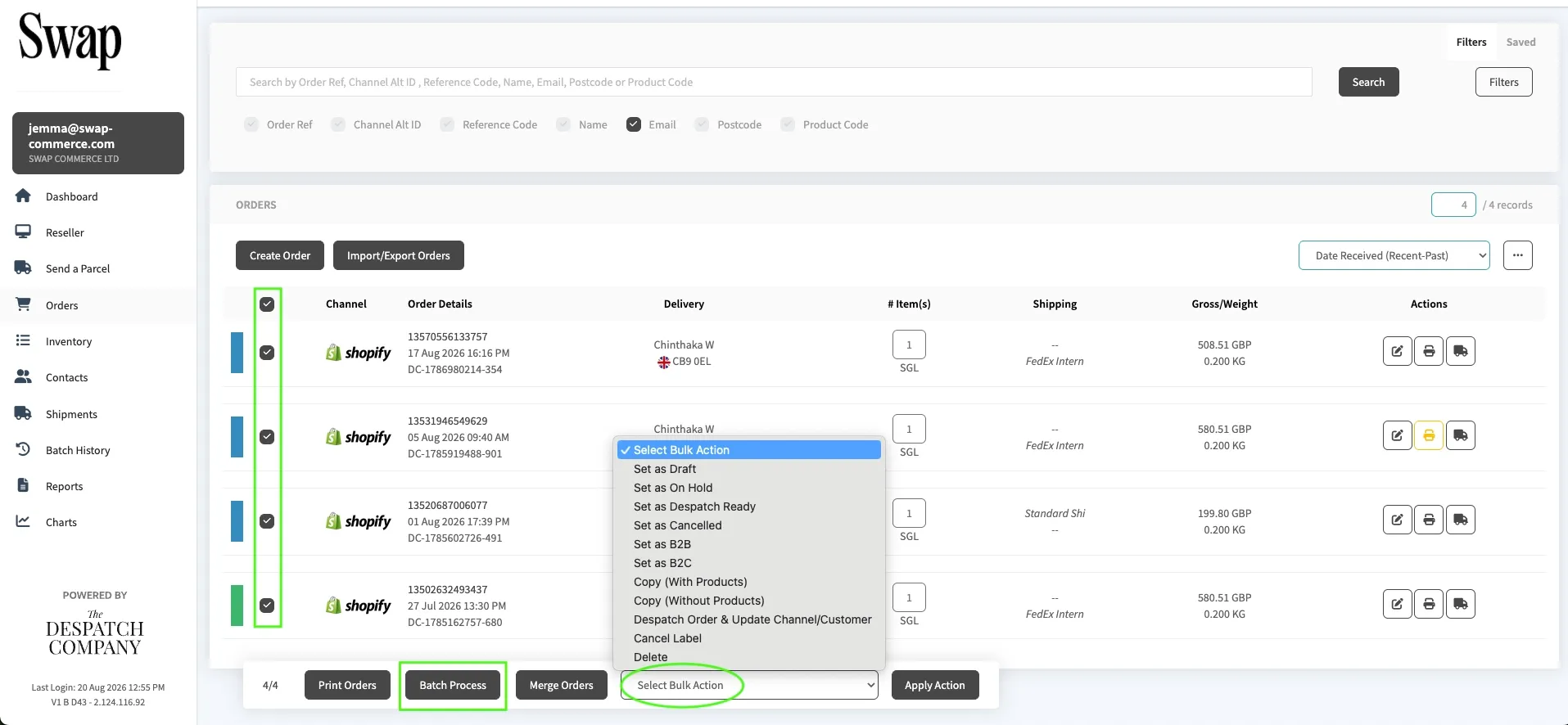
- Go to the Orders panel.
- Select the orders you want to process by ticking the checkboxes.
- Before processing, you can set values that apply to all selected orders (weight, packaging preset, shipping service, and value) using the bulk action bar at the top of the batch screen.
- Click the Batch Process button at the bottom of the screen.
5. Click Process Orders to book all labels.
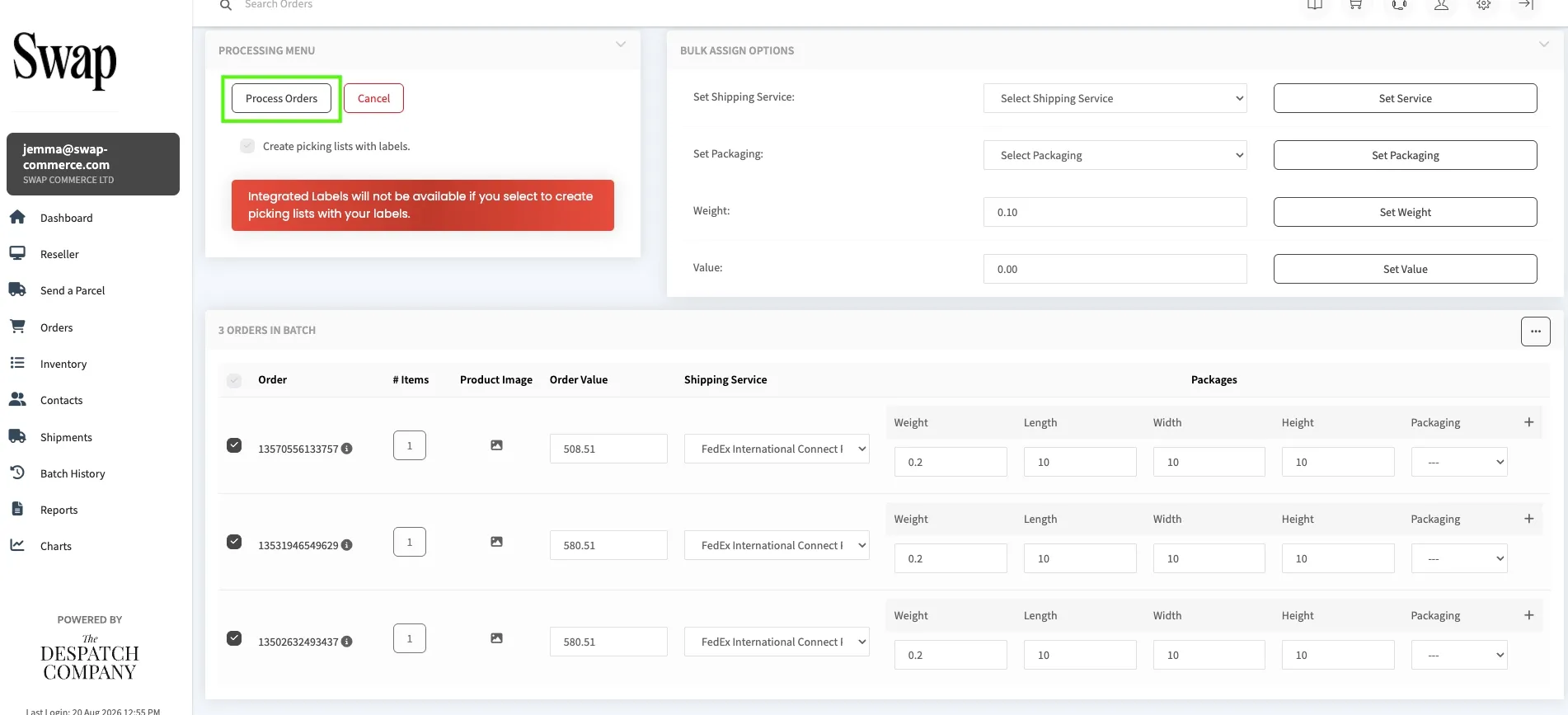
You'll be redirected to a batch status page. Processing time depends on how many labels are in the batch and how quickly the courier API responds.
Validating the success of your batch
- Click Batch History to see the results of your batch.
- Click a batch to see the individual order results. From here, you can also download all batch labels as a PDF.
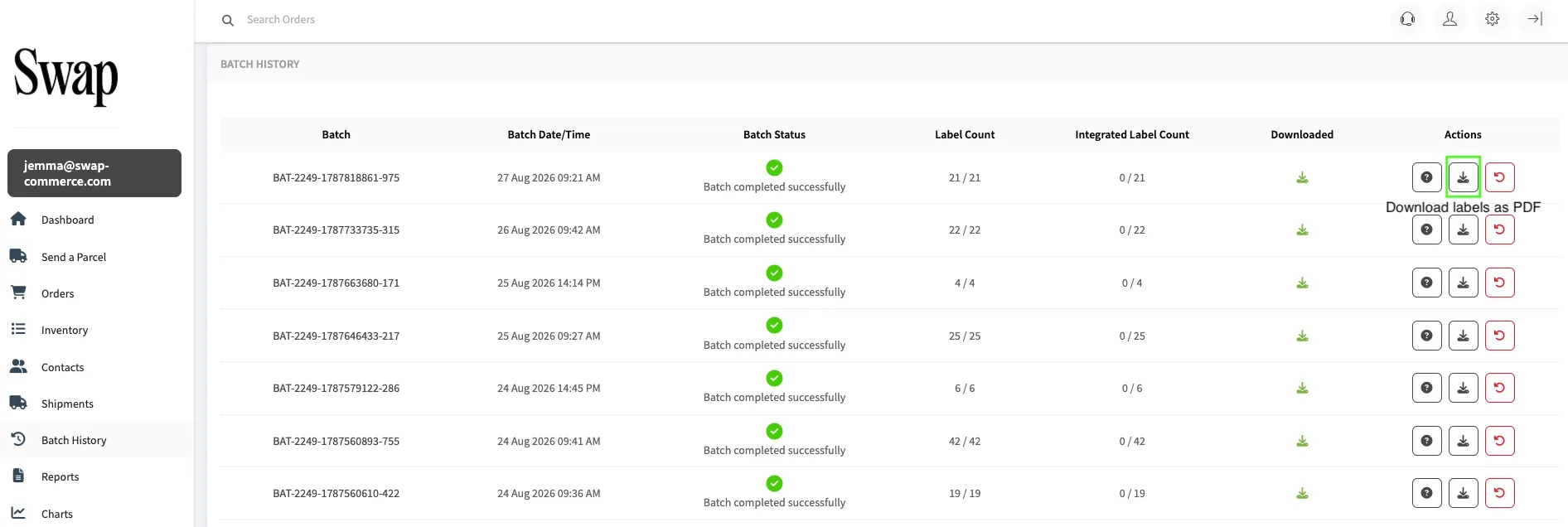
Batch status indicators
Icon | Meaning |
Green tick | Batch completed successfully |
Amber mark | Batch completed with at least one error |
Red cross | Batch failed |
Handling failed labels
If a shipment fails within a batch, you have a few options.
Reship individually. Open the failed order, go to Send a Parcel, and the order details will auto-populate. Adjust anything that caused the failure and rebook.
Reset and retry. You can reset an individual order from within the batch view, or reset the entire batch. When you reset, the system will also attempt to cancel the label with the courier, if the courier's API supports cancellation.
Path to batch history: Orders > Batch History